"Unable to connect to the proxy server" means your browser is set to use a proxy and could not reach it. The site you asked for was never contacted. It is the heading Chrome 35 showed for error -130, ERR_PROXY_CONNECTION_FAILED. Today Chrome shows "No internet" with the line "There is something wrong with the proxy server, or the address is incorrect", for the same code. The fix is almost always a proxy setting: switch it off, correct it, or find out what put it there.
This page covers what to check in order on Windows and in Chrome, then phones, Chromebooks, Macs and Firefox. The steps and wording come from Microsoft's, Google's, Apple's and Mozilla's own documentation and source code, read on October 13, 2026.
What the message means
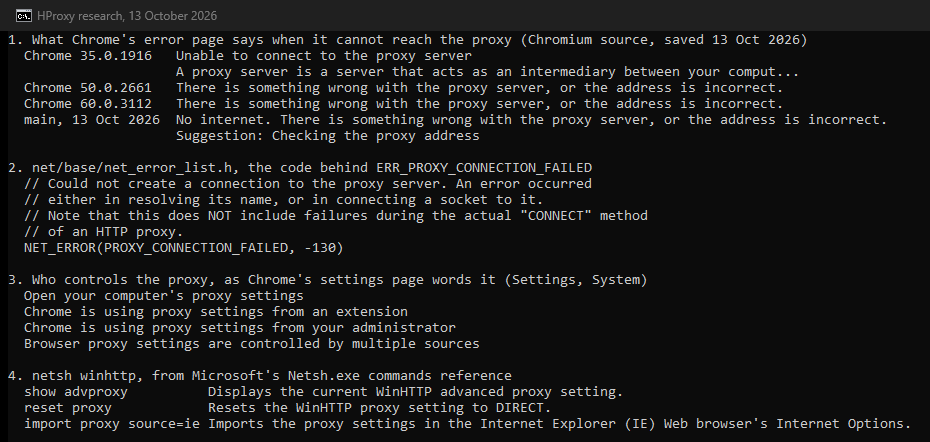
Chromium, the code Chrome is built from, defines the error in one comment: "Could not create a connection to the proxy server". The failure happened "either in resolving its name, or in connecting a socket to it". The same comment adds that failures during the proxy's CONNECT step are a different error. Our page on ERR_TUNNEL_CONNECTION_FAILED covers that one.
Chrome takes the proxy
from Windows, an extension or a policy
Looks up the proxy's name
a failure here is -130
Opens a connection to it
a failure here is -130 too
Asks it to CONNECT to the site
a failure here is -111, the tunnel error

The wording changed over the years. Chrome 35 headed the page "Unable to connect to the proxy server" and explained that "your system is configured to use a proxy" that Chrome could not reach. By Chrome 50 the page read "There is something wrong with the proxy server, or the address is incorrect". In Chromium's current code, error -130 gets the heading "No internet", that same line, and suggestions such as "Checking the proxy address". On Windows it also offers "Running Windows Network Diagnostics". The old heading still draws about 110 searches a month worldwide in Google's Keyword Planner, as many as Chrome's current line. The error code itself draws 3,600.
Check these in order on Windows and in Chrome
Chrome's settings page tells you where its proxy comes from. Open Chrome's settings and go to System. The proxy line there reads one of four things, and each names a source.
- "Open your computer's proxy settings" means Windows.
- Chrome "is using proxy settings from an extension" means an extension.
- Chrome "is using proxy settings from your administrator" means a policy.
- "Browser proxy settings are controlled by multiple sources" means more than one of these.
Start with whichever it names.
Find and clear the proxy behind the error
- 1
Read Chrome's System settings
The proxy line names the source: your computer, an extension, your administrator, or several of them.
- 2
An extension: turn it off
Extensions with the proxy permission can manage Chrome's proxy settings. Google's own advice for connection errors is to disable all extensions, then turn them back on one at a time.
- 3
Your administrator: read chrome://policy
Chrome's error page points there too: it lists the policies enforced by your system administrator. A managed proxy can only be changed by that administrator.
- 4
Your computer: open Windows' proxy settings
In Windows 10 and 11, open Settings, Network & internet, Proxy. Under Manual proxy setup, select Set up next to Use a proxy server, turn Use a proxy server off, and select Save. Check Use setup script as well.
- 5
A VPN connection: check its own proxy
Windows keeps a separate proxy for each VPN connection: Settings, Network & internet, VPN, the connection, Advanced options, then Edit next to Proxy settings for this VPN connection.
- 6
Still back after a restart: look for the program
A program that registered itself as the system proxy, or malware, can write the setting again. The next section covers both.
Microsoft's page on proxies says a manual proxy needs "the proxy server name or IP address and port". A VPN with a proxy needs you to "set it up separately for that VPN connection". When the error comes back after you clear the setting, something on the PC is writing it.
What netsh winhttp changes
Windows has a second proxy setting, for WinHTTP. Microsoft's reference lists netsh winhttp show advproxy, which "Displays the current WinHTTP advanced proxy setting", and netsh winhttp reset proxy, which "Resets the WinHTTP proxy setting to DIRECT". It notes that show proxy and set proxy are deprecated in favor of the advproxy commands. Microsoft also advises programs to use WinINet "unless you plan to run within a service or service-like process", so the WinHTTP setting mostly matters to services.
Chrome reads a different place. Its Windows code calls WinHttpGetIEProxyConfigForCurrentUser, which Microsoft describes as retrieving "the Internet Explorer proxy configuration for the current user". It also watches the Internet Settings key under HKEY_CURRENT_USER. So netsh winhttp reset proxy will not clear a proxy that Chrome is using. The command netsh winhttp import proxy source=ie goes the other way: it copies the Internet Options proxy into WinHTTP.
When a program, a VPN app or malware put the proxy there
Some programs set the Windows proxy on purpose. The debugging proxy Fiddler Classic documents it: "After you start Fiddler, the program registers itself as the system proxy". It adds that when you close Fiddler, "it unregisters itself as the system proxy before shutting down". On Super User, people describe the failure case: Fiddler did not shut down cleanly, the setting stayed, and the browser pointed at a proxy that was no longer running. A 2014 question there is titled "Unable to connect to the proxy server when Fiddler is switched off".
VPN apps can do the same. Android's developer reference for VPN apps includes setHttpProxy, which "Sets an HTTP proxy for the VPN network". On Windows, a VPN connection carries its own proxy settings, as above. Turning the VPN off, or removing the app, is the test.
Malware is the third case. Microsoft Defender has detections named Trojan:Win32/ProxyChanger, Trojan:JS/ProxyChanger and Trojan:VBS/ProxyChanger, each rated severe. Microsoft's pages for them say "many infections can leave remnant files and system changes". They add: "Updating your antimalware definitions and running a full scan might help address these remnant artifacts". Google lists the signs of unwanted software in Chrome, such as a homepage or search engine that "keeps changing without your permission". Its fix is to remove unknown programs under Start, Settings, Apps, Installed apps, then reset Chrome.
Who set the proxy, and how to tell
| Source | What you see | What to do |
|---|---|---|
| A Chrome extension | Chrome is using proxy settings from an extension | Disable extensions, then re-enable one at a time |
| Your admin | Chrome is using proxy settings from your administrator | Open Chrome's policy page; ask IT |
| A Windows VPN connection | A proxy under the VPN's Advanced options | Edit Proxy settings for this VPN connection |
| A debugging proxy such as Fiddler | The setting returns after the program crashed | Start the program and close it normally |
| Malware or unwanted software | The setting returns after you clear it | Full scan with Microsoft Defender; remove unknown programs |
| A proxy you set on purpose | Chrome's line: the address is incorrect | Correct the address or test the proxy |
Chromium settings strings, Microsoft Support and Security Intelligence, Fiddler Classic documentation, Google Chrome Help; read October 13, 2026
Chrome's reset restores Chrome's own settings; Google notes that it "won't provide a full reset". The Windows proxy is a setting of the computer. Chrome's label for it reads "Open your computer's proxy settings", and Chromium's note on that label says these settings "apply to the entire computer". Our guide to turning a proxy off shows where the switch lives on each system and how to prove it is off.
Phones, Chromebooks, Macs and Firefox
The proxy lives in a different place on each system, and on several it belongs to one network.
- Android. Each Wi-Fi network has its own Proxy setting, with the choices None, Manual and Proxy Auto-Config. Android's own warning reads "The HTTP proxy is used by the browser but may not be used by the other apps". Mobile data has a separate APN profile with its own Proxy field, and its menu offers Reset to default. A VPN lives under Settings, Network & internet, VPN, where Android's help also shows the Always-on VPN switch. Our Android setup guide walks through each screen.
- Chromebook. Each network's details hold a proxy Connection type: Direct Internet connection, Manual proxy configuration or Automatic proxy configuration. On a managed Chromebook the settings say "Your admin is enforcing the following proxy". Chrome's error page there adds: "You can disable any proxies configured for a connection from the settings page".
- Mac. Apple's guide: "choose Apple menu > System Settings, click Network in the sidebar, click a network service, click Details, then click Proxies". Each network service has its own set, including Web proxy (HTTP), Secure web proxy (HTTPS) and SOCKS proxy.
- iPhone and iPad. Our iPhone setup guide shows the Configure Proxy setting step by step.
- Firefox. Firefox keeps its own proxy in its Connection Settings dialog, with the options No proxy, Use system proxy settings and Manual proxy configuration. Its message for a refused connection is covered in our page on the proxy server refusing connections.
Where the proxy setting lives
| System | Where | Per network? |
|---|---|---|
| Windows 10 and 11 | Settings, Network & internet, Proxy | No |
| Windows VPN connection | VPN, Advanced options, Proxy settings | One per VPN connection |
| Chrome | Follows the computer unless an extension or policy sets it | No |
| Android | Wi-Fi network, Proxy; APN, Proxy | Yes, per Wi-Fi network |
| ChromeOS | Network details, Connection type | Yes, per network |
| macOS | Network, a service, Details, Proxies | Yes, per network service |
| Firefox | Connection Settings | No, its own setting |
Microsoft Support, Chromium source, Android (AOSP) Settings strings, ChromeOS strings, Apple Mac User Guide, Firefox source; read October 13, 2026
When you meant to use a proxy
If you entered the proxy yourself, the device is doing what you asked, and the proxy is not answering. Chrome's line covers both cases: "something wrong with the proxy server, or the address is incorrect". Test the address before you change anything else. The free app on our proxy checker page tests a proxy from your own connection and shows the fraud score of its exit. Our IP lookup shows any address's country, network operator, and whether it is a known proxy.
Free proxies come and go quickly. Our free proxy list is built from the same data as our free API. The API's documentation says the pool "moves every few minutes as proxies die and new ones are found". Take one checked recently, and expect to replace it. Check the type too: Android's Wi-Fi proxy setting is an HTTP proxy. Our Chrome guide on ERR_PROXY_CONNECTION_FAILED shows the neighboring errors side by side.
Other messages people search for
- "Cannot locate the Internet server or proxy server." In Microsoft's Q&A forum this comes up with hyperlinks in Word, Excel and PowerPoint, which is a different problem from Chrome's.
- Something wrong with the proxy server. Chrome's current wording for the same error has its own page: there is something wrong with the proxy server.
- Firefox and a proxy it cannot find. Its text reads "The proxy server you have configured could not be found", as the FAQ below explains.
- "The proxy server isn't responding." Internet Explorer's wording for a proxy that does not answer, with the Windows, Edge and Firefox checks, has its own page.
Where HProxy fits
A proxy that keeps one address is the steady choice for a device that should always use it. Our ISP proxies can be held as a dedicated static IP. Our residential proxies cost $0.50/GB for one GB, falling to $0.44/GB at 2,000 GB+. Premium, at $1.49/GB for one GB, holds one address for up to 24 hours. Our datacenter proxies start at $1.58 per IP and carry HTTP, HTTPS and SOCKS5. Each goes into the same settings this page clears.
What we could not find out
- When Chrome dropped the old heading. We read Chrome 35, 50 and 60. Chrome 35 shows "Unable to connect to the proxy server", and Chrome 50 already shows the newer line. The exact release in between we did not check.
- What the ProxyChanger detections do. Microsoft's pages for them say "Technical details are currently not available".
- Mozilla's own help page. Mozilla's support site answered our reader with a challenge page, so the Firefox details come from Firefox's source strings.
- Microsoft's article on the Office message. Search results pointed to forum threads; we did not find Microsoft's troubleshooting article on the day.
- Apple's page for the iPhone setting. We did not find Apple's own page for the iPhone's Wi-Fi proxy on the day. The iPhone line points to our setup guide.
Sources
All read on October 13, 2026.
- Chromium source, the error page strings: components/error_page_strings.grdp at Chrome 50.0.2661.102, 60.0.3112.113 and main, and chrome/app/generated_resources.grd at Chrome 35.0.1916.153.
- Chromium source, the error itself: net/base/net_error_list.h and components/error_page/common/localized_error.cc.
- Chromium source, the settings: chrome/app/settings_strings.grdp, ui/chromeos/ui_chromeos_strings.grd and net/proxy_resolution/win/proxy_config_service_win.cc.
- Google Chrome Help, Fix connection and loading errors in Chrome, steps 1 to 9.
- Google Chrome Help, Remove unwanted ads, pop-ups and malware.
- Google Chrome Help, Reset Chrome settings to default.
- Chrome for Developers, chrome.proxy API.
- Microsoft Support, Use a proxy server in Windows, for Windows 10 and 11.
- Microsoft Learn, Netsh.exe commands.
- Microsoft Learn, WinINet vs. WinHTTP.
- Microsoft Learn, WinHttpGetIEProxyConfigForCurrentUser.
- Microsoft Security Intelligence, Trojan:Win32/ProxyChanger and Trojan:JS/ProxyChanger, and its search for ProxyChanger.
- Progress Telerik, Fiddler Classic documentation, The Fiddler Classic Proxy.
- Android Help, Connect to a virtual private network (VPN) on Android.
- Android Open Source Project, Settings app strings; Android Developers, VpnService.Builder.
- Apple, Change proxy settings on Mac.
- Firefox source: appstrings.properties, netError.ftl, connection.ftl.
- Super User questions 832126, 169303 and 1271535 with their answers, read through the Stack Exchange API.
- Microsoft Q&A search results for "Cannot locate the Internet server or proxy server".
- Google Keyword Planner, worldwide volumes, read October 13 and October 22, 2026; Search Console figures for this page.