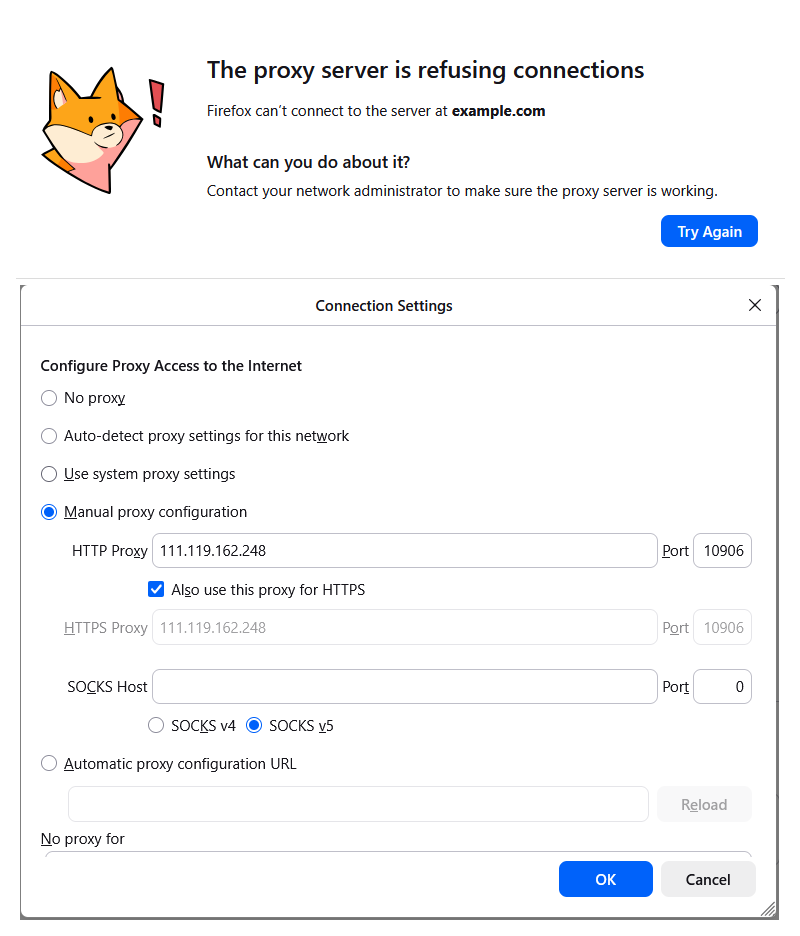
The proxy server is refusing connections means one thing: Firefox is set to send its traffic through a proxy, and the proxy end said no. Nothing at that address and port accepted the connection, or the proxy accepted it and refused the tunnel. The website you typed was never contacted. Two fixes cover most cases. If you never set a proxy on purpose, open Firefox Settings and scroll to the bottom of General. Click Configure proxy, choose No proxy, click OK and reload. If you did set one, the proxy is not answering on that address and port, so test it before you change anything else. In Tor Browser the same words mean its own tor process is not running, so close the browser completely and start it again. Chrome reports the same failure as ERR_PROXY_CONNECTION_FAILED.
We reproduced every cause on our own machine on 2 September 2026. A closed port, a wrong name and an unroutable address; a live proxy that refuses the tunnel, and the wrong protocol field; Tor Browser without its tor process, and dead entries from a public list. Each case ran in Firefox 149, Chrome 151 and curl, on Windows and inside WSL Ubuntu. The exact wording, the time to fail and the fix for each case are below.
What does "the proxy server is refusing connections" actually mean?
Firefox tried to open a TCP connection to the proxy, not to the website. The failure sits on the leg between you and the proxy, and no site was contacted yet. That is why checking the site, your DNS or the firewall of the site wastes time.
The page has five triggers, and the Firefox source lists them in one place. The docshell code picks the proxyConnectFailure page for five failure codes. They are NS_ERROR_PROXY_CONNECTION_REFUSED, NS_ERROR_PROXY_FORBIDDEN, NS_ERROR_PROXY_NOT_IMPLEMENTED, NS_ERROR_PROXY_AUTHENTICATION_FAILED and NS_ERROR_PROXY_TOO_MANY_REQUESTS. The first is the plain case: the connection itself was refused. The other four come from a live proxy that answered the tunnel request with 403, 501, 407 or 429. The Mozilla string table gives the page its title and its advice line. The advice reads: "Contact your network administrator to make sure the proxy server is working."
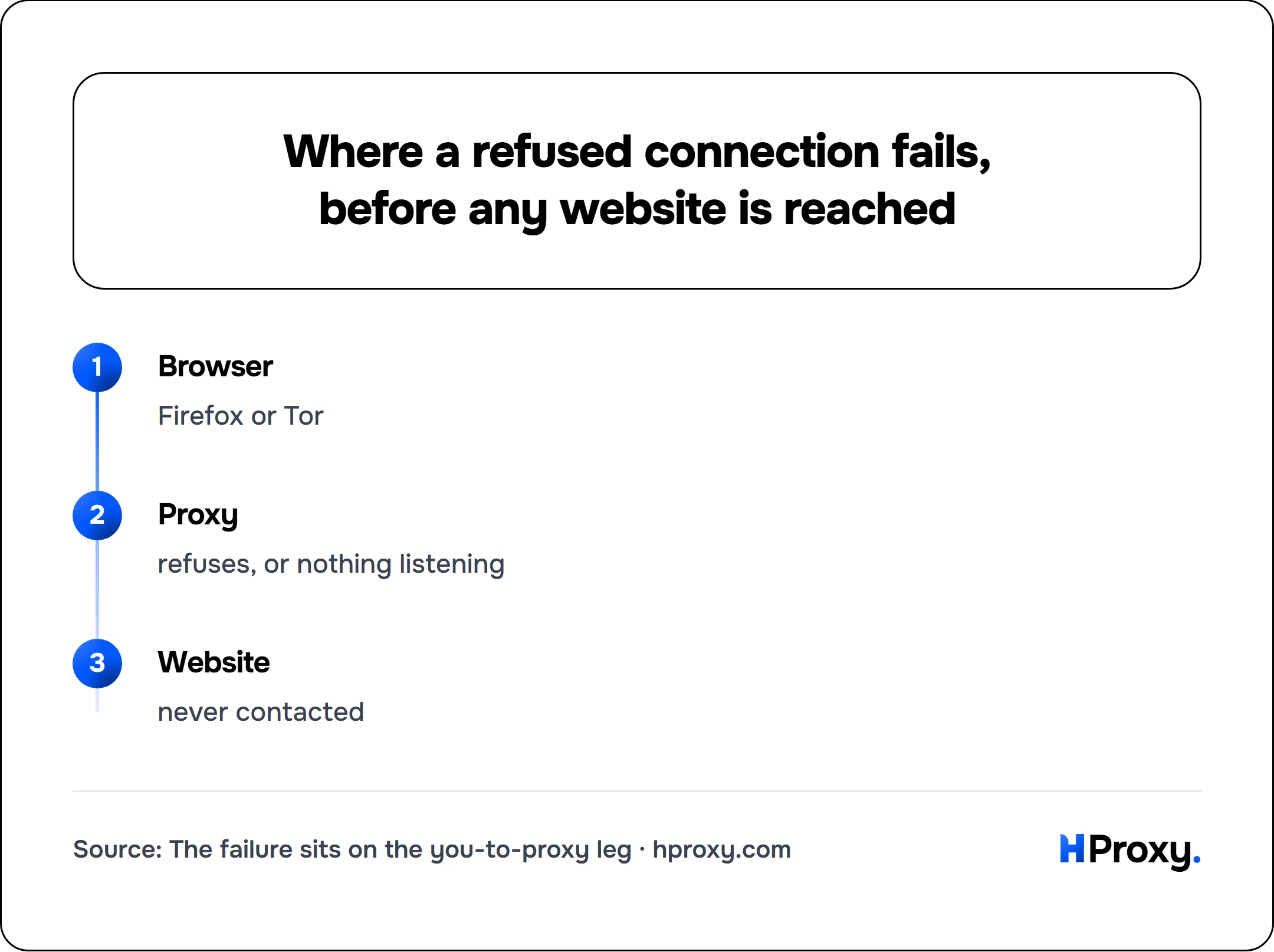
Browser
Firefox or Tor
Proxy
refuses, or nothing listening
Website
never contacted
Under the page sits an operating system error. On Windows it is Winsock error 10061, which Microsoft documents as "No connection could be made because the target computer actively refused it". The same page calls it the sign of a service that is not running on that host. Our Python test raised exactly that error for every closed port. It took 2.0 to 2.1 seconds on the local machine and 2.7 to 4.5 seconds to a remote host. Inside WSL Ubuntu the same refusal took 0 milliseconds and read Connection refused. Firefox and Chrome showed their pages after 2.1 seconds on Windows for the same reason.
One design choice explains why the page tells you so little. For an https:// site the browser first asks the proxy for a tunnel. A comment in the Firefox networking code spells out the risk: someone could intercept that request "and is replying with malicious HTML". So Firefox "must avoid rendering the body of the reply" and shows a boilerplate page chosen from the status code alone. For a plain http:// site the error page of the proxy itself is shown instead. We saw both: our test proxy served its "Access denied" page for http://example.com, and the refusing-connections page for https://example.com:8443.
Different failures produce different Firefox pages, and the difference is a diagnosis in itself.
- A refused connection, or a tunnel answered with 403, 407, 429 or 501: The proxy server is refusing connections.
- A proxy name that does not resolve: Unable to find the proxy server, in under a tenth of a second.
- An unroutable address, or a firewall that drops packets: the timeout page, after 21 seconds in our test.
- A tunnel answered with 400: Server Not Found.
- A proxy that accepts and then resets: Secure Connection Failed, with PR_CONNECT_RESET_ERROR.
The 400 row matters for anyone using a public proxy list. The Firefox function that turns a tunnel reply into an error maps 400, 404 and 500 to an unknown-host error. So the most common answer from a stale free entry shows up as Server Not Found. It does not look like a refusing proxy. The numbers behind that are in the free proxy section.
Symptom to cause to fix
| What you see | Cause | Fix |
|---|---|---|
| You never set a proxy; the page appears on every site. | An extension, VPN, security tool or policy set one. | Choose No proxy, then remove whatever writes the setting. |
| You set one; curl also fails with exit 7. | Nothing listens at that address and port. | Check the port digit by digit, then replace the proxy. |
| Firefox says Unable to find the proxy server. | The hostname does not resolve. | Fix the spelling, or use the IP. |
| The page hangs for twenty seconds, then a timeout page. | The address is unroutable or a firewall drops it. | Different address, or ask whoever runs the firewall. |
| curl works, Firefox refuses at once. | HTTP proxy in the SOCKS field or the reverse. | Move the address to the right field. |
| Only Tor Browser is affected. | Its tor process is not running. | Restart Tor Browser and let it connect. |
| Burp, ZAP, Fiddler or an SSH tunnel was open earlier. | The local listener on 127.0.0.1 is closed. | Start the tool again, or set No proxy. |
| The proxy works for most sites, fails on one port. | The proxy denies tunnels to that port (403). | Use port 443, or ask the proxy admin to allow the port. |
| The page appears after you cancel a password prompt. | The proxy needs a login it did not get. | Enter the credentials, see the 407 guide. |
| It worked this morning with a free proxy. | The entry died; most die within hours. | Take a fresh, verified entry. |
I never set a proxy, so why is one in play?
A fresh Firefox follows the system proxy settings. The default value of the network.proxy.type preference is 5, which the Mozilla preference list labels PROXYCONFIG_SYSTEM. So a proxy can reach Firefox from three places. The Firefox dialog itself, or the Windows or macOS setting it follows. Or a tool that writes either of them. Proxy switcher extensions, VPN clients, security suites, company policies and local debugging tools all do this. One Ask Ubuntu question from 2021 traced the error to a VMware tools option that had put a helper into the system path. The tool was gone, the setting stayed.
Firefox
In Firefox 149 the path is Settings, General, then scroll to the bottom to Proxy settings. Click Configure proxy. Older builds call the group Network Settings and the button Settings. The dialog is titled Connection Settings and offers five choices, quoted from the Mozilla string file. No proxy. Auto-detect proxy settings for this network. Use system proxy settings. Manual proxy configuration. Automatic proxy configuration URL. Pick No proxy to rule the proxy out, click OK and reload. If an extension controls the setting, the dialog shows a Disable Extension button instead of editable fields.
If the setting turns itself back on, something is rewriting it. Our guide on proxy settings that keep turning back on shows how to find the writer. It covers Windows and Mac.
Windows
Use system proxy settings is the default, so a stale Windows entry breaks Firefox the same way. The Microsoft help page gives the path. In the Settings app select Network & internet, then Proxy. Under Manual proxy setup, next to Use a proxy server, select Set up. Switch it off if you do not need it. Windows keeps a second proxy store, WinHTTP, which system tools read. The Microsoft netsh reference lists netsh winhttp show advproxy to display it, with the older show proxy marked deprecated, and netsh winhttp reset proxy to reset it to DIRECT.
macOS
The Apple guide points to System Settings, Network, the active service, then Details and Proxies. Untick the web proxy rows you do not use, and click OK.
Is the proxy really down? Test it before you touch anything
Before you change a single setting, find out whether the proxy answers at all. curl gives a verdict in seconds.
curl -x http://198.51.100.14:8080 --max-time 10 https://httpbin.org/ip
Swap in your address and port. The --max-time cap matters: the curl manual defines it as the ceiling on the whole operation. A silent proxy then turns into a ten second verdict instead of a hang. Read the result by the exit code, which the same manual defines.
| curl says | Exit | Meaning |
|---|---|---|
Failed to connect to ... Could not connect to server | 7 | Nothing listens at that address and port. This is the refused case. |
Could not resolve proxy: ... | 5 | The proxy hostname does not resolve. |
Connection timed out after ... | 28 | The address is dropped, or the proxy accepted and never answered. |
CONNECT tunnel failed, response 403 | 56 on curl 8.16, 7 on curl 8.21 | The proxy is alive and refuses tunnels to that port. |
CONNECT tunnel failed, response 407 | 56 or 7 | The proxy wants a username and password. |
CONNECT tunnel failed, response 400 | 56 or 7 | The proxy is alive but is not a working tunnel. |
| JSON with the address of the proxy | 0 | The proxy works, so the problem is your browser setting. |
Every line above comes from our own runs on 2 September 2026. curl 8.16 on Windows printed Failed to connect to example.com port 443 via 127.0.0.1 after 2050 ms: Could not connect to server. curl 8.21 wrote the same line as over proxy 127.0.0.1. Add -v and the reason appears on its own line: failed: Connection refused. The wording of the other codes is in our guide to cURL proxy errors.
If you would rather skip the terminal, paste the address into our free proxy checker. It reports whether the proxy is alive, where it exits and how fast it is, in one pass. The full battery, alive plus fast plus anonymous, is in how to check if a proxy is working.
Did I type the address or port wrong?
A single digit off in the port sends Firefox to a door that does not exist. We took a live public proxy host and raised its port by one. The real port opened a tunnel; the neighbouring port refused in under three seconds in curl, Firefox and Chrome, and Firefox showed exactly this page. So compare the port field with the page your provider gave you, character by character. Check the second port field too. The HTTPS Proxy row copies the HTTP row while Also use this proxy for HTTPS is ticked. An unticked box with an empty HTTPS row breaks every https:// site.
A wrong hostname fails differently and faster. Firefox shows Unable to find the proxy server within a tenth of a second, and curl exits with 5. Retype the name or paste the IP address.
For a proxy on your own machine, look at what is listening before you blame Firefox. On Windows, Get-NetTCPConnection -State Listen in PowerShell lists every open port with its owning process. On Linux and macOS, ss -ltn or lsof -iTCP -sTCP:LISTEN does the same. No line for the port means the tool that should listen there is not running.
Is the proxy in the wrong field, HTTP versus SOCKS?
Firefox keeps two sets of fields in the dialog. HTTP Proxy with its port, and SOCKS Host with its port. The SOCKS row also has a SOCKS v4 or SOCKS v5 switch. An HTTP proxy and a SOCKS proxy speak different first bytes, so the wrong field fails even when the proxy is fine. We measured both mistakes against our own test servers.
An HTTP Proxy field pointed at a SOCKS server fails at once. Firefox shows Secure Connection Failed with PR_CONNECT_RESET_ERROR after 0.07 seconds. Chrome shows ERR_EMPTY_RESPONSE. curl prints Proxy CONNECT aborted and exits with 56. A SOCKS Host field pointed at an HTTP proxy hangs instead. Firefox and Chrome waited 15 seconds in our rig before they failed, and curl ran into its time cap. The reason: an HTTP proxy waits for a request line that never arrives.
If your provider gave you a scheme, the list in the curl manual is the map. http:// goes in HTTP Proxy. socks5:// or socks5h:// goes in SOCKS Host with v5 selected. The Tor ports, 9050 for a system tor and 9150 for Tor Browser, are SOCKS. The same choice trips people up in every browser. Our Chrome proxy setup guide shows it from the other side. For what SOCKS adds over HTTP, see what is a SOCKS5 proxy.
Why does Tor Browser say the proxy server is refusing connections?
Tor Browser is Firefox with one fixed proxy. Its shipped preference file sets network.proxy.type to 1, network.proxy.socks to 127.0.0.1 and network.proxy.socks_port to 9150, and it locks network.proxy.failover_direct to false. That port belongs to the tor process Tor Browser starts for itself. When that process has not started, has crashed, or is blocked, every page load fails the same way. Each one is a refused proxy connection, with no fallback to a direct connection.
We reproduced it without touching the Tor network. A copy of Tor Browser 15.0.20 was started with the TOR_SKIP_LAUNCH switch, which tells it to expect an external tor instead of launching one. No tor ran. The first page load showed the error, in the German locale of the machine. Its English string file carries the same title. Tor Browser 15 is built on Firefox ESR 140 and still shows the older bullet-list page. Its first advice line is "Check the proxy settings to make sure that they are correct". The second is "Contact your network administrator to make sure the proxy server is working."
The fix is to get tor running again. Close Tor Browser completely, start it, and wait for it to finish connecting before you load a page. The Tor Project support page for this error adds four steps, quoted in order. Disable an antivirus that "may be interfering with the Tor service" and restart. Move the Tor Browser folder back if you moved it. "You should also check the port that you are connecting with. Try a different port from the one currently in use, such as 9050 or 9150." And when all else fails: "reinstall the browser. This time, make sure to install Tor Browser in a new directory". A closed Tor Browser issue from 2020 describes another route to the same page. A link opened from outside while Tor Browser was not running yet.
The two port numbers are the classic mix-up. A system tor daemon listens on 9050 by default, per the tor manual. Tor Browser bundles its own on 9150. Point another app at 9150 and it works only while Tor Browser is open. We measured port 9150 closed: Firefox showed this page after 2.1 seconds, and curl exited with 7. Tor Browser for Android reports the same kind of error, and its issue tracker holds a 2022 case. We did not measure it.
Why does Burp Suite or another local tool cause it?
Burp Suite, ZAP, Fiddler, Charles and mitmproxy all work by becoming your proxy. The PortSwigger setup page for Firefox says to enter the listener address, "by default this is set to 127.0.0.1". Then the port, "by default, 8080", with Use this proxy server for all protocols ticked. Close Burp, or start Firefox before the Burp listener runs, and nothing listens on 127.0.0.1:8080. We measured that case: Firefox showed the page after 2.1 seconds, Chrome after 2.0, and curl exited with 7. Start the tool with its listener enabled, or set Firefox back to No proxy. A 2022 Hack The Box thread describes exactly this after a Burp and ZAP install. So does a 2014 Ask Ubuntu question.
The same shape appears with an SSH tunnel, ssh -D 1080, once the SSH session has dropped. One trap is specific to Firefox. The dialog states that "Connections to localhost, 127.0.0.1/8, and ::1 are never proxied". So a tunnel used to reach a service on localhost of the far machine does not work by that name. A 2019 Unix and Linux Stack Exchange question with ten thousand views ran into exactly that. Use the other address of that machine, or a hostname the far end resolves.
Why does a proxy that is alive still refuse?
For an https:// site the browser sends one request to the proxy first. RFC 9110 calls it CONNECT. It describes the job of the proxy as "blind forwarding of data, in both directions, until the tunnel is closed". The standard adds: "any response other than a successful response indicates that the tunnel has not yet been formed". Firefox turns those unsuccessful answers into the pages above. Four of them are the refusing-connections page.
A 403 to the tunnel
The default Squid access list, quoted from its configuration reference, contains http_access deny CONNECT !SSL_ports. The comment above it reads "Deny CONNECT to other than secure SSL ports". A site on port 8443 through such a proxy gets the Squid Access Denied answer. The log records the request as denied by access controls. Firefox shows the refusing-connections page for it. Our test proxy that allows only port 443 reproduced this. https://example.com loaded, https://example.com:8443 showed the page. The fix is on the proxy: add the port to SSL_ports, or use a proxy without the rule. Chrome shows ERR_TUNNEL_CONNECTION_FAILED for the same answer.
A 407 without a usable challenge
A proxy that wants a login must send a Proxy-Authenticate challenge, per RFC 9110. When it does, Firefox opens a login prompt, and the page loads once the right credentials are in. We proved that with a test proxy: no credentials, no page; with demo:secret supplied, the page loaded in 0.2 seconds. When the challenge is missing or unsupported, Firefox cannot ask, and the code maps that 407 to the refusing-connections page. Cancelling the prompt lands on the same page. Firefox refuses to show a 40x body from a proxy as if it came from the site. The credential fixes are in how to fix 407 Proxy Authentication Required.
A 429 or a 501
A proxy that rate limits you answers 429, and one that does not implement tunnels answers 501. Both show this page. Slow down, or use a proxy that tunnels.
A 400, 502 or 504
These do not show the refusing-connections page. A 400 shows Server Not Found. A 502 and a 504 show the timeout-style page. Chrome reports ERR_TUNNEL_CONNECTION_FAILED for all three. A proxy answering 502 could not reach the site itself. Our 504 gateway timeout guide covers that from the other side.
Why does a free proxy do this, and what does a dead one look like?
Free proxies die within hours, and the way they die is measurable. On 2 September 2026 we pulled our own free proxy list through its API. We probed a random sample of 300 entries at the TCP level, then asked each live one for a tunnel to httpbin.org on port 443.
| 300 random entries, 14:13 UTC | Count | What Firefox would show |
|---|---|---|
| Refused the connection | 3 | The proxy server is refusing connections. |
| No answer within 5 seconds | 86 | The timeout page. |
| Accepted, answered the tunnel request with 400 | 152 | Server Not Found. |
| Accepted, opened a tunnel (200) | 23 | The site. |
| Accepted, then silence, reset or close | 34 | Timeout or reset pages. |
| Accepted, answered 500 or with SOCKS bytes | 2 | Server Not Found, or a reset. |
Two lessons follow. A stale free entry refuses outright in only one case of a hundred. So this page with a free proxy usually means a wrong port. Or a proxy that went away since the check. The freshest entries are not tunnels either. Of the first 100 entries on the list at 14:07 UTC, all accepted a connection, 96 answered 400 and 4 opened a tunnel. Eleven minutes after the random sample, the four entries we had chosen for browser tests had all changed. The refused one now accepted but presented a bad certificate, and the working one now answered 502. A free entry is trustworthy for about as long as the check that found it alive.
Every entry on our list shows a last-checked time and an uptime figure, so take one checked minutes ago. Verify it with the checker right before you paste it into Firefox. When a project needs exits that stay alive, our residential pool is the step past the free path. One endpoint, a fresh IP per request, and the settings above do not change.
What does each browser and tool say?
The same failure has a different name in every tool. Every cell below is our own measurement from 2 September 2026, with Firefox 149 and Chrome 151 on Windows 11 and curl 8.16 on Windows. The Chrome codes are defined in the Chromium net_error_list.h. There ERR_PROXY_CONNECTION_FAILED covers an error "either in resolving its name, or in connecting a socket to it". The definition excludes the CONNECT step.
| Failure | Firefox 149 | Chrome 151 | curl |
|---|---|---|---|
| Nothing listens on the port | The proxy server is refusing connections. 2.1 s. | No internet. There is something wrong with the proxy server, or the address is incorrect. ERR_PROXY_CONNECTION_FAILED. 2.1 s. | Exit 7, Could not connect to server, 2.05 s. |
| Proxy name does not resolve | Unable to find the proxy server. | No internet. ERR_PROXY_CONNECTION_FAILED. | Exit 5, Could not resolve proxy. |
| Unroutable address or dropped | The timeout page. 21 s. | The site-cannot-be-reached heading. example.com took too long to respond. ERR_TIMED_OUT. 8 s. | Exit 28, Connection timed out. |
| Tunnel refused with 403 | The proxy server is refusing connections. | The site-cannot-be-reached heading. ERR_TUNNEL_CONNECTION_FAILED. | CONNECT tunnel failed, response 403. |
| Tunnel answered 400 | Server Not Found. | The site-cannot-be-reached heading. ERR_TUNNEL_CONNECTION_FAILED. | CONNECT tunnel failed, response 400. |
| 407 without a challenge | The proxy server is refusing connections. | The site-cannot-be-reached heading. ERR_PROXY_AUTH_UNSUPPORTED. | CONNECT tunnel failed, response 407. |
| HTTP field pointed at SOCKS | Secure Connection Failed, PR_CONNECT_RESET_ERROR. | The page-not-working heading. ERR_EMPTY_RESPONSE. | Exit 56, Proxy CONNECT aborted. |
| SOCKS field pointed at HTTP | Connection error after 15 s. | ERR_SOCKS_CONNECTION_FAILED, 15 s. | Exit 28 at the cap. |
| Accepts, then resets | Secure Connection Failed, PR_CONNECT_RESET_ERROR. | The connection was reset. ERR_CONNECTION_RESET. | Exit 55, Send failure: Connection was reset. |
The Chrome heading for a dead proxy is "No internet". It comes from the table in the Chromium error page code. That table pairs ERR_PROXY_CONNECTION_FAILED with the heading and the proxy sentence. Chrome cannot tell a dead proxy from a dead network, so it says both.
Refused or timed out?
Before you fix anything, be sure which failure you have, because the two look alike and point at different causes.
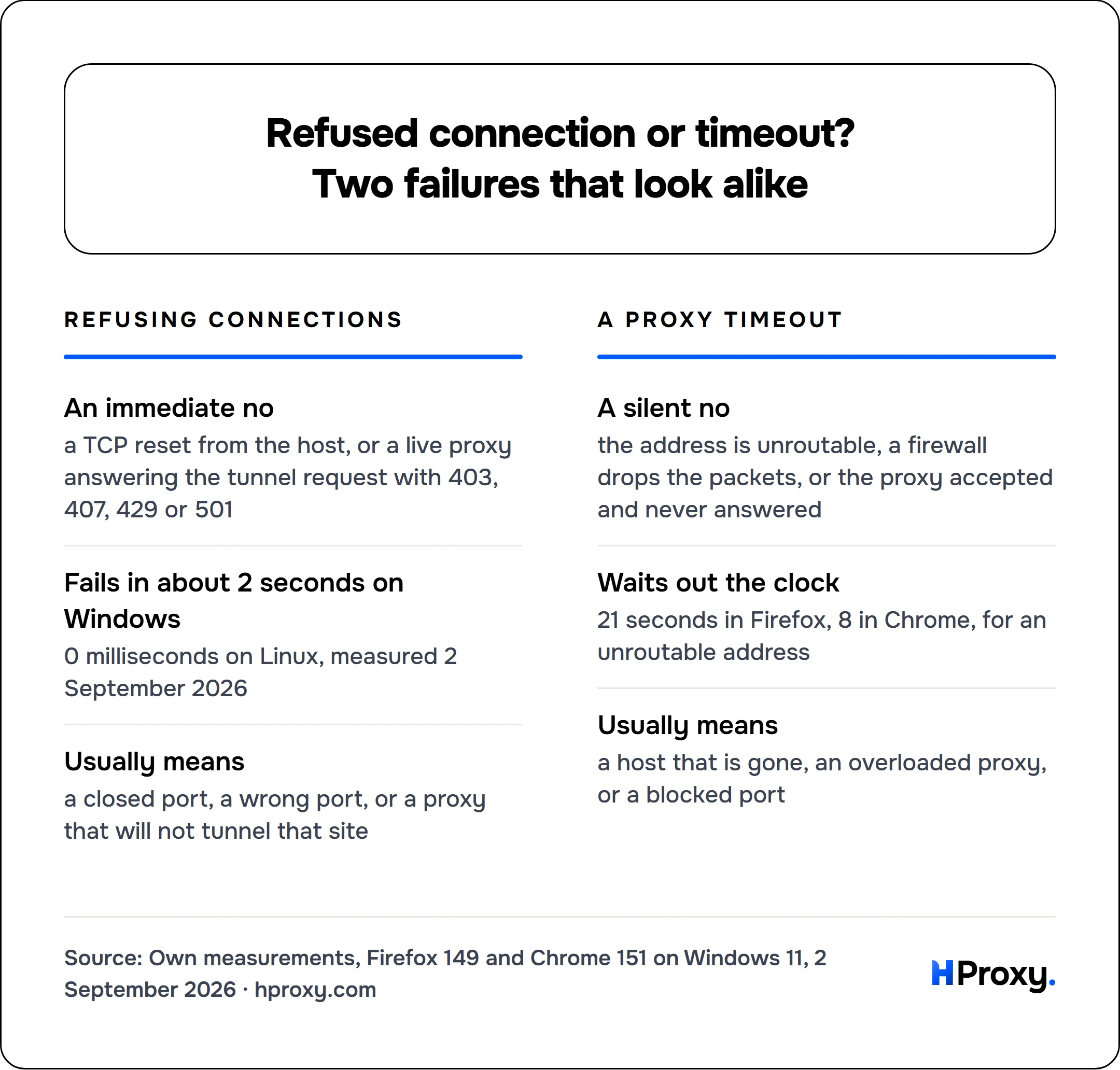
Refusing connections
An immediate no
a TCP reset from the host, or a live proxy answering the tunnel request with 403, 407, 429 or 501
Fails in about 2 seconds on Windows
0 milliseconds on Linux, measured 2 September 2026
Usually means
a closed port, a wrong port, or a proxy that will not tunnel that site
A proxy timeout
A silent no
the address is unroutable, a firewall drops the packets, or the proxy accepted and never answered
Waits out the clock
21 seconds in Firefox, 8 in Chrome, for an unroutable address
Usually means
a host that is gone, an overloaded proxy, or a blocked port
A firewall that silently drops packets never produces this page. It produces the timeout page. For Chrome that is the page that says to check the proxy and the firewall. Only a host that answers with a reset, or a proxy that answers the tunnel request with an error, produces a refusal.
Neither browser falls back to a direct connection when its only proxy is dead. The Chromium proxy documentation covers one configured proxy. "If the proxy server was unreachable all requests would fail with ERR_PROXY_CONNECTION_FAILED." A fallback exists only when the list also names the direct option. We saw the same in Firefox: a proxy auto-config file returning only the dead proxy gave this page, and the same file with ; DIRECT appended loaded the site in 2.3 seconds.
Work through it in order
- Choose No proxy in Firefox and reload. Page loads? A proxy setting you did not want was the cause. Find what wrote it and remove that tool.
- Test the proxy with curl or the checker. Exit 7? Nothing listens there. Check the port digit by digit, then replace the proxy.
- Check the field. Alive in curl but Firefox fails at once? HTTP and SOCKS are crossed. Move the address.
- Check the tunnel. curl says CONNECT tunnel failed with 403 or 407? The proxy is alive and needs a port change or a login.
- Restart Tor Browser. Only Tor Browser is affected? Let its tor process finish connecting, or follow the four Tor Project steps above.
Most readers land on step 1 or step 2. The fastest way to tell a wrong setting from a dead proxy is to test the proxy before you trust it. When a proxy refuses to connect, paste it into the checker, and you know within seconds which problem you have.
Sources
- Mozilla, Firefox source tree: certError.ftl and netError.ftl, the error page strings. Main branch, read 2 September 2026.
- Mozilla, Firefox source tree: nsDocShell.cpp, which failure code selects which error page. Read 2 September 2026.
- Mozilla, Firefox source tree: nsHttp.cpp, HttpProxyResponseToErrorCode, and nsHttpChannel.cpp, ProcessFailedProxyConnect, ProxyFailover and OnAuthCancelled. Read 2 September 2026.
- Mozilla, Firefox source tree: StaticPrefList.yaml and all.js, the network.proxy defaults. Read 2 September 2026.
- Mozilla, Firefox source tree: connection.ftl and preferences.ftl, the Connection Settings labels. Read 2 September 2026.
- The Chromium Authors: net_error_list.h, error_page_strings.grdp and localized_error.cc. Also the proxy.md design document. Read 2 September 2026.
- The Tor Project: Tor Browser 15.0.20 shipped preferences, 000-tor-browser.js. Read 2 September 2026.
- The Tor Project: support article "Proxy server is refusing connection" error. Read 2 September 2026.
- The Tor Project: tor(1) manual, SocksPort, as packaged by Debian bookworm.
- IETF: RFC 9110 HTTP Semantics, section 9.3.6 CONNECT and section 15.5.8 407 Proxy Authentication Required. June 2022.
- The curl project: curl manual page, --proxy, --max-time and the exit codes, and the libcurl error codes. Read 2 September 2026.
- Microsoft Learn: Windows Sockets Error Codes, WSAECONNREFUSED 10061. Read 2 September 2026.
- Microsoft Learn: Netsh.exe commands for WinHTTP. Microsoft Support: Use a proxy server in Windows. Read 2 September 2026.
- Apple Support: Change proxy settings on Mac, macOS User Guide. Read 2 September 2026.
- The Squid Software Foundation: http_access configuration reference, the ERR_ACCESS_DENIED template and the SquidLogs FAQ. Read 2 September 2026.
- PortSwigger: Configuring Firefox to work with Burp Suite. Read 2 September 2026.
- Own measurements, 2 September 2026: a local test rig of twelve proxy failure modes. Run against Firefox 149.0, Chrome 151.0.7922.174, curl 8.16.0 and 8.21.0 on Windows 11. Also curl 8.5.0 inside WSL Ubuntu 24.04.
- Own measurements, 2 September 2026: a copy of Tor Browser 15.0.20 started without tor. A head sample of 100 and a random sample of 300 entries from the HProxy free proxy list. A live public host probed on a neighbouring port.