The full page reads "No internet", then "There is something wrong with the proxy server, or the address is incorrect", with ERR_PROXY_CONNECTION_FAILED underneath and a list of things to try. Chrome and Edge show it on every site at once. It sounds like a server somewhere has a fault, but it reports something narrower: Windows told the browser to use a proxy, and the browser could not reach that proxy.
Two kinds of people land here. Most never set a proxy and do not know why Windows has one. The rest set a proxy on purpose, and it stopped working. The fix differs, so this guide splits after the first sections.

What the page is telling you
Chromium, the engine under Chrome and Edge, files this as error -130 and defines it in its source: it "Could not create a connection to the proxy server". Either the name of the proxy did not resolve, or its address refused the connection because nothing listens there. That rules out most of what people try first. The website is not down, and clearing the cache changes nothing, because no request ever left for the website.
On Windows, the browser takes its proxy from the settings of the current user, the ones behind Settings and the older Internet Options panel. Those settings belong to the connection you use, and Windows keeps separate proxy settings for each VPN connection. So a proxy can appear only while one VPN is connected. Microsoft shows where they live: "From the VPN settings page, select the VPN connection you want to edit, select Advanced options, then select Edit next to the details you want to update." The VPN settings page is under Settings, Network & internet, VPN.
Which broken setups show this page
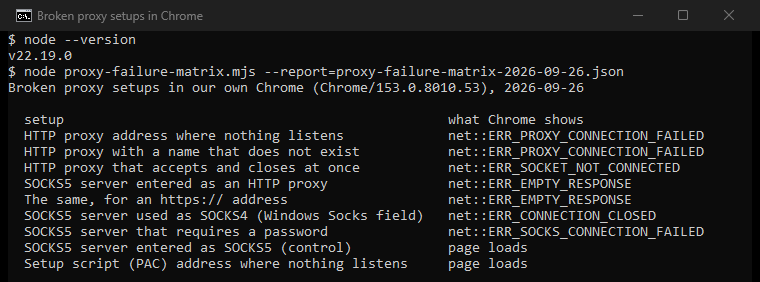
We pointed our own Chrome, with an empty profile and local test servers, at seven broken proxy setups and one working control, and ran the whole set twice with the same result. Only two of the seven broken setups produced this page:
- Proxy address where nothing listens: this page, ERR_PROXY_CONNECTION_FAILED.
- Proxy name that does not exist: this page, ERR_PROXY_CONNECTION_FAILED.
- Proxy that accepts the connection and closes it: another error page, usually ERR_SOCKET_NOT_CONNECTED. The code depends on timing: in 20 more loads we also saw ERR_CONNECTION_ABORTED, ERR_EMPTY_RESPONSE and ERR_CONNECTION_RESET.
- SOCKS5 proxy entered as an HTTP proxy: another error page, ERR_EMPTY_RESPONSE.
- SOCKS5-only proxy used as SOCKS4: another error page, ERR_CONNECTION_CLOSED.
- SOCKS5 proxy that requires a password: another error page, ERR_SOCKS_CONNECTION_FAILED.
- Setup script at an address where nothing listens: no error; Chrome loaded the page without a proxy.
- SOCKS5 proxy entered as SOCKS5, the control: the page loaded.
Showed this page
Nothing listens at the proxy address
ERR_PROXY_CONNECTION_FAILED
The proxy's name does not exist
ERR_PROXY_CONNECTION_FAILED
Showed another error, or none
A proxy that accepts, then closes
usually ERR_SOCKET_NOT_CONNECTED
SOCKS5 typed as an HTTP proxy
ERR_EMPTY_RESPONSE
A SOCKS5-only proxy used as SOCKS4
ERR_CONNECTION_CLOSED
SOCKS5 that requires a password
ERR_SOCKS_CONNECTION_FAILED
A setup script where nothing listens
no error: the page loaded without a proxy
The other error pages are headed "This site can't be reached" or, for ERR_EMPTY_RESPONSE, "This page isn't working". So this page means a proxy address where nothing listens, or a proxy name that does not exist. A proxy address that stays silent is different. An HTTP proxy there gave ERR_TIMED_OUT after 8 seconds in our tests, on the timeout page covered in checking the proxy and the firewall. A silent SOCKS5 address did give this page, after about 21 seconds.
If you switched proxies and now see ERR_EMPTY_RESPONSE or ERR_CONNECTION_CLOSED instead, the proxy is alive but hung up on the browser. The protocol in your settings may be wrong, or the proxy may refuse your address or your login. A proxy that read the request and then hung up gave ERR_EMPTY_RESPONSE in all 20 of our loads.
Find the address first
Open Settings, Network & internet, Proxy. Under Manual proxy setup, if Use a proxy server is on, select Set up and read the address and the port. Under Automatic proxy setup, note whether Use setup script is on and where it points. Write both down before you change anything, because the address tells you who put it there.
| Address in the proxy box | Who usually set it |
|---|---|
127.0.0.1 or localhost with a port | A program on this computer: a VPN client, an ad blocker, a web shield, a parental control or a debugging tool. |
A private address, such as 10.x.x.x or 192.168.x.x, with a port | A school, office or home-network proxy that only exists on that network. |
| A public address or name you recognize | A proxy you or a colleague set on purpose. |
| A public address or name you do not recognize | Unwanted software, or a leftover from something removed. |
| A setup script at a domain you do not know | Unwanted software, until proven otherwise. |
Private addresses are the three ranges that RFC 1918 sets aside for private networks: 10.0.0.0 to 10.255.255.255, 172.16.0.0 to 172.31.255.255, and 192.168.0.0 to 192.168.255.255.
If you never set a proxy
Most readers are in this group, and the fix takes a few minutes.
- Switch it off in both panels. On the Proxy page, open Set up under Manual proxy setup, switch Use a proxy server off and save; switch Use setup script off too. Then press Windows+R, run
inetcpl.cpl, open Connections, then LAN settings, and clear the proxy and script boxes there as well. Reload the page. - Look at the address you removed. A
127.0.0.1address means a local program set it and left it behind, often a removed VPN or an expired security suite. A public address you do not know is different. Look it up in our IP lookup before you forget it, then run a full scan: Microsoft documents malware that installs a malicious proxy script to route the browser through a server the attacker controls. Proxy settings that keep turning back on walks through the evidence and the clean-up. - Check whether it comes back. Restart and open the Proxy page again. If the setting is back, something rewrites it, and the same guide shows how to catch the program that does.
- Rule out an extension. If both panels were already clean, the proxy comes from inside the browser. Google recommends disabling all extensions to test a connection error. Look at
chrome://extensionsoredge://extensionsfor any proxy, VPN or unblocker extension first. - Check for a policy. If the settings are grayed out or say they are managed by your organization, a policy holds the proxy in place. On a work or school computer, ask the administrator. On a personal computer, the keep-turning-back-on guide lists the places to clear.
One popular fix does not touch this setting. netsh winhttp reset proxy resets the WinHTTP proxy, a separate setting that Windows services use, while Chrome and Edge read the Internet Options of the current user.
If you set the proxy on purpose
Then the proxy you chose stopped answering, or the settings describe it wrongly. Work down this list:
- Check that the proxy is alive. Our proxy checker reports whether an address answers, which protocol it speaks and where it exits. A dead result ends the search, and free proxies die constantly: pick a fresh one from the free proxy list, which shows when each address last passed a check.
- Check the protocol. The main Windows field is for an HTTP proxy. A SOCKS5 proxy typed there does not give this page; it gives ERR_EMPTY_RESPONSE instead.
- Do not rely on the Socks field for SOCKS5. The Socks field under Advanced in Internet Options reaches Chrome as SOCKS4, a detail written into the Chromium source. A proxy that speaks only SOCKS5 fails there with ERR_CONNECTION_CLOSED.
- A SOCKS5 password cannot work in Chrome. Its SOCKS5 client offers the server only "no authentication", so a proxy that requires a password fails with ERR_SOCKS_CONNECTION_FAILED. If your provider offers an HTTP address for the same proxy, use that in the Windows field; our guides to proxy setup on Windows and in Chrome show where each field goes.
- Check the network you are on. A proxy at a private address such as
10.0.0.5:8080only exists inside the network that owns it, so a work laptop shows this page or the timeout page at home. Switch the proxy off when away, or connect the VPN of your organization first. - Look for a blocker in between. When the checker says the proxy is alive but the browser still cannot reach it, a VPN, an antivirus web shield or a firewall may block the port. Test with each switched off in turn, and switch your protection back on afterwards. Google also advises checking that no firewall or antivirus blocks the connection.
Our Chrome guide to ERR_PROXY_CONNECTION_FAILED goes deeper into the Chrome side of these checks.
The three hints, decoded
The hints on the page are written for a managed office computer, which is why they read oddly at home.
Contacting the system admin assumes an IT department set the proxy. On a work or school computer that is right. On a personal computer there is no admin but you.
Checking the proxy address is the hint that matters for most home users, and the Proxy page in Settings is where to do it.
Running Windows Network Diagnostics starts the built-in troubleshooter, which checks the connection and reports what it finds. If its report names the proxy, the setting you already found is the one to fix. If it says that Windows could not automatically detect the proxy settings of this network, that message has its own guide: Windows could not automatically detect this network's proxy settings.
Firefox and the other names for this fault
Firefox names the same fault in two parts. "The proxy server is refusing connections" means the connection was refused, so nothing listens at the address, and "Unable to find the proxy server" means the name did not resolve. Chrome puts both into the one sentence of this page. A proxy that stays silent gets the Firefox timeout page, "The connection has timed out", as it gets the timeout page in Chrome.
Confirm the fix
When pages load again, check that the proxy is really gone. Open our IP lookup and read the owner of your address: it should be the company you pay for internet, roughly where you are. If it shows a hosting company or another country, a proxy still carries your traffic, and the extension and policy steps above are where to look.
If you meant to use a proxy and the old one died, pick a working one and set it up with the protocol it really speaks. If this page keeps coming back because free proxies keep dying, a paid residential proxy gives you one gateway address that stays the same while the addresses behind it change.
How we measured
Our script started the installed Google Chrome headless, with an empty profile for each case, and set the proxy with the --proxy-server or --proxy-pac-url switch. The target page and every proxy ran on 127.0.0.1, with SOCKS5 servers written for the test. We ran all cases twice on September 26, 2026, in Chrome 153 on Windows 11, with the same result both times. On September 27 a second script loaded each of the two proxies that close the connection 20 more times: five loads of an http:// page and five of an https:// page, in each of two runs. The silent proxy addresses come from the measurements of our timeout guide, which pointed Chrome at an address nobody answers. Edge uses the same engine but was not measured.
Sources
- Chromium source: net_error_list.h, error_page_strings.grdp, proxy_config.cc, proxy_config_service_win.cc and socks5_client_socket.cc, read September 26, 2026.
- Microsoft Support: Use a proxy server in Windows, June 1, 2026, and Connect to a VPN in Windows, read September 27, 2026.
- IETF: RFC 1918, Address Allocation for Private Internets, February 1996.
- Microsoft Learn: WinHttpGetIEProxyConfigForCurrentUser, Netsh.exe commands and WinINet vs. WinHTTP.
- Microsoft Security Intelligence: TrojanProxy:Win32/Cahecon.A, updated September 15, 2017.
- Mozilla: Firefox error page strings and nsDocShell.cpp, which picks the page for each error, read September 27, 2026.
- Google Chrome Help: Fix connection and loading errors in Chrome.