Chrome has no proxy settings of its own. It uses the proxy set in Windows or macOS, so the quickest way is to set the proxy there. To send only Chrome through a proxy, use a proxy extension or start Chrome with a proxy flag.
We tested every method on this page with Chrome 153 on Windows 11, using test proxies on our own machine, on 15 September 2026.
Which way to set it
| What you want | How | If the proxy needs a username and password |
|---|---|---|
| Chrome and your other apps use the proxy | Set it in Windows or macOS (step 1) | Chrome gets the login through its own login flow |
| Only Chrome uses the proxy | Install a proxy extension (step 2) | The extension can fill it in |
| One Chrome only, for example to test | Start Chrome with a flag (step 3) | Not in the flag; Chrome gets it itself |
Two limits apply to every method. A SOCKS5 proxy that needs a password does not work in Chrome, because Chrome has no way to log in to SOCKS5 proxies. And if your company manages Chrome, a proxy set by policy beats a flag; chrome://policy shows what is set.
Before you start
- Your proxy's details: its address, port and type (HTTP or SOCKS5), plus a username and password if it needs them.
- For a test: addresses on our free proxy list need no login, so every method works with them. There is also a SOCKS5 list and a free proxy API.
Step 1: set the proxy in Windows or macOS
This changes the proxy for the whole computer, not only for Chrome.
Windows 11 and Windows 10, as Microsoft's help page describes it:
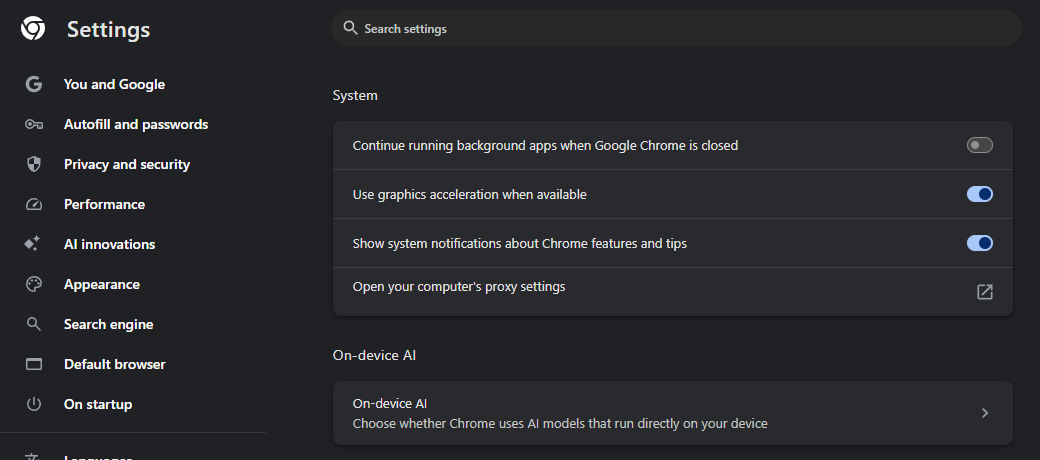
- In Chrome, open Settings, then System, then Open your computer's proxy settings. Or open Settings > Network & internet > Proxy in Windows.
- Under Manual proxy setup, next to Use a proxy server, select Set up.
- Turn on Use a proxy server, then enter the Proxy IP address and the Port.
- To skip the proxy for some sites, list them with semicolons between them, such as
*.contoso.com; *.adatum.com. - Microsoft recommends leaving the check box for local (intranet) addresses selected. Then select Save.
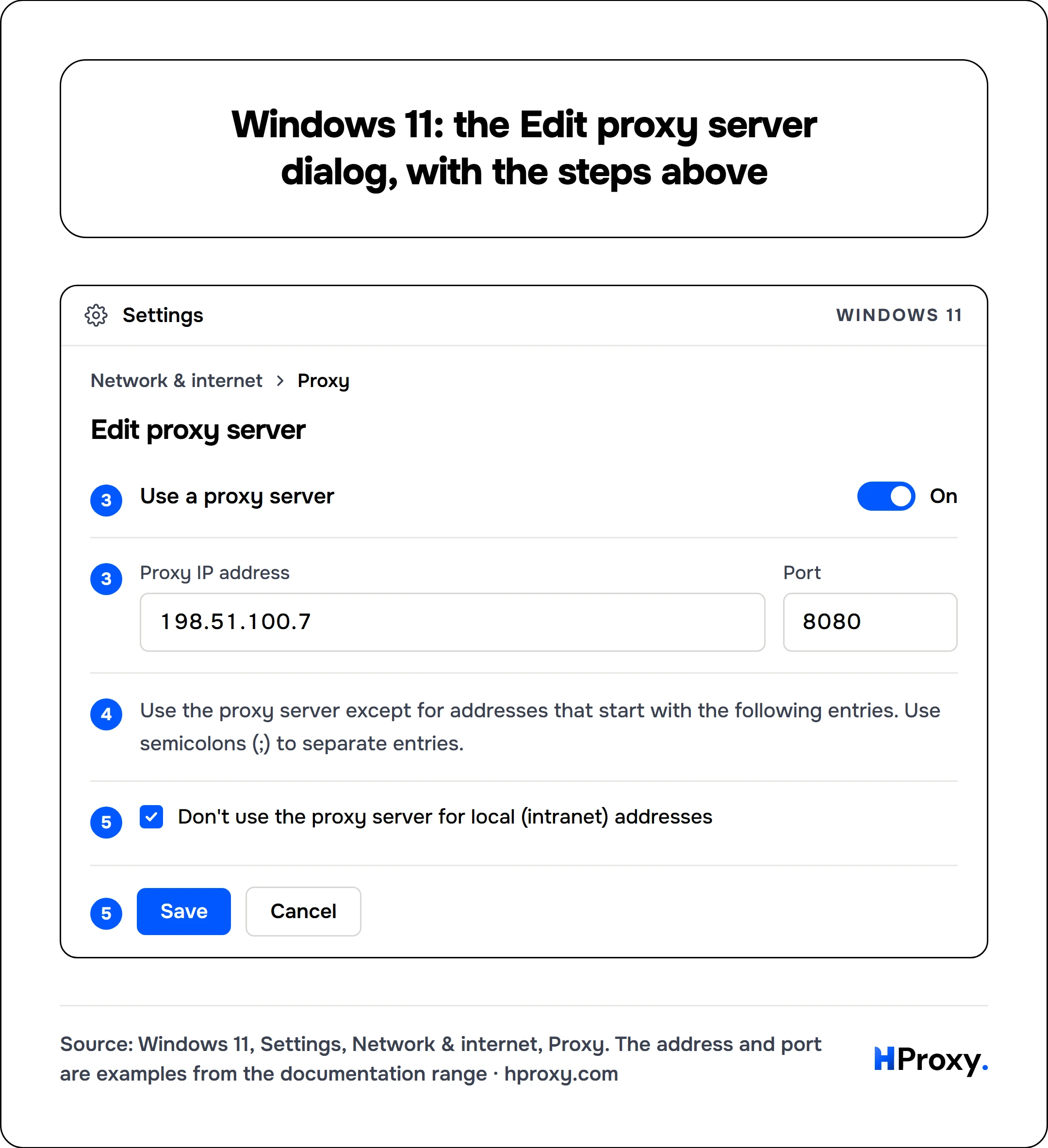
Network & internetProxy
Edit proxy server
- Use a proxy serverOn
- Proxy IP address198.51.100.7Port8080
- Use the proxy server except for addresses that start with the following entries. Use semicolons (;) to separate entries.
- Don't use the proxy server for local (intranet) addresses
If your company gave you a setup script address instead, select Set up next to Use setup script, turn it on, enter the address and select Save.
macOS, as Apple's help page describes it:
- Choose Apple menu > System Settings, click Network, click your network service, then Details, then Proxies.
- Turn on the proxy type you have, such as Web proxy (HTTP), Secure web proxy (HTTPS) or SOCKS proxy, and enter the server and port.
- Add hosts to skip in Bypass proxy settings for these hosts & domains, with commas between them.
For a company proxy script on a Mac, turn on Automatic proxy configuration and enter the address of the script.
About the password. Chrome ignores a password saved in these settings. When an HTTP proxy asks for a login, Chrome gets it through its own login flow instead. In our test, Chrome then sent the login to the proxy, and the page loaded.
Our guides for Windows and the Mac walk through those screens in more detail.
Step 2: use a proxy extension
An extension changes the proxy for Chrome only, in the profile where you install it. It can fill in the username and password for an HTTP proxy. It cannot give Chrome a SOCKS5 password, because Chrome's proxy interface for extensions has no field for one.
Each extension has its own setup screens. Our guides cover FoxyProxy and SwitchyOmega.
Install only extensions you have checked, because an extension with the webRequest permission can observe your traffic. A Chrome Web Store listing named Proxy SwitchyOmega (V3), version 3.0.2 with 10,000 users, was compromised on 30 December 2024. Security reports by Sekoia.io and RH-ISAC place it in the same campaign as the Cyberhaven extension.
Step 3: start Chrome with a proxy flag
This changes the proxy for one Chrome only, and nothing else on the computer. The Chromium project says to quit every running Chrome first, for example by opening chrome://quit.
On Windows, in Command Prompt:
"C:\Program Files\Google\Chrome\Application\chrome.exe" --proxy-server="http://203.0.113.7:8080" --user-data-dir="C:\chrome-proxy"
On macOS, in Terminal:
/Applications/Google\ Chrome.app/Contents/MacOS/Google\ Chrome --proxy-server="http://203.0.113.7:8080"
On Linux:
google-chrome --proxy-server="http://203.0.113.7:8080"
--user-data-dir is optional: it gives that Chrome its own folder for history, bookmarks and cookies, apart from your normal profile. On Windows, you can also add the flag at the end of a Chrome shortcut's Target line, as the Chromium project describes. It then applies whenever Chrome starts from that shortcut.
Do not put a username and password in the flag. In our test, a login written into the flag made Chrome refuse the proxy with ERR_NO_SUPPORTED_PROXIES, and the proxy received nothing at all. For an HTTP proxy, Chrome gets the login itself.
Step 4: check that Chrome uses the proxy
- Open
https://hproxy.com/api/free-proxy/echoin Chrome. It shows the address a website sees, in theipfield. - Compare it with the proxy's address: if it is still your own address, the proxy is not in use.
- If you used a flag, open
chrome://version, which shows the full command line of the running Chrome. The flag should be in it.
The settings page cannot tell you this, because it looked the same with and without a flag in our test. Our proxy checker tests the proxy itself, before Chrome is involved. For each proxy, it lists the status, protocol, anonymity, location, network and latency.
How to turn the proxy off
- Windows or macOS: switch the proxy off in the same system settings.
- An extension: switch the proxy off in the extension.
- A flag: close that Chrome and start it again without the flag. On Windows, also take the flag out of the shortcut's Target line if you added it there.
Our guide to turning off a proxy has more detail.
What each Chrome proxy error means
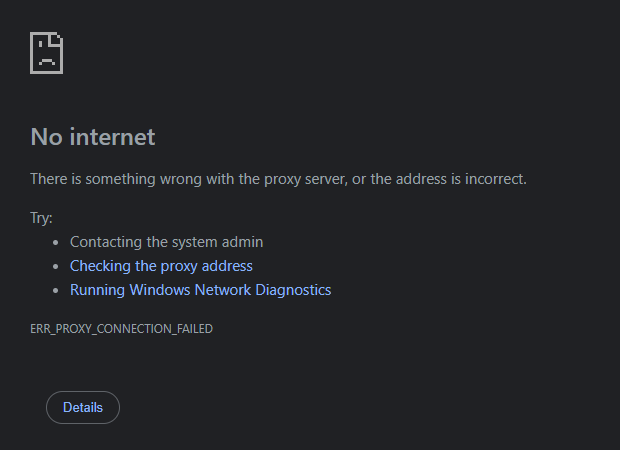
We caused each of these errors on purpose against a test proxy:
| Error | What caused it in our test | What to check |
|---|---|---|
ERR_PROXY_CONNECTION_FAILED | Nothing listened on the proxy port | The proxy address and port, and that the proxy is running |
ERR_TUNNEL_CONNECTION_FAILED | The proxy refused the tunnel for an https:// page | The proxy's rules for that site or port |
ERR_INVALID_AUTH_CREDENTIALS | The proxy asked for a login and got none (headless Chrome shows no prompt) | The username and password |
ERR_NO_SUPPORTED_PROXIES | A login was written into --proxy-server | Remove the login from the flag |
ERR_SOCKS_CONNECTION_FAILED | The SOCKS5 proxy refused the connection | The SOCKS5 address, and whether it wants a login |
ERR_CONNECTION_CLOSED | The proxy opened the tunnel, then closed it | The proxy |
ERR_NAME_NOT_RESOLVED | The page skipped the proxy, and the name did not resolve | The bypass list, or a direct:// fallback |
ERR_PROXY_CONNECTION_FAILED is about the proxy itself. Chrome's error list defines it as a failure to look up the proxy's name or connect to it, not a failed tunnel. Our guide to ERR_PROXY_CONNECTION_FAILED goes through the fixes.
When a proxy in a list fails and a later option works, Chrome marks that proxy as bad for 5 minutes. To reset it, open chrome://net-internals/#proxy and select Clear bad proxies.
For developers: the flag, scripts and logins in detail
More forms of the flag
The Chromium documentation describes these forms, and our test ran each one against a test proxy:
| You want | Flag |
|---|---|
| One HTTP proxy for every page | --proxy-server="http://203.0.113.7:8080" |
| A SOCKS5 proxy | --proxy-server="socks5://198.51.100.42:1080" |
One proxy for http://, another for https:// | --proxy-server="http=203.0.113.7:8080;https=198.51.100.14:3128" |
| A direct connection when the proxy is down | --proxy-server="http://203.0.113.7:8080,direct://" |
| No proxy for some hosts | --proxy-bypass-list="*.example.com;intranet" |
| localhost through the proxy too | --proxy-bypass-list="<-loopback>" |
Since Chrome 72, Chrome sends localhost, 127.0.0.1/8, [::1] and link-local addresses directly, even with a proxy set. Only <-loopback> in the bypass list changes that, and in our test it did. Chrome keeps localhost direct for security, so use <-loopback> only with a proxy you run yourself, such as a debugging proxy, and never with a public free proxy.
Logins in automated Chrome
Headless Chrome shows no login prompt, so in our test a proxy's 407 ended in ERR_INVALID_AUTH_CREDENTIALS. Puppeteer's page.authenticate() supplies the login. With it, Chrome sent the proxy a Basic Proxy-Authorization header, and the page loaded:
const browser = await puppeteer.launch({ args: ["--proxy-server=http://203.0.113.7:8080"] });
const page = await browser.newPage();
await page.authenticate({ username: "myuser", password: "mypassword" });
await page.goto("https://example.com");
Proxy scripts (PAC files)
Chrome downloads a proxy script directly, never through a proxy. The file must arrive within 30 seconds, with status 200, and be smaller than 1 MB. Chrome then keeps it until the network changes or the copy is 12 hours old. To make Chrome read a changed script sooner, open chrome://net-internals/#proxy and select Re-apply settings.
What the proxy can see
A proxy sees more of some pages than others. In our test, the HTTP proxy received the full address of an http:// page, with its path and query. For an https:// page, it received only a CONNECT request with the host name and port. The page itself travels encrypted through that tunnel.
With SOCKS5, Chrome leaves the name lookup to the proxy: our test proxy received the host name, not an address. A SOCKSv4 proxy looks names up on your machine, reaches IPv4 addresses only and takes no login, so choose SOCKS5 where you can. HTTP/1.1 proxies in Chrome are limited to 32 connections at once across all sites.
When a proxy needs a login Chrome cannot send
Free proxies need no login, so they work with every method on this page. For when they are good enough, see when free proxies are fine and our free proxy study.
A paid SOCKS5 proxy with a password is the case Chrome cannot handle. On Premium plans, our residential proxies can skip the login: you allow up to 150 of your own IP addresses, and they connect without a password. Premium lines speak HTTP, HTTPS and SOCKS5. A connection from an allowed address carries no username, so it cannot pick a country. Questions about our plans are answered in our FAQ.
Where to go from here
The cURL guide covers proxy settings on the command line. What is a SOCKS5 proxy explains when to choose SOCKS over HTTP.
What this page could not check
We ran every test on Windows 11 with Chrome 153 in headless mode, against test proxies on our own machine. Headless Chrome shows no login prompt, so the login in our test came through Puppeteer's page.authenticate(). The Windows and macOS steps come from Microsoft's and Apple's help pages, and we did not capture those screens for this page. We do not run third-party browser extensions on our own machines, so the extension section rests on Chrome's extension documentation. We will check these results again by 15 March 2027.
Sources
- Chromium, Proxy support in Chrome (net/docs/proxy.md), read 15 September 2026: chromium.googlesource.com.
- Chromium, network error list (net_error_list.h), read 15 September 2026: chromium.googlesource.com.
- Chromium, SOCKS5 client code (socks5_client_socket.cc), read 15 September 2026: chromium.googlesource.com.
- Chromium, chrome_proxy.exe source (chrome_proxy_main_win.cc), read 15 September 2026: chromium.googlesource.com.
- Chromium, User Data Directory, read 15 September 2026: chromium.googlesource.com.
- The Chromium Projects, Network Settings, read 15 September 2026: chromium.org.
- The Chromium Projects, Run Chromium with command-line switches, read 15 September 2026: chromium.org.
- Google, Chrome Enterprise policy list, ProxySettings, read 15 September 2026: chromeenterprise.google.
- Google, Chrome Extensions API reference, chrome.proxy, read 15 September 2026: developer.chrome.com.
- Google, Chrome Extensions API reference, chrome.webRequest, read 15 September 2026: developer.chrome.com.
- Puppeteer, Page.authenticate(), documentation for version 25.11.0, read 15 September 2026: pptr.dev.
- Microsoft Support, Use a proxy server in Windows, Windows 10 and 11, read 15 September 2026: support.microsoft.com.
- Apple Support, Change Proxies settings on Mac, read 15 September 2026: support.apple.com.
- Sekoia.io, Targeted supply chain attack against Chrome browser extensions, 22 January 2025.
- RH-ISAC, Cyberhaven extension compromise part of broader campaign affecting multiple Chrome extensions, 2 January 2025.
- Our own tests and captures of Chrome 153.0.8010.36 against local test proxies, 15 September 2026, logged in the research folder for this page.