To scrape a page that builds its content with JavaScript, Selenium opens it in a real browser, waits for the data and reads it. Start Chrome with webdriver.Chrome(), open the page with driver.get(), wait with WebDriverWait, and read every field in one execute_script() call. To scrape through a proxy, pass --proxy-server. Chrome takes no login there, so allow your address at the proxy or let a small extension answer the login.
We built a practice shop for this page and scraped it on our own server on October 12, 2026. We used Selenium 4.51.0, Python 3.12.3, Chrome for Testing 143 in headless mode, and two test proxies of our own. Every example below ran there, and its output is pasted under it.
What you need
- Python 3.10 or newer. Selenium 4.51.0 came out on October 9, 2026, and needs it.
- Chrome, plus two packages:
pip install selenium requests. - On Linux as the root user, the
--no-sandboxflag as well. Started as root without it, Chrome quit at once. The runs behind this page also passed--no-sandboxand--disable-dev-shm-usage, outside the examples.
Step 1: run a practice shop
This page uses a small shop of its own, so every reader scrapes the same pages and no real site is involved. Its products load with JavaScript, one second after the page. It has five pages of ten products. Save it as shop.py.
"""A practice shop to scrape: its products load with JavaScript, one second after the page."""
import json
import sys
from http.server import BaseHTTPRequestHandler, ThreadingHTTPServer
from urllib.parse import parse_qs, urlparse

PRODUCTS = [{"name": f"Lamp {n}", "price": f"{9 + n % 40}.99"} for n in range(1, 51)]
PAGE = """<!doctype html>
<title>Practice shop, page %(page)d</title>
<div id="products"></div>
%(next)s
<script>
setTimeout(function () {
  fetch("/api/products?page=%(page)d").then(r => r.json()).then(function (items) {
    document.getElementById("products").innerHTML = items.map(p =>
      '<div class="product"><h2>' + p.name + '</h2><p class="price">' + p.price + '</p></div>').join("");
  });
}, 1000);
</script>"""


class Shop(BaseHTTPRequestHandler):
    def do_GET(self):
        url = urlparse(self.path)
        page = int(parse_qs(url.query).get("page", ["1"])[0])
        if url.path == "/api/products":
            body, kind = json.dumps(PRODUCTS[page * 10 - 10:page * 10]), "application/json"
        else:
            link = f'<a id="next" href="/?page={page + 1}">Next</a>' if page < 5 else ""
            body, kind = PAGE % {"page": page, "next": link}, "text/html; charset=utf-8"
        data = body.encode()
        self.send_response(200)
        self.send_header("Content-Type", kind)
        self.send_header("Content-Length", str(len(data)))
        self.end_headers()
        self.wfile.write(data)


if __name__ == "__main__":
    port = int(sys.argv[1]) if len(sys.argv) > 1 else 8000
    ThreadingHTTPServer(("127.0.0.1", port), Shop).serve_forever()
Run it in a second terminal and leave it running.
python shop.py
The shop answers on http://127.0.0.1:8000. The scraper reads that address from a SHOP variable, so you can point it at another one. We ran the shop on another port of our server.
Step 2: check what requests gets
import os

import requests

SHOP = os.environ.get("SHOP", "http://127.0.0.1:8000")
html = requests.get(SHOP + "/?page=1", timeout=10).text
print("Lamp 1" in html, len(html), "bytes")
print(requests.get(SHOP + "/api/products?page=1", timeout=10).json()[:2])
False 425 bytes
[{'name': 'Lamp 1', 'price': '10.99'}, {'name': 'Lamp 2', 'price': '11.99'}]
The page arrived, all 425 bytes of it, without a single product. The products come later, from the address /api/products, which the page's script calls. requests does not run scripts, so it never sees them. A browser does.
Step 3: open the page and wait for the products
from selenium import webdriver
from selenium.webdriver.common.by import By
from selenium.webdriver.support import expected_conditions as EC
from selenium.webdriver.support.ui import WebDriverWait

options = webdriver.ChromeOptions()
options.add_argument("--headless=new")
options.add_argument("--window-size=1920,1080")
driver = webdriver.Chrome(options=options)
wait = WebDriverWait(driver, 10)

driver.get(SHOP + "/?page=1")
products = wait.until(EC.presence_of_all_elements_located((By.CSS_SELECTOR, ".product")))
print(len(products), "products, the first:", products[0].text.replace("\n", " "))
10 products, the first: Lamp 1 10.99
driver.get() returned after 0.13 s, before any product existed. The products appeared 1.23 s after the start, and WebDriverWait waited until then. A fixed time.sleep() waits too long or not long enough, yet six of the eleven rival guides we read sleep in their code. Our page on finding elements in Selenium times each kind of wait.
Step 4: read all the products in one call
ROWS = """
return [...document.querySelectorAll(".product")].map(p => ({
  name: p.querySelector("h2").innerText,
  price: p.querySelector(".price").innerText,
}));
"""
print(driver.execute_script(ROWS)[:2])
[{'name': 'Lamp 1', 'price': '10.99'}, {'name': 'Lamp 2', 'price': '11.99'}]
The script runs inside the page and returns all the rows at once. We read the same ten products three ways, five times each, and took the middle time.
| Method | Time for 10 products |
|---|---|
find_elements, then .text for each field | 1,434 ms |
driver.page_source parsed with BeautifulSoup | 10 ms |
One execute_script() call | 24 ms |
All three returned the same rows. Each find_element and each .text is a separate request from Python to the browser. Ten products with two fields each made 41 of them, and on our busy server they took 1.4 s. One script, or one copy of the HTML parsed with BeautifulSoup, took milliseconds.
Step 5: follow the pages and save a CSV file
import csv

rows = []
driver.get(SHOP + "/?page=1")
while True:
    wait.until(EC.presence_of_element_located((By.CSS_SELECTOR, ".product")))
    rows += driver.execute_script(ROWS)
    next_links = driver.find_elements(By.ID, "next")
    if not next_links:
        break
    next_links[0].click()
    wait.until(EC.staleness_of(next_links[0]))

with open("products.csv", "w", newline="", encoding="utf-8") as f:
    writer = csv.DictWriter(f, fieldnames=["name", "price"])
    writer.writeheader()
    writer.writerows(rows)
print(len(rows), "rows,", len({row["name"] for row in rows}), "unique, the last:", rows[-1])
driver.quit()
50 rows, 50 unique, the last: {'name': 'Lamp 50', 'price': '19.99'}
After the click, staleness_of waits until the old Next link is gone, so the loop never reads the old page twice. Then it waits for the new products. The last page has no Next link, and the loop ends.
Step 6: check the rows
Count the rows and the unique names, as the last line above does: 50 rows, 50 unique. Then compare them with a second source when there is one. This shop has one, the JSON address its own script calls.
with requests.Session() as session:
    api_rows = []
    for page in range(1, 6):
        api_rows += session.get(f"{SHOP}/api/products?page={page}", timeout=10).json()
print(len(api_rows), "rows from the API, the same as Selenium's:", api_rows == rows)
50 rows from the API, the same as Selenium's: True
The JSON route returned the same 50 rows in 27 ms. The browser needed 8.82 s. So before you build a browser scraper, open the browser's network panel on the real site and look for such a request.
Make the browser load less
A browser also downloads the images a page shows. We timed driver.get() on a test page with twelve images that took 0.3 s each.
| Setup | get() took | Images downloaded |
|---|---|---|
| Normal page load | 1.45 s | 12 (235 KB) |
| Images blocked | 0.14 s | 0 |
page_load_strategy = "eager" | 0.13 s | 12 (235 KB) |
Blocking images takes one preference: options.add_experimental_option("prefs", {"profile.managed_default_content_settings.images": 2}). It is the setting behind Chrome's images policy, and "Setting the policy to 2 denies image display". The eager strategy only stops get() from waiting. Selenium's documentation puts it as "DOM access is ready, but other resources like images may still be loading", and all twelve images still came. If your proxy plan counts traffic, only blocking saves it.
Step 7: send the browser through a proxy
A proxy without a login
proxy_options = webdriver.ChromeOptions()
proxy_options.add_argument("--headless=new")
proxy_options.add_argument("--proxy-server=http://" + os.environ["PROXY"])
proxy_driver = webdriver.Chrome(options=proxy_options)
proxy_driver.get("https://hproxy.com/blog/web-scraping-with-python")
print(proxy_driver.title)
proxy_driver.quit()
Web Scraping With Python: Step by Step, Tested | HProxy
PROXY holds host:port. In our run it pointed at a test proxy on our server, and the proxy's own log showed this.
CONNECT hproxy.com:443  login no  -> 200  (2x)
7 more requests to other hosts
For an https page, Chrome asks the proxy for a tunnel with CONNECT. RFC 9110 defines it as asking the proxy to "establish a tunnel to the destination origin server". So the proxy saw the host and the port, not the page. The other seven requests went to Chrome's own services at Google and to other services our page uses. Chrome's own requests still came with --disable-background-networking.
Two checks show that the proxy is really in use.
- A dead proxy must fail. With a port where nothing listened,
driver.get()raisednet::ERR_PROXY_CONNECTION_FAILED. If pages still load, the proxy is not used. - Localhost skips the proxy. Our practice shop on 127.0.0.1 never reached the proxy until we added
--proxy-bypass-list=<-loopback>. Chromium's documentation says this "is generally only needed for test setups".
A proxy that asks for a login
Chrome will not take a username and password in --proxy-server. Chromium's documentation says Chrome "will not use any credentials embedded in the proxy settings". In our test, a login inside --proxy-server made Chrome refuse the proxy with ERR_NO_SUPPORTED_PROXIES, and nothing reached it. Without a login, the proxy answered 407 and no page loaded.
Two ways worked. The first needs no code: allow your server's address at the proxy, so it asks for no login. Our page on IP whitelisting explains how that works and when it breaks. The second is a small extension that answers the proxy's login request. PROXY_USER and PROXY_PASS hold the login.
import json
import pathlib

extension = pathlib.Path("proxy-login").resolve()
extension.mkdir(exist_ok=True)
(extension / "manifest.json").write_text(json.dumps({
    "manifest_version": 3, "name": "Proxy login", "version": "1.0",
    "permissions": ["webRequest", "webRequestAuthProvider"], "host_permissions": ["<all_urls>"],
    "background": {"service_worker": "background.js"},
}))
(extension / "background.js").write_text("""
chrome.webRequest.onAuthRequired.addListener(
  (details, callback) => callback(details.isProxy
    ? {authCredentials: {username: %s, password: %s}} : {}),
  {urls: ["<all_urls>"]}, ["asyncBlocking"]);
""" % (json.dumps(os.environ["PROXY_USER"]), json.dumps(os.environ["PROXY_PASS"])))

login_options = webdriver.ChromeOptions()
login_options.add_argument("--headless=new")
login_options.add_argument("--proxy-server=http://" + os.environ["PROXY"])
login_options.add_argument("--load-extension=" + str(extension))
login_driver = webdriver.Chrome(options=login_options)
login_driver.get("https://hproxy.com/blog/web-scraping-with-python")
if not login_driver.title:  # the extension was not ready for the first page
    login_driver.get("https://hproxy.com/blog/web-scraping-with-python")
print(login_driver.title)
login_driver.quit()
Web Scraping With Python: Step by Step, Tested | HProxy
In this run, PROXY pointed at our second test proxy, which asks for a login. Its log showed the exchange.
CONNECT hproxy.com:443  login no  -> 407  (1x)
CONNECT hproxy.com:443  login yes  -> 200  (2x)
7 more requests to other hosts
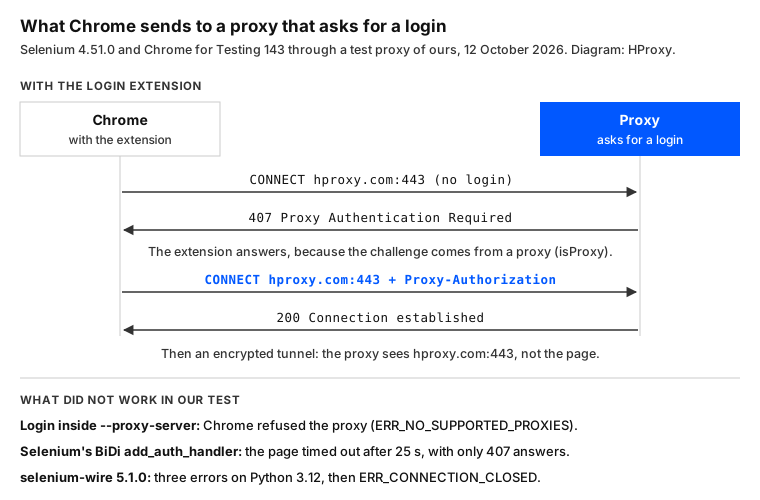
The extension answers only when details.isProxy is true. Chrome's documentation defines it as "True for Proxy-Authenticate, false for WWW-Authenticate", so a site's own login prompt never gets your proxy password. Right after start, the first page failed in 4 of 6 starts in our test, because the extension was not running yet. A second try worked in all four cases, hence the retry line.
Two other ways did not work for us. With Selenium's own handler, driver.network.add_auth_handler(), the page never loaded: it ran into our 25-second limit, and the proxy saw only 407 answers. Selenium 4.51.0 lists DevTools support for Chrome 153 to 155, and we tested Chrome 143, so it may work on a current Chrome. selenium-wire, which three of the eleven guides we read still recommend, was "archived by the owner on Jan 3, 2024". On Python 3.12 it failed to import twice, and after two fixes, Chrome got ERR_CONNECTION_CLOSED.
Once the proxy works, sites see the proxy's address instead of yours. Our guide to proxies in Selenium covers more setups, and our residential proxies are the paid option.
When a site still refuses the browser
A proxy changes the address and nothing else. Our page on Selenium's headless mode shows what else a page can read from a headless Chrome, and which flags change it.
What this page could not check
- One browser build: Chrome for Testing 143 in headless mode, stable since December 2, 2025. The stable Chrome on October 11, 2026, was 155. Selenium's login handler and Google Chrome's handling of
--load-extensionmay differ there. - A practice shop of our own, not a real site with its scripts and bot checks.
- Test proxies on our own server, not a commercial proxy. We did not measure a changed exit address, and we did not test SOCKS.
- Times come from one busy server and moved between three runs. Reading field by field took 1.43 to 1.77 s, and the five pages 7.5 to 8.8 s.
- Python and Chrome only; Firefox was not tested.
- We will rerun these tests by January 12, 2027.
Sources
- Chromium, proxy support in Chrome (net/docs/proxy.md): chromium.googlesource.com.
- Chromium, the DefaultImagesSetting policy: chromium.googlesource.com.
- Selenium documentation, browser options and the page load strategy: selenium.dev.
- Selenium documentation, WebDriver BiDi network: selenium.dev.
- Selenium Python bindings, release notes (4.51.0): github.com.
- Chrome for Developers, chrome.webRequest: developer.chrome.com.
- selenium-wire, archived repository: github.com.
- RFC 9110, HTTP Semantics, 407 and CONNECT (IETF, June 2022): rfc-editor.org.
- selenium 4.51.0 on PyPI (released October 9, 2026): pypi.org.
- Chromium release schedule (Chrome 143) and Chrome for Testing versions: chromiumdash.appspot.com and googlechromelabs.github.io.
- Our own tests on our server, October 12, 2026: scrape_tests.py at 06:40 UTC, wire_check.sh at 06:46 UTC and the code on this page at 06:47 UTC, on a practice shop of our own and on hproxy.com.