To find an element with Selenium in Python, call driver.find_element(By.ID, "q") with one of the eight By locators. It returns the first match, or raises NoSuchElementException when nothing matches. driver.find_elements() returns a list instead, which is empty when nothing matches. When the page adds the element later, wait for it with WebDriverWait.
We ran the examples on this page on our own server on October 12, 2026. We used Selenium 4.51.0, Python 3.12.3 and Chrome for Testing 143 in headless mode. Every example ran there, and its output is pasted below it. We also timed the waits and kept the exact error messages that Chrome's driver sends back.
What you need
- Python 3.10 or newer. Selenium 4.51.0 came out on October 9, 2026, and needs it.
- Chrome. Selenium fetches the matching driver for you: on our server it picked chromedriver 143.0.7499.192 for Chrome 143.0.7499.192.
- Selenium itself:
pip install selenium
Run as the root user, Chrome quit at once without the --no-sandbox flag, and Selenium reported "session not created: Chrome instance exited". Our test runs added that flag and --disable-dev-shm-usage outside the examples. Add them only if you run Chrome as root as well.
Step 1: start Chrome and find an element
from selenium import webdriver
from selenium.webdriver.common.by import By

options = webdriver.ChromeOptions()
options.add_argument("--headless=new")
driver = webdriver.Chrome(options=options)

driver.get("https://hproxy.com/blog/web-scraping-with-python")
print(driver.find_element(By.TAG_NAME, "h1").text)
for heading in driver.find_elements(By.CSS_SELECTOR, "article h2")[:3]:
    print("-", heading.text)
Web scraping with Python: requests, BeautifulSoup and proxies, step by step
- What you need
- Step 1: download a page, then read the bytes
- Step 2: find the data with CSS selectors
find_element() takes a locator kind from By and a value. --headless=new runs Chrome without a window, as on our server. The script opened one of our own posts and read its main heading and its first three section headings.
Step 2: choose a locator
Selenium has eight locators. We ran each one on a small test page. The helper show() opens HTML written in the code, so the rest of the examples need no server:
from urllib.parse import quote


def show(html):
    """Open HTML written in the code, so each example runs without a server."""
    driver.get("data:text/html;charset=utf-8," + quote(html))


show("""
<h1>Test shop</h1>
<input id="q" name="query" aria-label="Search products">
<ul>
  <li class="product featured"><a href="/p/lamp">Desk lamp</a> <span class="price">25.00</span></li>
  <li class="product"><a href="/p/chair">Office chair</a> <span class="price">89.00</span></li>
</ul>
""")
for by, value in [
    (By.ID, "q"),
    (By.NAME, "query"),
    (By.CLASS_NAME, "featured"),
    (By.TAG_NAME, "h1"),
    (By.LINK_TEXT, "Office chair"),
    (By.PARTIAL_LINK_TEXT, "Desk"),
    (By.CSS_SELECTOR, "li.product .price"),
    (By.XPATH, "//li[a='Office chair']/span"),
]:
    element = driver.find_element(by, value)
    print(f"{by:18} {value:28} {element.tag_name:6} {element.text or element.accessible_name}")
id                 q                            input  Search products
name               query                        input  Search products
class name         featured                     li     Desk lamp 25.00
tag name           h1                           h1     Test shop
link text          Office chair                 a      Office chair
partial link text  Desk                         a      Desk lamp
css selector       li.product .price            span   25.00
xpath              //li[a='Office chair']/span  span   89.00
Selenium's documentation calls these eight its "traditional location strategies". The WebDriver standard behind Selenium defines only five kinds. So Selenium rewrites the other three as CSS selectors before it sends them. We read Chrome's driver log to see what arrived:
| You write | Chrome's driver receives |
|---|---|
By.ID, "q" | css selector [id="q"] |
By.NAME, "query" | css selector [name="query"] |
By.CLASS_NAME, "featured" | css selector .featured |
By.TAG_NAME, By.LINK_TEXT, By.PARTIAL_LINK_TEXT | the same kind and value |
By.CSS_SELECTOR, By.XPATH | the same kind and value |
Which locator to use:
- By.ID when the element has an id that does not change. It becomes an attribute selector, so an id such as
2024-pricesworks. The CSS selector#2024-pricesraises an error, as the section on errors shows. - By.CSS_SELECTOR for classes and attributes:
li.product .priceor[aria-label="Search products"]. - By.XPATH when you need an element by its text, or by what it holds, as in
//li[a='Office chair']/span. - By.LINK_TEXT for links. It matches the text the browser shows, which can differ from the HTML.
Step 3: find_element or find_elements?
from selenium.common.exceptions import NoSuchElementException

print(driver.find_elements(By.ID, "basket"))
try:
    driver.find_element(By.ID, "basket")
except NoSuchElementException as error:
    print(error.msg.splitlines()[0])
[]
no such element: Unable to locate element: {"method":"css selector","selector":"[id="basket"]"}
find_element() stops your script with an error when nothing matches. find_elements() returns an empty list, so it suits lists and optional parts of a page. The error message names the CSS selector that Selenium sent, not the By.ID you wrote.
Both obey the implicit wait. With driver.implicitly_wait(5), a search for a missing element took 5.02 s with find_element() and 5.06 s with find_elements(). So an implicit wait makes every "is it there?" check slow.
Step 4: wait for the element
A page can add elements with JavaScript after it loads, and then find_element() runs too early. We loaded a page that adds a paragraph after 2.0 seconds. Then we tried four ways to get it, three times each:
| Method | Result |
|---|---|
find_element() at once | failed after 0.03 to 0.09 s |
| implicit wait of 5 s | found after 2.01 to 2.35 s |
WebDriverWait(driver, 5) | found after 2.50 to 2.54 s |
time.sleep(5), then find_element() | found after 5.09 to 5.32 s |
The implicit wait asks the driver to retry until the time runs out. The WebDriver standard sets it to 0 at the start, so it does nothing until you set it. WebDriverWait retries from Python every 0.5 seconds by default, so it can see an element up to half a second late. time.sleep() always waits the full time, even when the element came early.
WebDriverWait is the one to use, because it waits for a condition you choose:
import time

from selenium.webdriver.support import expected_conditions as EC
from selenium.webdriver.support.ui import WebDriverWait

show("""
<title>Late loader</title>
<div id="box"></div>
<script>
  setTimeout(() => { document.getElementById("box").innerHTML = '<p id="late">Loaded</p>'; }, 2000);
</script>
""")
start = time.perf_counter()
late = WebDriverWait(driver, 10).until(EC.visibility_of_element_located((By.ID, "late")))
print(late.text, f"after {time.perf_counter() - start:.1f} s")
Loaded after 2.3 s
Pick the condition that matches what you will do next. We ran each one on a paragraph and a button that a page hid or disabled for 1.5 seconds:
| Condition | Element | Returned after |
|---|---|---|
presence_of_element_located | hidden paragraph | 0.07 s |
visibility_of_element_located | the same paragraph | 2.06 s |
presence_of_element_located | disabled button | 0.11 s |
element_to_be_clickable | the same button | 2.62 s |
Presence only means the element is in the HTML. A click on the disabled button raised no error at all, and the page counted 0 clicks. So a script that clicks too early can fail without a word.
Do not mix the two waits
Selenium's documentation warns: "Do not mix implicit and explicit waits. Doing so can cause unpredictable wait times". We measured how much. A WebDriverWait of 3 seconds waited for an element that never came, with three implicit waits:
Each poll of WebDriverWait calls find_element(), and each call blocks for the full implicit wait. Selenium checks its own deadline only after that call returns. So with an implicit wait of 2 s, the 3-second wait ended at 4.73 s. With 5 s, it ended at 5.02 s. Use WebDriverWait and leave the implicit wait at 0.
Step 5: check what the browser saw
When a locator finds nothing, look at the page the browser really had. This helper returns every match. When there is none, it saves a screenshot and the HTML:
def find_or_save(by, value):
    """Every match; when there is none, keep a screenshot and the HTML the browser had."""
    found = driver.find_elements(by, value)
    if not found:
        driver.save_screenshot("nothing-found.png")
        with open("nothing-found.html", "w", encoding="utf-8") as f:
            f.write(driver.page_source)
        print("nothing for", value, "on the page titled", repr(driver.title))
    return found


print(len(find_or_save(By.ID, "late")), len(find_or_save(By.ID, "basket")))
nothing for basket on the page titled 'Late loader'
1 0
Open the saved HTML and search it for your element. If the element is in it, the locator or the timing is wrong: step 4 and the next section cover both. If the page is a login form, a cookie notice or a block page, no locator will help.
A block page means the site refused your address, not your code. That is the one case on this page that a proxy solves. Our guide to proxies in Selenium shows the setup, and our residential proxies are the paid option.
Why find_element misses an element that is on the page
It sits in an iframe or a shadow root
A search from the driver covers one document. It does not enter a frame or a shadow root:
show("""
<div id="host"></div>
<iframe id="frame" srcdoc="<p id='inside'>Inside the frame</p>"></iframe>
<script>
  document.getElementById("host").attachShadow({mode: "open"}).innerHTML = '<button id="buy">Buy</button>';
</script>
""")
print(len(driver.find_elements(By.ID, "buy")), len(driver.find_elements(By.ID, "inside")))
host = driver.find_element(By.ID, "host")
print(host.shadow_root.find_element(By.CSS_SELECTOR, "#buy").text)
driver.switch_to.frame(driver.find_element(By.ID, "frame"))
print(driver.find_element(By.ID, "inside").text)
driver.switch_to.default_content()
0 0
Buy
Inside the frame
Both searches from the driver found nothing. For the shadow root, search from host.shadow_root, with CSS only: XPath there raised "invalid argument: invalid locator" in our test. A closed shadow root worked too. JavaScript's shadowRoot returned null for it, yet shadow_root found the button inside. For a frame, switch into it, and switch back with default_content() when you are done.
The headless window hides it
print(driver.get_window_size())
print(driver.execute_script("return [innerWidth, innerHeight]"))
driver.set_window_size(1920, 1080)
print(driver.execute_script("return [innerWidth, innerHeight]"))
{'width': 780, 'height': 580}
[780, 388]
[1920, 888]
Headless Chrome 143 opened a window of 780 by 580 pixels, and the page itself got only 780 by 388. A page can hide parts of itself on narrow screens. Our test page hid its menu below 1,024 pixels, so the menu link was not displayed, and By.LINK_TEXT did not find it. After set_window_size(1920, 1080), both worked. You can also set the size at the start with options.add_argument("--window-size=1920,1080"). In our test, that gave the same page area.
The text is not what the browser shows
show("""
<a href="/next" style="text-transform: uppercase">Next page</a>
<p id="note" style="display: none">Free delivery over 50.00</p>
""")
link = driver.find_element(By.TAG_NAME, "a")
note = driver.find_element(By.ID, "note")
print(repr(link.text), repr(note.text), repr(note.get_attribute("textContent")))
print(len(driver.find_elements(By.LINK_TEXT, "Next page")), len(driver.find_elements(By.LINK_TEXT, "NEXT PAGE")))
'NEXT PAGE' '' 'Free delivery over 50.00'
0 1
.text returns the text as the browser shows it. The HTML says "Next page", but a CSS rule turns it into capitals, so .text reads "NEXT PAGE". Link text works the same way: the WebDriver standard compares your value with the shown text, trimmed of spaces. So "Next page" found nothing, and "NEXT PAGE" found the link. A hidden element has no shown text at all, so .text is empty. Its text is still in textContent. To match the text as written in the HTML, use XPath: //a[text()='Next page'] found the link in our test.
An XPath from an element searched the whole page
You can search inside an element: card.find_element(By.XPATH, ".//a"). Leave out the dot and the search starts at the top of the page again. From the second product on our test page, //a found the menu link "Deals", the first link on the whole page. .//a and the CSS selector a found "Office chair", the link inside the product.
The errors and what they mean
Each message below is the first line we saw from Selenium 4.51.0 and Chrome 143:
| Error | Message | Cause and fix |
|---|---|---|
NoSuchElementException | no such element: Unable to locate element | Nothing matched in time. Wait for it, enter the frame or check the page. |
StaleElementReferenceException | stale element reference: stale element not found in the current frame | The page replaced the element after you found it. Find it again. |
InvalidSelectorException | Compound class names are not allowed. | A class name with a space. Use .product.featured as a CSS selector. |
InvalidSelectorException | invalid selector: An invalid or illegal selector was specified | Broken CSS, such as an id that starts with a digit. Use By.ID. |
InvalidSelectorException | The result of the xpath expression "//h1/text()" is: [object Text]. It should be an element. | XPath must end at an element. Drop /text() and read .text. |
ElementNotInteractableException | element not interactable | The element is hidden. Wait until it is visible. |
ElementClickInterceptedException | element click intercepted: ... Other element would receive the click | Something covers it, such as a cookie banner. Close that first. |
TimeoutException | (empty) | WebDriverWait ran out. Pass a message to until() to know which wait. |
InvalidArgumentException | invalid argument: invalid locator | find_element("query") without a By, or XPath in a shadow root. |
AttributeError | 'WebDriver' object has no attribute 'find_element_by_id' | Old code. Selenium 4.3.0 removed the find_element_by_* methods. |
NoSuchShadowRootException | no such shadow root: shadow root not found | The element has no shadow root. |
Three of these need a word more. Since Selenium 4.37.0, the class name check runs in Python, before anything is sent. The id rule comes from CSS: an identifier "must not start with an unescaped digit", in MDN's words. By.ID avoids it, because it sends [id="2024-prices"] instead of #2024-prices.
A stale element comes from a page that changed, not from a wrong selector:
from selenium.common.exceptions import StaleElementReferenceException

show('<ul id="list"><li>Desk lamp</li><li>Office chair</li></ul>')
first = driver.find_element(By.CSS_SELECTOR, "#list li")
driver.execute_script("const ul = document.getElementById('list'); ul.innerHTML = ul.innerHTML;")
try:
    print(first.text)
except StaleElementReferenceException as error:
    print(error.msg.splitlines()[0])
print(driver.find_element(By.CSS_SELECTOR, "#list li").text)
stale element reference: stale element not found in the current frame
Desk lamp
The script rebuilt the list with the very same HTML. The old reference still went stale, and the same locator found the new element at once. Selenium's documentation explains why: "Elements do not get relocated automatically". So find an element right before you use it, and find it again after anything that reloads or redraws the page.
Is CSS or XPath faster in Selenium?
Neither, in practice. We timed 60 calls of each locator on our test page, taking the locators in turn. Every locator took a median of 18 to 22 ms per call. A command that does nothing, execute_script("return 1"), took 19 ms. So almost all of the time is the trip from Python to the driver and back:
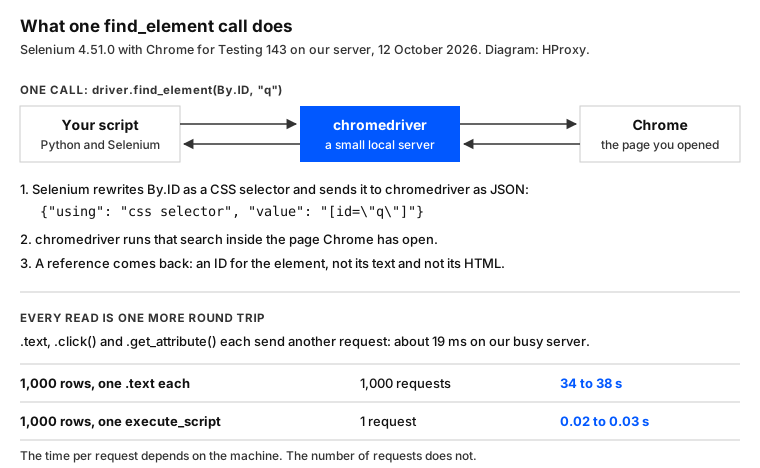
That trip is also why reading many elements is slow. Each .text is one more request:
rows = "".join(f"<li>Item {i}</li>" for i in range(1000))
show(f'<ul id="list">{rows}</ul>')

start = time.perf_counter()
names = [li.text for li in driver.find_elements(By.CSS_SELECTOR, "#list li")]
print(len(names), f"names in {time.perf_counter() - start:.2f} s, one call per element")

start = time.perf_counter()
names = driver.execute_script("return [...document.querySelectorAll('#list li')].map(li => li.innerText)")
print(len(names), f"names in {time.perf_counter() - start:.2f} s, one script")
driver.quit()
1000 names in 34.38 s, one call per element
1000 names in 0.02 s, one script
One script returned the same 1,000 texts in a single request. Our server was busy during the test, with a load average of 11 to 15, so your times will differ. The number of requests stays the same everywhere. Our page on XPath and CSS selectors compares the two languages outside Selenium. Our XPath contains() guide covers matching part of a text.
What this page could not check
- One browser: Chrome for Testing 143, stable since December 2, 2025. The stable Chrome on October 11, 2026, was 155. Firefox, Edge and Safari were not tested.
- Headless only. Our server has no display, so we could not test Chrome with a window.
- Python only. Selenium's clients for Java, C# and JavaScript have their own code, which we did not test.
- Test pages of our own, and one page of our own site.
- Times come from one busy server and move between runs. Reading 1,000 rows one by one took 34 to 38 s over three runs, and the order of the results never changed.
- We will rerun these tests by January 12, 2027.
Sources
- W3C WebDriver (Level 2), locator strategies, link text, timeouts and errors: w3.org.
- Selenium documentation, locator strategies: selenium.dev.
- Selenium documentation, finding web elements: selenium.dev.
- Selenium documentation, waiting strategies: selenium.dev.
- Selenium documentation, understanding common errors: selenium.dev.
- Selenium Python bindings, release notes (4.3.0 and 4.37.0): github.com.
- W3C Selectors Level 4, ID selectors: w3.org.
- MDN Web Docs, CSS identifiers: developer.mozilla.org.
- selenium 4.51.0 on PyPI (released October 9, 2026): pypi.org.
- Chromium release schedule (Chrome 143) and Chrome for Testing versions: chromiumdash.appspot.com and googlechromelabs.github.io.
- Our own tests on our server, October 12, 2026: find_tests.py at 04:50 UTC and the code on this page at 04:57 UTC, on test pages of our own and on hproxy.com.