Firefox is the browser people blame when a proxy misbehaves, and two things about it have changed. It follows your computer's proxy by default: its own source code makes "use the system proxy settings" the starting value. And its proxy settings have moved, from the bottom of the General page, where many guides still send you, to Privacy and security.
We ran Firefox ESR 153.4 and Firefox 157 on our own test machines, and read the dialog's labels, defaults and messages from Firefox's source. The screenshots below are ours.
| Option in the dialog | What it does | When to pick it |
|---|---|---|
| Use system proxy settings | Uses your computer's proxy (the default) | Your system proxy is right, or there is none |
| Manual proxy configuration | Uses the HTTP, HTTPS or SOCKS proxy you type | You want Firefox, and only Firefox, on a proxy |
| Automatic proxy configuration URL | Follows a PAC script at that address | Your company or school gave you one |
| Auto-detect proxy settings for this network | Looks for a PAC script on the network | A network that announces its proxy |
| No proxy | Connects directly | To rule the proxy out, or switch it off |
Our free proxy setup generator writes the values for the steps below, and the same settings as user.js lines, for your own proxy, the list of sites to skip included.
Step 1: open Configure proxy
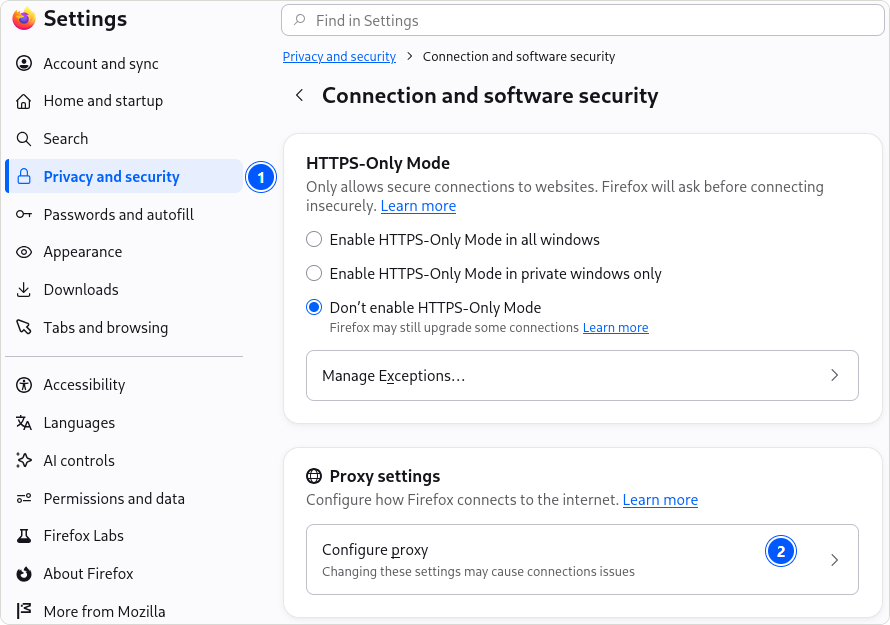
Open Firefox's Settings, choose Privacy and security (1) and, under Proxy settings, click Configure proxy (2). Typing proxy into Find in Settings at the top leads to the same place.
The dialog that opens, Connection Settings, starts with the heading Configure Proxy Access to the Internet. On a new profile it sits on Use system proxy settings (3):
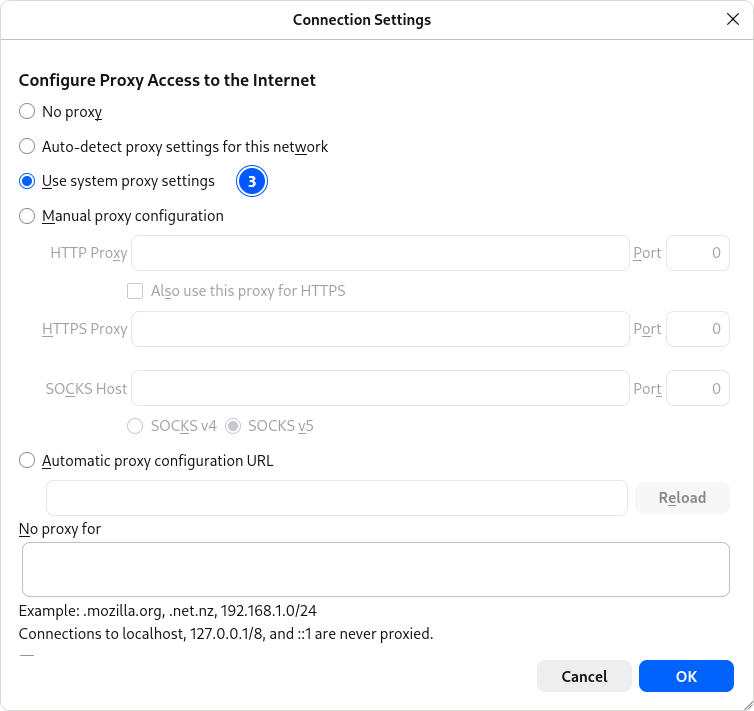
If your computer's proxy is already set, that is all: Firefox uses it. The rest of this page is for a proxy of Firefox's own.
Step 2: an HTTP proxy
Choose Manual proxy configuration, then:
- Type the address in HTTP Proxy, on its own, like
203.0.113.10, with nohttp://. - Type the port in the Port box beside it, like
8080. - Tick Also use this proxy for HTTPS, so
https://sites, which is nearly all of them, use the same proxy. - Click OK.
Privacy and securityConfigure proxy
Connection Settings
- HTTP Proxy203.0.113.10Port8080
- Also use this proxy for HTTPS
- No proxy for.mozilla.org, .net.nz, 192.168.1.0/24
Or: a SOCKS5 proxy
Choose Manual proxy configuration and leave the HTTP rows empty:
- Type the address in SOCKS Host and the port beside it, often
1080. - Choose SOCKS v5, unless your provider said SOCKS4.
- Look at Proxy DNS when using SOCKS v5. Firefox's default for it is on, which its source describes as making the proxy "SOCKS5h by convention": the proxy, not your computer, looks up the names of the sites you visit. Keep it on. The same box for SOCKS v4 starts off.
- Click OK.
The dialog has no login for SOCKS. If your SOCKS5 proxy needs a username and password, an extension can supply them: Mozilla's proxy API for extensions takes a username and password for SOCKS proxies. That is one place Firefox beats Chrome, whose own documentation says "No authentication methods are supported for SOCKSv5 in Chrome". Our FoxyProxy guide covers one such extension.
Step 3: the username and password
The dialog has no login fields for any proxy. For an HTTP proxy that wants a login, Firefox asks the first time it connects. On our test machine, with a test proxy that wants a password, this appeared at once:
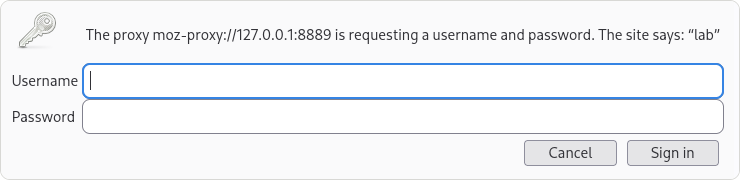
Type the login as your provider gave it, with no encoding; that is only needed when the login sits inside a URL. If Firefox has a saved login for the proxy, Do not prompt for authentication if password is saved in the dialog uses it without asking. Firefox's own tooltip: it "silently authenticates you to proxies when you have saved credentials for them. You will be prompted if authentication fails."
Keeping some sites off the proxy
Type them into No proxy for, separated by commas. Firefox's own example: .mozilla.org, .net.nz, 192.168.1.0/24, a domain with everything under it, another domain, and a block of addresses. The dialog adds that connections to localhost, 127.0.0.1/8 and ::1 are never proxied, so you don't need to list them.
The opposite, sending only some sites through the proxy, is beyond the built-in dialog; an extension such as FoxyProxy does it by URL pattern. When an extension controls the proxy, the dialog shows a Disable Extension button: the extension's setting wins until you press it.
Setting it from a file
The dialog writes ordinary Firefox preferences, and a Stack Overflow question read 167,418 times asks how to set them without it. Put lines like these into a file called user.js in your Firefox profile folder, and Firefox applies them at every start:
user_pref("network.proxy.type", 1);
user_pref("network.proxy.http", "203.0.113.10");
user_pref("network.proxy.http_port", 8080);
user_pref("network.proxy.ssl", "203.0.113.10");
user_pref("network.proxy.ssl_port", 8080);
user_pref("network.proxy.no_proxies_on", ".mozilla.org, 192.168.1.0/24");
network.proxy.type 1 is manual and 5, the default, is the system proxy; for SOCKS the names are network.proxy.socks, network.proxy.socks_port and network.proxy.socks_version. All of these names come from Firefox's own defaults file.
Check that it worked
Open this address in Firefox:
https://www.cloudflare.com/cdn-cgi/trace
The line starting with ip= is the address sites see; if it is the proxy's address, Firefox goes through the proxy. Then open https://hproxy.com/api/ip/ followed by that address: it names the country, city and network behind it. Before you put a proxy into Firefox at all, paste it into our free proxy checker, which reports whether it answers, its protocols, anonymity, country and latency.
When it does not work
Firefox proxy problems, what they mean, and the fix
| What you see | What it means | Fix |
|---|---|---|
The proxy server is refusing connections | Nothing accepted the connection at that address and port, or the proxy refused it. | Check the address and port, test the proxy; our guide to that error has every cause. |
Firefox's message: The proxy server you have configured could not be found. | The proxy's name does not resolve. | Check the spelling of the host. |
| https:// pages skip the proxy | Only HTTP Proxy is filled in. | Tick Also use this proxy for HTTPS. |
| The login box keeps coming back | No saved login, or a wrong one. | Check the login; with one saved, tick Do not prompt for authentication if password is saved. |
| A SOCKS5 proxy with a login never works | The dialog has no SOCKS login. | Use an extension, or the provider's HTTP port. |
| The settings are greyed out | An extension or a policy controls the proxy. | Press Disable Extension, or ask whoever manages the computer. |
Firefox's source: connection.ftl, appstrings.properties; our own screenshots
Mistakes other guides make
- "Firefox ignores your system proxy." Its default is to use it.
- "Scroll to the bottom of General and open Network Settings." That is an older Firefox; current versions keep Configure proxy under Privacy and security.
- "Tick Proxy DNS when using SOCKS v5, it is off by default." Current Firefox starts with it on.
Turning it off
Open Configure proxy again and choose No proxy, or Use system proxy settings if your computer's own setting is clean, then OK. If you set the proxy in user.js, remove the lines there too, or Firefox puts them back at the next start.
About free proxies
Free entries come and go, so test one before you rely on it, and switch Firefox back when you are done. For daily use, a paid proxy can keep one address for a sticky session.
How we wrote this
We ran fresh Firefox profiles on our own test machines, Firefox ESR 153.4 on Debian 13.5 and Firefox 157 on Fedora 44, in September and October 2026, and read Firefox's source on 3 October 2026: the dialog's labels (connection.ftl), its defaults (StaticPrefList.yaml and the preference defaults), the login prompt (commonDialogs.properties) and its messages (appstrings.properties), plus Mozilla's documentation of the extension proxy API and Chromium's proxy documentation.
Limits: our screens are from Firefox on Linux; Windows and macOS builds show the same dialog from the same source files, but we did not capture them there. Firefox for Android is not covered.
Sources
All read on 3 October 2026.
- Firefox source (github.com/mozilla-firefox/firefox):
browser/locales/en-US/browser/preferences/connection.ftl,modules/libpref/init/StaticPrefList.yaml,modules/libpref/init/all.js,toolkit/locales/en-US/chrome/global/commonDialogs.properties,dom/locales/en-US/chrome/appstrings.properties. - MDN:
proxy.ProxyInfofor Firefox extensions (developer.mozilla.org). - Chromium: Proxy support in Chrome,
net/docs/proxy.md(chromium.googlesource.com). - Stack Overflow question 843340; Super User questions 805686 and 58277.
- Our own screenshots of Firefox ESR 153.4 on Debian 13.5.