FoxyProxy moves the proxy out of the browser settings and into one icon. You add your proxies once, then switch between them, or let rules decide which site goes through which one. The switching is the easy half. The rules are where setups fail, and they are the reason most guides leave you with a proxy that routes nothing.
This is the FoxyProxy companion to our general Chrome proxy setup guide. Everything dated below was read or measured on 16 September 2026.
What you need before you start
- The extension, from the official listing. Standard holds the pattern engine, Basic does not.
- A proxy as a type, an address, a port, and a login if it needs one.
- Your browser decided. The steps look alike, and the limits underneath do not match.
- Something to test with. Entries from our free proxy list work, but read the check below first.
Step 1: install the real listing
The extension works with any proxy you bring. FoxyProxy also sells its own proxy and VPN service, which this guide does not cover. On 16 September 2026 the Firefox listing carried version 9.8, updated on 14 September 2026, with 214,425 users. It asks to control browser proxy settings, to access your tabs, and to read and change your download history.
Those permissions are the job, not a flaw. A switcher has to see every address you open to decide how to route it. That also makes the name a target. In December 2024 attackers put data stealing code into a set of Chrome extensions after a phishing attack on a store account (BleepingComputer). The table Sekoia published for that campaign lists Proxy SwitchyOmega (V3), a rival switcher, with its own attacker domain (Sekoia).
So check the developer before you click Add. Install from the FoxyProxy listing itself, not from a copy that borrows the name.
Step 2: add the proxy
Click the icon and choose Options, then Add New Proxy. The vendor walkthrough for Chrome goes to the Proxy Details tab, picks Manual Proxy Configuration, and fills in the host and the port. The fields you meet are these:
- Title: your own label, such as Scraper 1. Useful once you run more than two.
- Proxy Type: HTTP, HTTPS, SOCKS4 or SOCKS5. Older builds show a SOCKS checkbox instead.
- Host or IP address: the address your provider issued.
- Port: the number that belongs to that address.
- Username and Password: only for a proxy that asks for them.
Use the type your provider issued. HTTP and HTTPS entries are built for web traffic. A SOCKS5 proxy carries any TCP connection and resolves names at the proxy. Picking the wrong type is the most common reason a working proxy returns an error.
Step 3: switch it on
Click the icon again and you get the modes:
- Use proxy for all URLs: every tab goes through that one entry.
- Use enabled proxies by patterns and order: your rules decide, site by site.
- Turn off: back to a direct connection.
The icon colour tells you which mode is live, so you can see at a glance whether you are proxied.
Step 4: patterns, the part that decides everything
A pattern says which URLs a proxy should take. You write it as a wildcard or as a regular expression, and the two behave differently.
In a wildcard, an asterisk stands for zero or more characters and a question mark for exactly one. FoxyProxy then converts that wildcard into a regular expression and surrounds it with the anchors ^ and $. It does not add those anchors to a regular expression you wrote yourself, and such a pattern must not be wrapped in forward slashes.
That conversion decides everything, so we ran it. The extension is not installed on our machine, so we implemented the rule the vendor documents and tested ten URLs against it.
| Pattern | example.com | www.example.com | example.com.evil.test |
|---|---|---|---|
*example.com* | matches | matches | matches |
*://*.example.com/* | no | matches | no |
^https?://([a-z0-9-]+\.)*example\.com(/.*)?$ | matches | matches | no |
Read the first row again. A pattern that loose also routes a lookalike domain through your proxy. The second row is the shape most guides hand out, and it drops the bare domain. Only the anchored regular expression in the third row does what people mean by "this site".
The vendor example has the same trap. *.yahoo.com/* matches www.yahoo.com/news and mail.yahoo.com/inbox/123.html. It matches neither yahoo.com nor mail.yahoo.com, because one has no label in front and the other has no slash behind.
Two more rules are worth knowing. A whitelist pattern sends matching URLs through the proxy, and a blacklist pattern keeps them off it. When a URL matches both lists of the same proxy, the blacklist wins. And if two proxies claim the same site, remove the overlap rather than trusting their order in the list.
What the browser will not do
Three limits sit below the extension, and no setting inside it moves them.
A SOCKS5 proxy with a login cannot work in Chrome. The Chromium documentation states that no authentication methods are supported for SOCKSv5 in Chrome, although the protocol has them. Put such an entry in a terminal tool, or use HTTP, HTTPS, or a proxy that authenticates by address.
The login box belongs to the browser. The Chrome extension API for proxies carries modes and servers and says nothing about credentials. The vendor walkthrough for Chrome says plainly that Chrome asks for the user name and password when it connects.
Firefox and Chrome are not the same product here. Mozilla states that the Chrome API of the same name is completely different from the Firefox one. On Firefox the extension can answer request by request. On Chrome it sets a configuration. Steps from one browser do not carry over to the other.
Check that it worked
The icon changing colour proves nothing. Open our free proxy checker and confirm that the address, the country and the network belong to the proxy.
We measured the same path on 16 September 2026, through the browser proxy setting the extension writes to. Five entries from our free list went through Chrome. The SOCKS5 entry carried the request and exited in France in 537 milliseconds. Two of the four HTTP entries failed at once, one waited 25 seconds and gave up, and one worked from the Netherlands in 135 milliseconds.
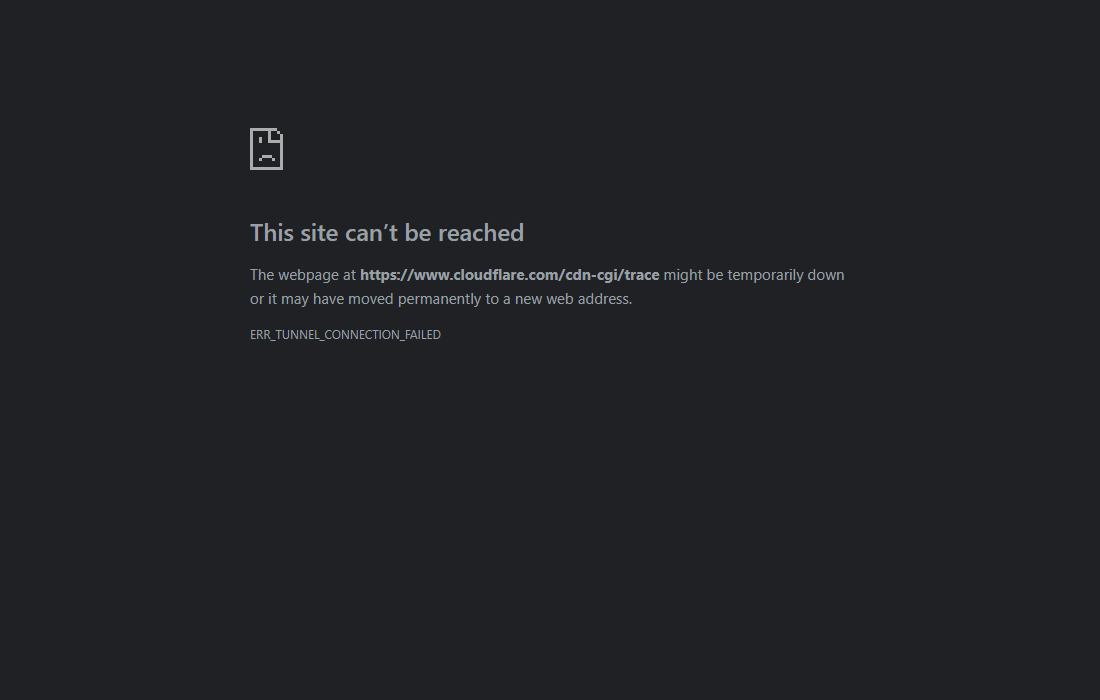
Three of five entries dead is an ordinary result for a public list. When every page has to load rather than most of them, use a paid proxy that stays up.
When it does not work
- ERR_PROXY_CONNECTION_FAILED. Nothing answered at that address and port. Our guide to this error in Chrome walks through the causes.
- ERR_TUNNEL_CONNECTION_FAILED. The proxy answered and then refused to open the connection.
- The login box keeps returning. The stored credentials are wrong, or the entry is SOCKS5 with a login in Chrome.
- Patterns set, nothing routed. The toolbar is on all URLs or off, so the rules never run.
- Browser settings will not change. While a proxy is active, the extension owns that setting.
Turning it off again
Switch the toolbar to off, and the browser goes direct again. Remove entries you no longer use, because a forgotten pattern keeps sending one site somewhere you stopped watching. If you are still deciding what to buy, our answers on proxy types and billing are the short version.