Set up a PlayStation's internet connection by hand and, a few screens in, it asks about a proxy server. Sony lists Proxy among the PS5's Advanced Settings and the PS4's Custom settings. Its advice for anyone unsure is short: "please select Easy or ask your ISP or network administrator". For a home connection, the answer is Do Not Use.
The setting exists for networks that require a proxy. It cannot change your NAT type, lower your ping or move your account to another region, whatever proxy sellers write. This page shows why, from Sony's and Microsoft's own support pages and the standards behind web proxies, read on October 13, 2026.
What Sony and Microsoft actually offer
Sony's guide to setting up an internet connection lists six advanced settings for a PS5: IP address, DHCP Host Name, DNS, MTU, Proxy and Multi Linking Operation. The PS4's Custom setup has the same list without the last one. A glossary on the same page defines a proxy as "A server that acts as a middleman between your device and the internet, improving security and privacy". The PS4 User's Guide says when you need one. "You might need to enter additional information, or additional settings such as the proxy server or IP address", it warns. It then sends you to "the information from your Internet service provider".
Xbox consoles have no proxy setting. Microsoft's article on the Advanced settings screen covers IP settings, DNS, an alternate MAC address, alternate port selection and QoS tagging. The screen "is generally used only by technical users or support", in Xbox Support's words, and none of its five settings is a proxy. Our page on proxies for Xbox covers what that means for the store and Game Pass.
Where each console keeps a proxy
| Console | Proxy field | Source |
|---|---|---|
| PS5 | Advanced Settings | Sony |
| PS4 | Custom setup | Sony |
| Xbox | None | Microsoft |
| Switch | Not checked | Nintendo |
Sony's internet connection guide and PS4 User's Guide, Xbox Support; read October 13, 2026. Nintendo's pages were not read.
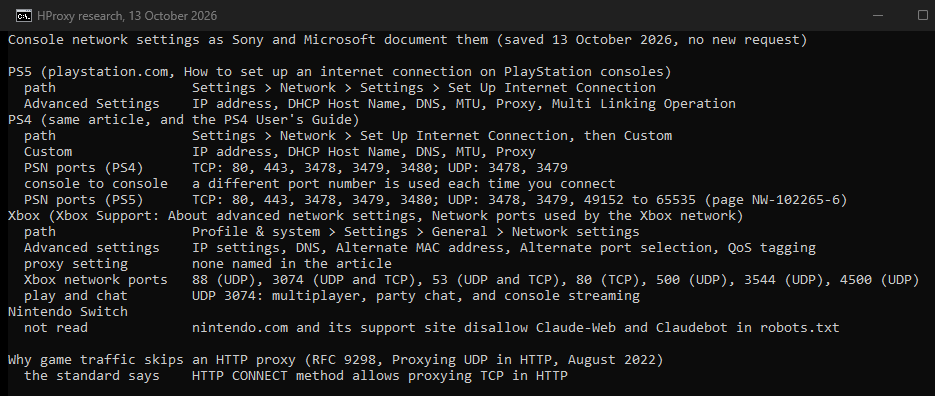
We did not read Nintendo's pages for this update. For the Switch, Nintendo Support is the place to look.
Use or Do Not Use
For a home connection, pick Do Not Use. Sony's advice for anyone unfamiliar with these settings is to "select Easy or ask your ISP or network administrator", and the Easy setup asks for no proxy. Two situations are different.
A network that requires a proxy. The PS4 User's Guide warns that at "an office or other location with a shared network, a firewall or other security measures might prevent" the console from reaching PlayStation Network. If such a network gives you a proxy address and port, enter exactly that, and nothing else.
A network that asks for a login. A hotspot can require a sign-in before anything works, and that sign-in has nothing to do with the proxy field. Sony's error page CE-39984-3 covers this case on the PS4. "If you are using a Wi-Fi hotspot, you may need to log in to the hotspot network in order to connect to the Internet", it says. If no sign-in page appears, Sony's tip is to "go to Settings > User's Guide and you will be able to see a log in screen for the wireless hotspot".
For everyone else, a proxy address copied from a list puts a stranger's server between the console and the traffic it sends that way, for no gain. A proxy cannot move your account either. Sony says a PlayStation account's country cannot be changed after the account is created, and "Content and services available on PlayStation Store vary by country/region".
What a console proxy can carry
Sony does not say which services use the PlayStation's proxy setting, or which kinds of proxy it accepts. It does describe online play. For "online activities such as competing with other players", the PS4 guide says the console is "connected directly to other" consoles, and "a different port number is used each time you connect". Microsoft says Xbox consoles "default to using UDP 3074 as their preferred port for multiplayer, party chat, and console streaming". Microsoft adds that the console requests a mapping for that port from the router via UPnP. Both makers describe play going straight through the router.
Web proxies work differently. The HTTP standard describes CONNECT as a request that "the recipient establish a tunnel" to the destination, which is how a proxy carries HTTPS. Those tunnels carry TCP. The IETF later defined a way to carry UDP through HTTP, in RFC 9298 of August 2022. That RFC sums up the older method in one line: the "HTTP CONNECT method allows proxying TCP in HTTP". The UDP traffic of online play falls outside what such a proxy carries.
TCP: inside a web proxy
Web ports TCP 80 and 443
Sony and Microsoft both list them
PlayStation TCP 3478 to 3480
Sony's PS4 guide
UDP: outside a web proxy
Xbox play and party chat
UDP 3074 by default
PlayStation Network
UDP 3478 and 3479
PS5 extra range
UDP 49152 to 65535
Teredo on Xbox
UDP 3544
That split settles the three claims that sell most console proxies.
A proxy does not change NAT type. Sony's PS4 guide defines the types by the path to the internet. Its words for the first are "Type 1: The system is connected directly to the Internet". Types 2 and 3 both connect "with a router", and with Type 3 the guide warns that communication with other consoles might be impossible. The router decides the type, and the console's proxy setting does not touch the router.
A proxy does not lower ping. Play and chat travel directly, so the proxy is not on their path. For the traffic it does carry, a proxy is one more stop between you and the server.
A proxy does not unlock another region. The account's country decides what the store offers, and Sony fixes that country when the account is created.
Ports each console maker lists
Ports the console makers list
| Console | Protocol | Ports |
|---|---|---|
| PS4 and PS5 | TCP | 80, 443, 3478, 3479, 3480 |
| PS4 and PS5 | UDP | 3478, 3479 |
| PS5 | UDP | 49152 to 65535 |
| Xbox | UDP | 88, 500, 3544, 4500 |
| Xbox | UDP and TCP | 53, 3074 |
| Xbox | TCP | 80 |
Sony's PS4 User's Guide (Test Internet Connection) and error page NW-102265-6; Xbox Support, Network ports used by the Xbox network; read October 13, 2026
Microsoft adds that "Port forwarding for Xbox is done on your router or other network hardware, not on the Xbox console itself". On a school or work network, Xbox Support suggests you "ask the network administrator to open these ports". UDP 3544 belongs to Teredo, the IPv6 tunneling protocol of RFC 4380. "The value of this port is 3544", the RFC states. Sony's PS5 error page asks for the same TCP ports as the PS4 guide, plus the high UDP range.
How to fix NAT type and party chat without a proxy
Most people who reach the proxy screen were trying to fix NAT Type 3, a strict NAT or a party that will not connect. The fixes live on the router. Microsoft's NAT guide gives an order, and the same steps help a PlayStation, with Sony's ports.
- Check the NAT type. On a PS4 or PS5, run Test Internet Connection under Settings, Network. On Xbox, open Profile & system, Settings, General, Network settings, then Test NAT type.
- Remove a second layer of NAT. If a gateway from your ISP sits in front of your own router, both may do NAT. Microsoft's advice is that "Putting your gateway into bridge mode can correct this".
- Check for a private address from your ISP. Compare the WAN address on your router with the public address a website shows. If they differ, Microsoft says to contact your ISP "to request a public IP address to eliminate a NAT issue on your console".
- Refresh UPnP. Turn UPnP off, restart the router and console, then turn it back on. Microsoft warns against combining port forwarding, UPnP and a "perimeter network (also known as DMZ)".
- Update the router's firmware, then test again.
- Forward the ports. Give the console a fixed local address with the router's DHCP reservation, then forward the ports from the table above. Sony's PS5 error page also suggests a static IP address and, as a temporary test, different DNS servers.
On Xbox, "NAT Type: Unavailable" is a case of its own. Microsoft explains that "If NAT is unavailable", party chat and multiplayer in some games stop working, and the usual cause is a missing Teredo address. Its steps start with "Make sure your router has Teredo connectivity enabled", then an update and a restart of router and console. If you switched QoS tagging on, Microsoft notes that "your network setup might not support QoS tagging", so switch it off and restart.
Where the setting lives
PS5. Go to Settings > Network > Settings > Set Up Internet Connection. Choose your network, open Advanced Settings and find Proxy. On a home connection, leave it off.
PS4. Go to Settings > Network > Set Up Internet Connection. Choose Use Wi-Fi or Use a LAN Cable, then Custom. Custom setup asks about IP address, DHCP Host Name, DNS, MTU and Proxy. Choose Do Not Use for the proxy unless your network gave you an address.
Nintendo Switch. See Nintendo Support. We did not read its pages for this update.
Xbox. There is no proxy setting. The Network settings screen under Profile & system > Settings > General holds the network tests and the Advanced settings described above.
To undo a proxy, return to the same screen and switch it off. Do that first when a console that used to work suddenly cannot reach the store: a proxy set months ago that has since died fails in exactly that way.
When the console reports a proxy error
The cause is one of four things: a wrong address or port, a dead proxy, the wrong kind of proxy, or a proxy that wants a login. The fastest check is to take the address out of the console and test it on a computer.
Type the address and port into our proxy checker on a computer. A dead result means the proxy is gone and the console was right to fail. A proxy that answers plain HTTP but cannot open HTTPS tunnels will still fail, since PlayStation Network lists TCP 443 among its ports. A SOCKS-only result means the proxy speaks a different protocol from the web proxies described above. And a proxy that works on the computer and fails on the console probably wants a username and password. Sony's pages name a Proxy setting and say nothing about a login, so a proxy that admits your home address without one avoids the question. Our guide to 407 Proxy Authentication Required explains how proxies ask for a login.
If you took the address from a public list, expect it to have died since you copied it. Our free proxy list shows when each address last answered our checker, which is enough for a quick test. A console needs an address that stays up for months.
After any change, run Sony's connection test again. It reports, in order, "Obtain IP Address", "Internet Connection", "PlayStation Network Sign-In" and "NAT Type".
Where HProxy fits
For most consoles at home, the right proxy setting is none. If a network or a project does need one, the console wants an address that stays the same, and Sony's pages name no login field. We sell ISP proxies that can be held as one dedicated static IP. Our page on unlimited residential proxies explains why truly unlimited bandwidth lives on ISP, datacenter and mobile lines. Residential traffic starts at $0.44 per GB, and Premium can keep one address for up to 24 hours from $1.00 per GB, with an IP whitelist for devices that cannot send a password. Datacenter IPv4 proxies from $1.58 per IP work over HTTP, HTTPS and SOCKS5.
What we could not find out
- Nintendo's own steps. We did not read or quote Nintendo's pages for this update.
- Which services use a PlayStation's proxy. Sony does not say. Our split follows the protocols: a web proxy tunnels TCP, and Sony and Microsoft describe play as direct, over UDP ports they list.
- Which proxy types and logins a PlayStation accepts. Sony's pages name only a Proxy setting, without its fields, and the PS5 User's Guide is shown on the console itself.
- The PlayStation's error for a dead proxy. None of the Sony error code pages we read names a proxy.
Sources
Read on October 13, 2026, on Sony's, Microsoft's and the IETF's own sites.
- Sony, How to set up an internet connection on PlayStation consoles.
- Sony, PS4 User's Guide: Set Up Internet Connection and Test Internet Connection.
- Sony error pages CE-39984-3 and NW-102265-6.
- Sony, How to check your account's country/region.
- Xbox Support, About advanced network settings.
- Xbox Support, Network settings on the Xbox console.
- Xbox Support, Network ports used by the Xbox network.
- Xbox Support, Troubleshoot NAT errors and NAT Type: Unavailable.
- IETF, RFC 9110 (CONNECT), RFC 9298 (UDP in HTTP) and RFC 4380 (Teredo).
- Google Keyword Planner volumes, and this page's Search Console queries from July 15 to October 12, 2026.