
An SSH SOCKS proxy is what ssh -D makes: one command turns any server you can log in to over SSH into a SOCKS5 proxy on your own computer. Run ssh -D 1080 -N user@server, set your browser or tool to SOCKS5 at 127.0.0.1, port 1080, and the sites you open see the address of the server. We ran it from Windows 11 to a server of ours, with only the ssh and curl that ship with Windows. The site saw the server, the port stayed private to the PC, and two limits showed up: the SOCKS port takes no login, and it carries no UDP.
How to start an SSH SOCKS proxy
You need an account on a server that accepts SSH logins, and the ssh command on your own computer. Then run:
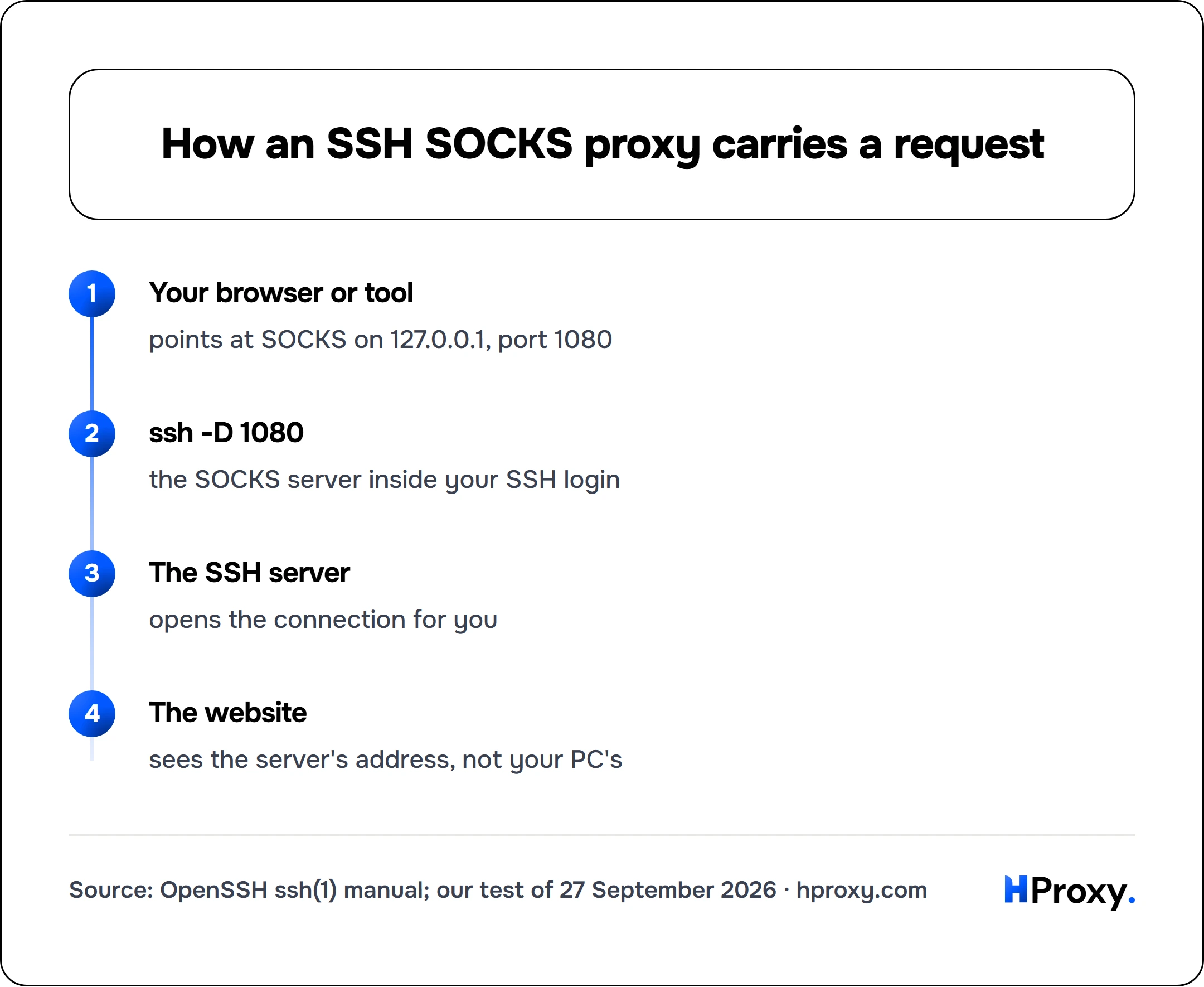
Your browser or tool
points at SOCKS on 127.0.0.1, port 1080
ssh -D 1080
the SOCKS server inside your SSH login
The SSH server
opens the connection for you
The website
sees the server's address, not your PC's
ssh -D 1080 -N -q user@your-server
The manual of OpenSSH describes what happens: the connection to the local port "is forwarded over the secure channel, and the application protocol is then used to determine where to connect to from the remote machine." In plain words, ssh becomes a SOCKS server on your computer, and the server makes every connection for you.
The flags in the command, and two more
| Flag | What it does |
|---|---|
| -D 1080 | Opens a SOCKS4 and SOCKS5 server on local port 1080 |
| -N | Runs no remote command, only the forwarding |
| -q | Quiet: hides most warnings |
| -f | Goes to the background after you log in |
| -C | Compresses all data in the session |
OpenSSH, ssh(1) manual page, read 27 September 2026
The proxy lives as long as the ssh session, so keep the window open. Port 1080 is the usual choice, because RFC 1928 says the SOCKS service "is conventionally located on TCP port 1080." Any free port works, but ports below 1024 need admin rights: "Only the superuser can forward privileged ports."
For a tunnel you start every day, put it in your ssh config file instead:
Host tunnel
    HostName your-server
    User you
    DynamicForward 1080
    ExitOnForwardFailure yes
    ServerAliveInterval 60
Then ssh -N tunnel starts it. DynamicForward is the config form of -D. ExitOnForwardFailure makes ssh quit when it cannot set up the forwarding, instead of logging in without a proxy. ServerAliveInterval 60 makes ssh ask the server for a reply after 60 seconds without data.
On Windows
Windows has its own OpenSSH client. Microsoft states that "Beginning with Windows 10 build 1809 and Windows Server 2019, OpenSSH is available as a feature on demand." To check whether it is installed, run this in PowerShell:
Get-WindowsCapability -Online | Where-Object Name -like 'OpenSSH*'
If the client is missing, open Optional Features in Settings, search for OpenSSH Client and add it. After that, the same ssh -D 1080 -N -q user@your-server works in PowerShell and in Command Prompt. Our test used exactly that client, OpenSSH_for_Windows_9.5p2, on Windows 11.
With PuTTY, the tunnel lives in the Tunnels panel of the connection settings:
- Open the Tunnels panel before you connect.
- Enter 1080 in the Source port box.
- Select Dynamic, which makes PuTTY "provide a local SOCKS 4/4A/5 proxy on a local port".
- Click Add, then open the session and log in.
PuTTY notes that forwarding starts only after you log in.
Point your browser or tool at it
Firefox has its own proxy settings. Choose the manual proxy setting, enter 127.0.0.1 as the SOCKS host and 1080 as the port, pick SOCKS v5, and turn on proxy DNS when using SOCKS v5. The preference behind that switch is network.proxy.socks_remote_dns.
Chrome can take the proxy on the command line:
chrome --proxy-server="socks5://127.0.0.1:1080"
Chrome needs nothing more for DNS, because with SOCKS5 "name resolution is always done proxy side". Our Chrome proxy guide shows the other ways to set it.
curl and most command-line tools take a proxy address. Use socks5h, not socks5:
curl -x socks5h://127.0.0.1:1080 https://example.com
For tools that cannot use a proxy at all, ProxyChains can wrap them, and the tunnel works as its proxy.
Send DNS through the tunnel
The h in socks5h matters. The curl manual puts it plainly: socks5 means "resolve the hostname locally", while socks5h means "let the proxy resolve the hostname". With socks5, your own computer still asks its DNS resolver for every site name. With socks5h, the name travels to the server, and the server looks it up. SSH itself can carry a name: each connection inside the session names its target, which "may be either a domain name or a numeric IP address."
We checked it with curl in verbose mode, which prints a line when it looks up a name itself. Through the tunnel with socks5, that line appeared. With socks5h, it did not.
Check that it works
Open our proxy IP checker in the browser that uses the tunnel. It should show the address and country of your server, not your own. This is what our test found:
What our SSH tunnel test found
| Check | Result |
|---|---|
| Address the site saw | The server, not the PC |
| Where the port listened | 127.0.0.1 and ::1 only |
| Name lookup on the PC | With socks5 yes, with socks5h no |
| Greeting with only a login | Closed, no reply |
| UDP request | Closed, no reply |
| Second tunnel, same port | No error on Windows |
HProxy test, 27 September 2026, 00:22 UTC: Windows 11, OpenSSH_for_Windows_9.5p2, curl 8.21.0, a server of ours.
![Our own console window: the SSH SOCKS tunnel test from Windows 11 on 27 September 2026. The tunnel was ready after 2.1 seconds and listened on 127.0.0.1:1080 and [::1]:1080 only. Without it, the site saw this PC; through it, the address of the server, in another country. curl looked the name up on the PC with socks5 and not with socks5h. A greeting with only a username and password and a UDP request both got the connection closed. A second tunnel on the same port gave no error. One small request took a median of 252 ms directly and 1,176 ms through the tunnel.](/blog/_assets/img/ssh-socks-proxy-tunnel-test-terminal.png)
Keep the proxy private
By default, ssh "binds local port forwardings to the loopback address. This prevents other remote hosts from connecting to forwarded ports." In our test, the port listened on 127.0.0.1 and ::1 only, so nothing else on the network could use it.
Some guides show -D "*:1080" to share the proxy with other machines. The manual confirms that an empty address or * makes the port "available from all interfaces", and the SOCKS port has no login. Anyone who can reach that port can then use your server, and that is exactly what an open proxy is. Share it only inside a network you control, behind a firewall rule. Our open proxy explainer covers what happens to such servers.
What the tunnel cannot do
- Take a login. The SOCKS port has no username or password. A client that offered only a login got its connection closed with no reply.
- Carry UDP. PuTTY puts it simply: "the SSH protocol does not support forwarding UDP". Our UDP ASSOCIATE request also got no reply before the connection closed.
- Give you more than one address. Every site sees the address of the one server.
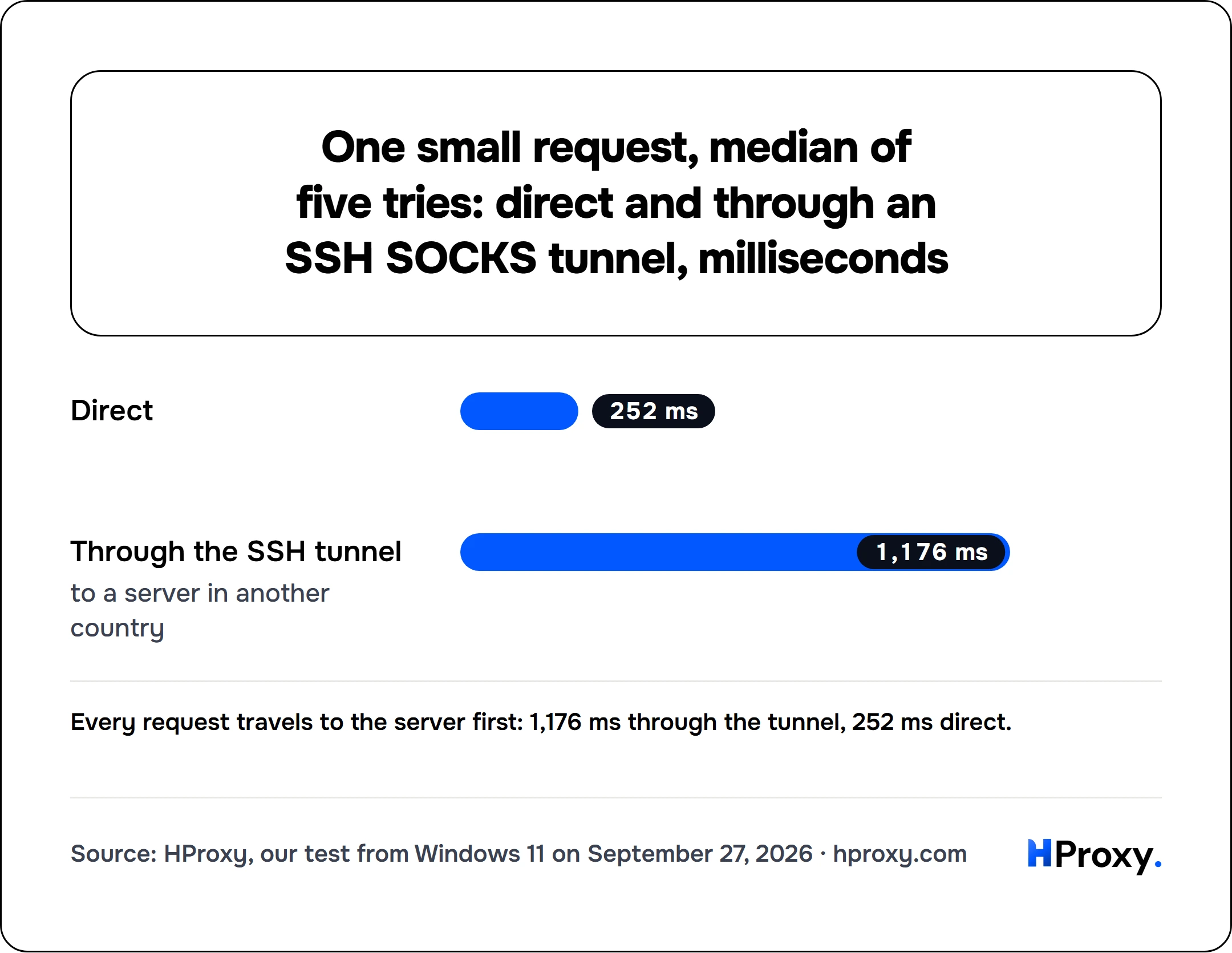
- Stay fast far away. Each request travels to the server first. In our test, one small request took a median of 252 ms directly and 1,176 ms through the tunnel, over five tries each.
When it does not work
- administratively prohibited: the server refused the connection. Forwarding is on by default ("yes (the default)"), but the administrator can switch it off with AllowTcpForwarding or DisableForwarding. The message comes from the reason code SSH_OPEN_ADMINISTRATIVELY_PROHIBITED in the SSH connection protocol.
- The port is already in use: with ExitOnForwardFailure, ssh quits when it cannot listen on the port. On Windows, our second ssh -D on a busy port did not fail at all, and both tunnels listened at once. Check with
netstat -ano | findstr :1080and close the old tunnel first. - The site still shows your own address: the browser is not using the proxy. Check its settings, and whether an extension controls the proxy.
- The tunnel dies after a while: try ServerAliveInterval in your ssh config, as shown above, so ssh checks on the server when the session is quiet.
The other direction: SSH through a SOCKS proxy
Some searches ask for the opposite: reaching an SSH server through a SOCKS proxy you already have. That is a job for ProxyCommand. The ssh_config manual shows it with nc and an HTTPS proxy, and nc speaks "4 (SOCKS v.4), 4A (SOCKS v.4A), 5 (SOCKS v.5) and connect (HTTPS proxy)." Where the OpenBSD nc is installed, it looks like this:
ssh -o ProxyCommand='nc -X 5 -x 127.0.0.1:1080 %h %p' user@your-server
To reach a server you can only get to through a second one, use a jump host instead: ssh -J you@jump-host -D 1080 -N you@target builds the tunnel to the target through the jump host, and the target makes the connections.
When you need other addresses
One SSH server gives you one address. When you need addresses in other countries, HProxy residential proxies start at $0.44 per GB on Residential Lite, which targets by country.
How we tested
We ran the tunnel from a Windows 11 PC to a server of ours, using only the ssh and curl that ship with Windows. The only site we contacted was our own echo endpoint, which reports the address and country it sees. The program compared that address with the server and stored only whether they matched. Two raw SOCKS5 messages checked the login and UDP behaviour, and a second ssh -D on the same port showed what a busy port does on Windows. The timing is one run of five small requests each way, from Germany to a server in another country, so your numbers will differ.
Sources
- OpenBSD, the OpenSSH manual pages ssh(1), ssh_config(5) and sshd_config(5), and nc(1).
- IETF, RFC 4254: The Secure Shell (SSH) Connection Protocol, January 2006.
- IETF, RFC 1928: SOCKS Protocol Version 5, March 1996.
- The curl project, curl manual: --socks5 and --socks5-hostname.
- Mozilla, Firefox policy templates: the Proxy policy.
- Chromium, Proxy support in Chrome (also as a GitHub copy).
- Microsoft Learn, OpenSSH for Windows overview and Get started with OpenSSH for Windows, which covers the client as well.
- PuTTY user manual, chapter 4, the Tunnels panel, and chapter 3, port forwarding.