Windows 10 keeps two proxies, not one. The panel in Settings writes the proxy for your account, and a second, machine-wide setting serves Windows Update, the Microsoft Store and any service. Most of the trouble people have comes from setting one and expecting the other.
We read both places on September 16, 2026, on the Windows 11 machine we have here rather than on a Windows 10 one. The machine-wide side answered DirectAccess, meaning no proxy, and the per-user side had ProxyEnable at 0 with an empty server. They are separate values, they start out empty, and Microsoft documents the same two places for both versions. The Windows 10 screenshots below are our own, from a Windows 10 machine.
| Where you set it | What it reaches | What it leaves out |
|---|---|---|
| Settings, Network and Internet, Proxy | Browsers and programs running as you | Windows Update, the Store, services |
| Internet Options, Connections, LAN settings | The same per-user values | The same things |
netsh winhttp | Windows Update, the Store, services | Nothing for your browser by itself |
| The program's own setting | Only that program | Everything else |
What you need before you start
- The proxy as an address and a port, plus a user name and password if it needs a login. If your provider sent one long line, the proxy format guide splits it up.
- An administrator command prompt, but only for the machine-wide part in step 3.
- For a first test, any entry from our free proxy list will do. Free entries come and go, so test one first; the check further down shows how.
- Our free proxy setup generator writes every value below for your own proxy, the boxes and the netsh lines included, if you would rather paste than type.
Step 1: set the proxy for your account
- Open Settings, then Network & Internet, then Proxy in the left column.
- Scroll to Manual proxy setup and turn Use a proxy server on.
- Type the address in Address and the port in Port. The address goes in on its own, with no
http://in front of it. - Leave the box below it alone unless you were given exceptions. Entries are separated by semicolons, and the checkbox under it keeps local addresses off the proxy.
- Select Save.
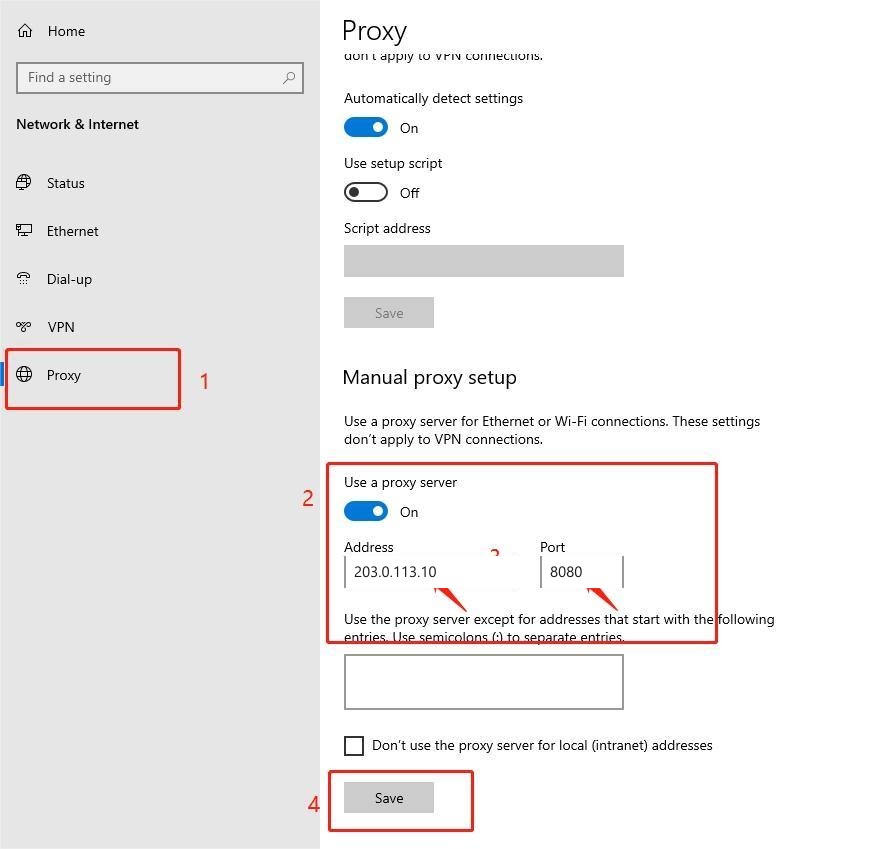
The panel holds no credentials, as the screenshot shows. The program that uses the proxy asks for them the first time it needs them.
Step 2: the older route, if you prefer it
The same values live behind Control Panel, then Internet Options, then Connections, then LAN settings. It writes what step 1 writes, so use whichever screen you find faster. Older programs that were built for that dialog read the same values either way.
Step 3: the machine-wide setting that services read
Windows Update, the Store and services do not read the panel. Microsoft states that the Windows Update client requires WinHTTP and can discover a proxy only through the netsh command or through WPAD in your DNS or DHCP options. For the scan step it tries the system proxy first and falls back to your personal one only on certain errors.
Open an administrator command prompt and read the current state first:
netsh winhttp show advproxy
On our Windows 11 machine that answered ProxyIsEnabled: false, AutoConfigIsEnabled: false, AutoDetect: true, PerUserProxySettings: true. The command is the same on Windows 10. To copy what you already set in step 1:
netsh winhttp import proxy source=ie
To set it directly, Microsoft now documents the advanced form, which takes a scope and a JSON object:
netsh winhttp set advproxy setting-scope=machine settings="{\"Proxy\":\"203.0.113.10:8080\",\"ProxyBypass\":\"localhost;*.local\",\"AutoconfigUrl\":\"\",\"AutoDetect\":false}"
Nearly every guide still prints netsh winhttp set proxy. It runs, but Microsoft marks both set proxy and show proxy as deprecated in its own reference, so the advanced form is the one to learn. Note also that the advanced form does not support SOCKS5.
Step 4: what Windows cannot carry for you
Microsoft's comparison of its two HTTP stacks is blunt about protocols. WinINet, the side behind your panel, supports SOCKS4 and not SOCKS5. WinHTTP, the machine-wide side, supports neither. So a SOCKS5 proxy cannot be set once for the whole system. Set it inside the browser, the download tool or the scraper that speaks it.
| HTTP proxy | SOCKS4 | SOCKS5 | |
|---|---|---|---|
| WinINet: the panel in Settings | yes | yes | no |
| WinHTTP: netsh, the machine-wide setting | yes | no | no |
Check that it worked
Open this address in Edge or Chrome, which use the proxy from step 1:
https://www.cloudflare.com/cdn-cgi/trace
The line starting with ip= is the address a site sees. If it is the proxy's address, your traffic is going through it. Then open https://hproxy.com/api/ip/ followed by that address: it names the country, city and network behind it, so a datacenter range is easy to tell from a home line. Do not test with curl.exe in a terminal: it takes its proxy from variables such as HTTPS_PROXY, never from this panel, so it shows your own address. Our free proxy checker checks a whole list and adds the anonymity grade.
Free entries come and go, so expect some of them to fail this check. When a download has to finish, use a paid proxy: a residential pool changes its addresses by design, and a sticky session keeps one address for as long as the session lasts.
When it does not work
- The browser is proxied and Windows Update is not. You set the panel only. Run
netsh winhttp import proxy source=iefrom step 3. - Apps and the Store ignore it. Same cause, same fix. This question has been asked since Windows 8, and the answer has not changed.
- The proxy has separate ports for HTTP and HTTPS. The panel takes one address and one port, so the second port needs the machine-wide JSON form or the program's own setting.
- Nothing connects at all. A stale proxy is still set somewhere. Read both places, then clear the one you no longer want.
- A SOCKS5 proxy will not go in. Windows cannot carry it system-wide. See step 4.
Turning it off again
Switch Use a proxy server off in the same panel, and clear the address and port.
If you also set the machine-wide proxy, clear that one too:
netsh winhttp reset proxy
That returns WinHTTP to DIRECT. The two settings are independent, and a forgotten one keeps sending traffic to a proxy that is gone.
On Windows 11 the same values sit behind an Edit button instead of the open boxes shown above. The steps are in the Windows proxy guide, and everything from step 3 down is identical on both versions.
Sources
Read on September 16, 2026, and checked again on September 29, 2026.
- Use a proxy server in Windows (Microsoft Support, support.microsoft.com).
- How the Windows Update client determines which proxy server to use (Microsoft Learn, updated August 25, 2026).
- Netsh.exe commands for WinHTTP (Microsoft Learn, updated April 15, 2025).
- netsh winhttp command reference (Microsoft Learn, Windows Server, updated October 22, 2025).
- WinINet vs. WinHTTP (Microsoft Learn, updated July 17, 2026).
- Our own readings of both proxy settings on our Windows 11 machine, September 16, 2026, and our captures of the Windows 10 proxy page.