Spotify's error code 4 is the desktop app saying it cannot find the internet. Users copy the message as "No internet connection detected. Spotify will automatically try to reconnect when it detects an internet connection (error code:4)". It often appears while the browser, the phone and every other program work. The app then shows itself offline, and tracks that are not downloaded turn gray.
The other message people search, "A firewall may be blocking Spotify", is a separate error. It names the firewall and the proxy settings, and it comes at sign-in. In the threads we saved from Spotify's own community, 34 quote it with a code. The codes were 17, auth:3 and 16 others, and never 4. Both messages lead to one short list of places to check. The steps below come from Spotify's help center, answers by Spotify's staff on its community, and documentation from Microsoft and Apple, all read on October 13, 2026. Our own count of solved threads adds what actually fixed it.
Two messages, two problems
Which code came with which message
| Message | Code | Threads |
|---|---|---|
| No internet connection detected | 4 | 16 |
| No internet connection detected | Other codes | 3 |
| A firewall may be blocking Spotify | 17 | 6 |
| A firewall may be blocking Spotify | auth:3 | 4 |
| A firewall may be blocking Spotify | auth:15, auth:16 | 3 each |
| A firewall may be blocking Spotify | 14 more codes | 1 or 2 each |
| A firewall may be blocking Spotify | 4 | 0 |
HProxy, Spotify Community threads that quote each message with a code, read October 13, 2026
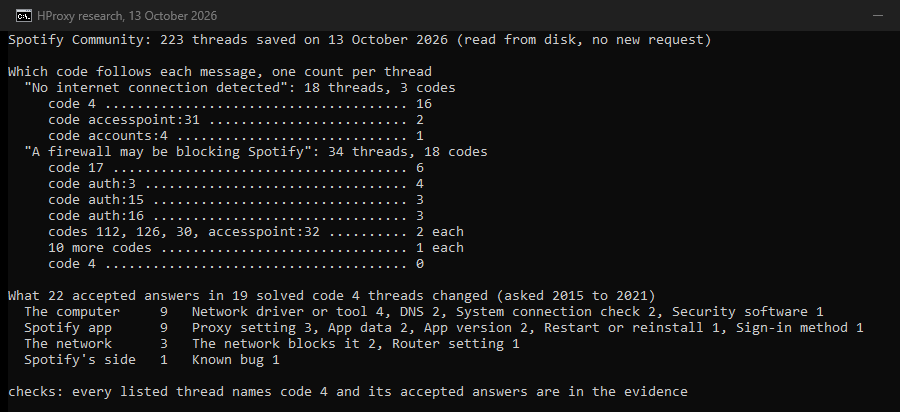
We saved 223 threads from Spotify's community and counted the code that follows each message, once per thread. The offline message carried code 4 in 16 threads. Its other codes were accesspoint:31 in two threads and accounts:4 in one. The firewall message came with 18 different codes. The most frequent were 17, auth:3, auth:15 and auth:16, and newer ones such as accesspoint:32 and desktop_login_accounts:5 turn up too. Code 4 never followed it.
So the fixes split. Code 4 means the app has decided there is no connection at all. The firewall message means sign-in failed, and the app guesses at a firewall or a proxy. For that message, the accepted answer by Spotify's staff in the longest firewall thread we read starts with the account: check that you are in the same country as your Spotify account. It goes on to networks at schools and offices, which "restrict access to certain services", and to VPNs, which Spotify does not officially support.
Newer versions of the desktop app sign you in through the browser, and their codes carry names. In a December 2024 report from a Mac, the screen read "no internet connection detected, Error code: accounts:4" after a browser sign-in. A Windows 11 report from November 2024 had desktop_login_accounts:4 and a sign-in loop. Spotify's staff answered both with checks you will find below: the VPN, the hosts file and a clean reinstall, plus another connection for the Mac.
Why Spotify thinks you are offline
First rule out Offline mode. It makes Spotify play only your downloads. On Windows, open the three-dot menu at the top, then File, and switch Offline mode off. On a Mac, click Spotify in the menu bar at the top of the screen and switch it off there. Spotify also needs a device with downloads to go online "at least once every 30 days".
If Offline mode is off, see whether other apps and web pages work. Spotify's offline article says that when they fail too, "the issue is likely with your internet connection", and it suggests restarting the WiFi and the router. When they work, the question becomes how the app decides that it is online.
Windows has a component for that question. Microsoft built the Network Connectivity Status Indicator, NCSI, "to save applications the complex task of determining network configuration on its own". It sends a small web request. Since Windows 10 version 1607, that request goes to www.msftconnecttest.com/connecttest.txt. When the request gets a valid answer, Windows counts the computer as online. "The taskbar network icon relies on NCSI" as well. And when apps say there is no internet while websites load, Microsoft's FAQ says "this indicates an NCSI problem".
Spotify has not said which check its desktop app uses. Two solved threads point at the system's own check, though. In 2020, a Windows user fixed code 4 by turning Windows' active probing back on: they changed EnableActiveProbing under NlaSvc\Parameters\Internet "from 0 to 1". The same year, a Linux user found Spotify's log reporting NetworkManager's state as 'NM_STATE_DISCONNECTED' while the wired connection worked. Once NetworkManager managed that connection, Spotify came online. A third asker wrote that Spotify takes the Windows tray notification "as a cue that no internet is available".
So when the taskbar icon also claims there is no internet while pages load, look at what blocks Windows' check. On company networks, Microsoft names firewalls, DNS servers, forced VPN tunnels, proxy servers and routers. At home, it names VPNs and third-party software, which "can intercept, misroute, or delay NCSI active probes". A proxy that blocks the check makes it fail with an HTTP 403 Forbidden. Microsoft also warns against switching active probing off as a fix, so turn it back on if a tool turned it off.
Spotify's own proxy setting
The desktop app keeps a proxy setting of its own, apart from Windows and macOS. To reach it, "Click your profile picture at the top, and select Settings", as Spotify's help pages put it, then scroll to the end. Users who copied their settings in 2024 and 2025 show "Proxy type: Autodetect settings" there, just above hardware acceleration. The sign-in screen has a Settings button too, so you can change the proxy before you log in.
Users have listed the same choices for years. A 2013 post named "Auto-detect, No Proxy, HTTPS, Socks4 and Socks5", with fields for host, port, username and password. A 2017 post named HTTP, SOCKS4 and SOCKS5 next to No proxy. It described Auto detect settings as using "the system wide settings, the same you can see under IE proxy settings". Autodetect, in other words, follows the computer's proxy. A system proxy left behind by a VPN or another program therefore breaks Spotify, and No proxy ignores it.
Spotify's staff advise against proxies for listening. In a 2023 answer they wrote: "VPNs and Proxy servers of any kind can cause a multitude of connectivity issues for Spotify, which is why we heavily advise against it." Where an office requires a proxy, they suggest asking the network's administrators "to hopefully add Spotify as an exception to the proxy". For most people, then, the right choice is No proxy.
In our count, Spotify's proxy setting was the accepted fix in 3 of 22 answers. All three switched the type away from Auto-detect to HTTP or HTTPS, two of them with the fields left empty. One asker wrote of always having to switch between the two.
The setting also lives in a file. Spotify writes it to its prefs file, which Mac users quoted from ~/Library/Application Support/Spotify/prefs, as network.proxy.addr and network.proxy.mode. Two reported bugs show why the fields matter. In 2018, a host typed with its https:// prefix was saved as "https://myproxy.com:8081@http". In 2022, on version 1.1.81, a SOCKS5 proxy chosen in the app still received HTTP requests until the user added @socks5 to the address line by hand. So type the host name alone, without http:// or https://, and put the port in its own field.
Then check the proxy of the computer itself, the one Autodetect follows. Our guide on how to turn off a proxy shows where that switch lives on Windows and macOS, how to prove it is off, and what it means when it returns.
The fixes, in order
Change one thing at a time, and restart Spotify after each change.
- Switch Offline mode off. On Windows it sits under the three-dot menu, then File. On a Mac, click Spotify in the menu bar.
- Check other apps and pages. If they fail too, restart the WiFi and the router. Spotify adds that "Some shared or public networks (ex. schools/offices) restrict access to certain services".
- Set Proxy type to No proxy. Profile picture, Settings, then the end of the page. If a network requires a proxy, use the one it gives you, with the host name alone in the Host field.
- Turn off any VPN. Spotify's staff say VPNs are not officially supported. They asked users to turn them off for the offline message in 2022 and for a sign-in error in 2024.
- Allow Spotify through the firewall. Spotify's article asks you to check whether your firewall "has Spotify set as an exception". On Windows, open the Windows Security app, select Firewall & network protection, then Allow an app through firewall, then Change settings. Tick Spotify, or use Allow another app. Microsoft lists adding an app as "less risky" than opening a port. Check any other security app as well, since each keeps its own list.
- Clean the hosts file and flush DNS. Spotify's staff ask you to delete any hosts entry that contains spotify or fastly, such as 0.0.0.0 weblb-wg.gslb.spotify.com. On a Mac the file is /etc/hosts. On Windows it sits in C:\Windows\System32\drivers\etc, and Microsoft warns that a changed hosts file "can override normal network name resolution and cause connectivity issues". Then flush the DNS cache with the commands below.
- Check Windows' own connection check. If the taskbar icon says there is no internet while pages load, a proxy, VPN or security app may block the NCSI request described above.
- Try another network. Spotify's staff suggest you "Connect your computer to the internet via a mobile hotspot or another WiFi, if possible". If Spotify works there, the first network blocks it.
- Reset the app. Spotify's staff name Reset App Data and Restart, under the three-dot menu, Help, Troubleshooting. After that comes a clean reinstall, following Spotify's own steps. On Windows, try the edition you did not use, from Spotify's site or the Microsoft Store.
- Look for a known issue. Spotify points to @SpotifyStatus and the Ongoing Issues board on its community. In February 2020, a reply on that community confirmed an issue where the app showed people offline while they were online, and opened an Ongoing Issue for it.
# Mac, from a Spotify staff answer: edit the hosts file, then flush the DNS cache
sudo nano /etc/hosts
sudo dscacheutil -flushcache; sudo killall -HUP mDNSResponder

# Windows, in Command Prompt
ipconfig /flushdns
Switch Offline mode off
File menu on Windows, Spotify menu on a Mac
Set Proxy type to No proxy
then restart the app
Turn the VPN off
Allow Spotify through the firewall
and any other security app
Clean the hosts file, flush DNS
Try another network
a hotspot shows whether yours blocks it
Reset App Data, then reinstall
or try the other edition
What fixed it in solved threads
We read every accepted answer in the 19 solved threads that name code 4 and sorted what each one changed. The computer's network side and the Spotify app tie at 9 each. On the computer, network drivers and network tools led with 4. One asker updated an adapter driver, and one disabled and re-enabled the adapter. Two traced the problem to Killer network software: one removed it, and one gave Spotify top priority in it. DNS and the system's connection check had 2 each, and one antivirus suite had to go.
In the app, the proxy setting led with 3. App data and the app version had 2 each, and a sign-in method and a reinstall had 1 each. Three answers sat in the network itself. An internet provider blocked one college connection, a campus WiFi may have blocked another, and one asker changed a router setting that we do not suggest. Spotify's own side appeared once, with the offline bug of early 2020.
These threads are old, from 2015 to 2021, and the answers came from other users and from Spotify's community helpers. The count shows where to look. It cannot rank the causes in the current app, because newer reports carry other codes.
Networks and ports that block Spotify
Spotify publishes no list of ports or hosts that we could find, so what is known comes from administrators' logs. A 2017 post about the iPhone app found that "it always tries TCP/4070 first", then falls back to 443, which slowed the sign-in. In 2018, an administrator saw "port 4070 being dropped outbound" on a company firewall. Once the port was open, the desktop app worked again. An administrator in 2022 found the same.
The proxy type changes which port the app asks for. In a 2020 proxy log, the desktop app asked an HTTP proxy for Spotify's access points on port 4070 when the proxy was set by hand. With Autodetect following the system's proxy script, it asked for port 443, and the proxy blocked that traffic because it was not normal HTTPS.
One part of the app skips the proxy setting. A 2023 report found the Now Playing view connecting "directly to *-dealer-ssl.spotify.com domains" on port 443, with the HTTP and Auto settings alike. Spotify's staff passed the report to their team. On a network that blocks direct traffic, that view stays empty.
On a Mac, the built-in firewall settings deal with traffic that comes in. Apple describes its options as choosing "how much to block incoming connections", and its Add button lets an app "allow incoming connections". Spotify's own connections start from your Mac. Spotify's staff still ask Mac users to make sure Spotify is allowed, and to check the hosts file and any VPN.
The firewall message at sign-in
When the firewall message appears, start with the account. Spotify's terms say the account "must be in your country of residence". In the longest firewall thread we read, three askers traced the message to the country setting of their account. If you moved, Spotify's help says you need to update the country or region on your account page, and the new country appears only once you are there. Spotify's staff also ask you to turn off any VPN.
Then the checks above apply: school and office networks, the firewall and security apps, the hosts file, and a clean reinstall. For the newer sign-in through the browser, Spotify's staff also suggest changing the default browser that the sign-in opens.
Using a proxy with Spotify on purpose
Some readers set a proxy in Spotify on purpose, for an office network that requires one, or for their own reasons. The app takes HTTP, SOCKS4 and SOCKS5 proxies with a username and password. With a proxy you chose, code 4 can point at that proxy: it is down, slow, refusing Spotify's connections, or waiting for a login it does not get. Test the address with a proxy checker before you blame the app.
Free public proxies rarely hold up. In our own test of free proxies for Spotify, 54 of 200 held 320 kbit/s, and 141 sent nothing at all. The port also matters, as the 2020 log above shows. A proxy that allows port 4070 suits the app, and one that expects normal HTTPS on port 443 can block it.
Spotify's rules stay the same over any connection. Its terms say you "must only Access the version of the Spotify Service offered in your country of residence", and its staff advise against proxies for listening. Our page on proxies for Spotify sets out what the rules allow. When the proxy you chose stops answering, our page on a proxy server that is not responding walks through the checks.
Related messages
- You seem to be using a proxy service. People search for this wording, and we found no Spotify page that uses it. The closest on Spotify's community is a Duo sign-up message from 2022: "looks like the device is connected to a proxy or VPN service". The reply asked the user to disable any VPN and try a different internet connection, and the second connection worked. Our page on sites that say VPN or proxy detected explains how such checks read an address.
- Error code 127. One 2019 thread names it, on an iPhone and a Mac that kept signing out: "The red box with error code 127 comes up". We found no explanation from Spotify.
- Spotify offline on a phone. Offline mode sits under your profile picture, then Settings and privacy, then Data-saving and offline.
Where HProxy fits
For Spotify itself, the fix is usually no proxy at all. If you run proxies for other work and want one that stays put, our ISP proxies can be held as a dedicated static IP. Our residential lines begin at $0.44 per GB, and the Premium plan can hold a single address for up to 24 hours, from $1.00 per GB. Our datacenter IPv4 proxies cost from $1.58 per IP and work over HTTP, HTTPS and SOCKS5.
What we could not find out
- Spotify's own list of error codes. The sitemap of Spotify's help center holds 206 addresses for the US, and none covers error codes. The meanings here come from the messages users quoted.
- How the desktop app decides it is online. Two solved threads point at Windows' NCSI and at Linux's NetworkManager. Spotify has not said so itself.
- The default and the full list of proxy types today. Users' copies from 2024 and 2025 show Autodetect settings, and older posts list No proxy, HTTP or HTTPS, SOCKS4 and SOCKS5. We found no Spotify page that lists them.
- Spotify's ports and hosts. We found only administrators' logs, which name TCP 4070 and 443.
- Why plain code 4 fades after 2021. The threads in our sample that name it run from 2014 to March 2021, plus one 2023 install problem with codes 52 and 4. Later reports carry codes such as accounts:4 and desktop_login_accounts:4.
- Error code 127. One thread, and no explanation.
Sources
Read on October 13, 2026, on Spotify's, Microsoft's and Apple's own sites.
- Spotify Support: Spotify is offline, Listen offline, Reinstalling your Spotify app, Spotify not playing, Ongoing issues, Audio quality and Change your country or region settings.
- Spotify's Terms of Use, last updated September 4, 2026, and the help center's sitemap.
- Spotify Community threads, with the replies of Spotify's staff: 4506619 (2018, accepted answer 2021), 5459508 (2022), 5704413 (2023), 6535117 and 6566139 (2024), 7010923 (2025), and the 223 threads behind our count.
- Microsoft Learn: Network Connectivity Status Indicator overview and NCSI FAQ.
- Microsoft Support: Risks of allowing apps through Windows Firewall and How to reset the Hosts file back to the default.
- Apple: Change Firewall settings on Mac and Block connections to your Mac with a firewall.
- Search demand from Google Keyword Planner, and this page's Search Console queries from July 15 to October 12, 2026.