
Debian keeps a proxy setting in five places, and each one reaches a different set of programs. Set it in the GNOME panel and Firefox follows, while sudo apt update still goes straight out. Pick the place that reaches the program you care about, then prove it with one command.
This page does not repeat other guides. On October 3, 2026, we installed Debian 13.5, the current stable release, and ran every step on it against three test proxies that log each request they receive. Every screenshot below is the real screen, every terminal picture is the real output, and every error message is the one Debian printed. Debian 12 ships the same sudo and login files and documents the same apt options; the desktop screenshots show Debian 13's GNOME 48.
| Where you set it | What it reaches | What it leaves out |
|---|---|---|
| GNOME Settings, Network, Proxy | Firefox on its default setting, Chromium, Chrome, GNOME's apps | Terminals, apt, sudo |
export in a terminal | curl, wget and apt started in that terminal | Other terminals, anything under sudo |
/etc/environment | The next login: GNOME, the text console, SSH | Terminals already open, anything under sudo |
/etc/apt/apt.conf.d/ | apt, with sudo or as root | Everything that is not apt |
/etc/sudoers.d/ | Your proxy names, carried into sudo | Users outside the sudo group |
Follow the desktop setting
Firefox
on its default, Use system proxy settings (measured on Firefox ESR 153)
Chromium and Chrome
read GNOME's setting when they run in GNOME
GNOME's own apps
the ones that use the network connection
Read their own setting
apt
Acquire::http::Proxy, or the http_proxy variable
curl and wget
http_proxy and https_proxy, in lower case
Anything run with sudo
starts with a short list of variables, no proxy
What you need before you start
One proxy line, four parts
198.51.100.7Host:8080Port:hp_ir4k2Username:9fa2c1Password198.51.100.7:8080:hp_ir4k2:9fa2c1hp_ir4k2:9fa2c1@198.51.100.7:8080http://hp_ir4k2:9fa2c1@198.51.100.7:8080
The desktop panel takes the host and the port. The terminal, /etc/environment and apt take all four, written as one address. Values shown are examples.
- A proxy address as
host:port, plus a user name and password if the proxy needs a login. If your provider sent the four values in another order, the proxy format guide sorts them out. - A terminal. Every step except the desktop one works on a server without a desktop.
- Root rights for steps 4 and 5. Debian's installer gives your first user sudo when the root password was left empty during installation; otherwise run those steps as root.
- For a first test, any HTTP entry from our free proxy list will do. Free entries come and go, so test one first; the check further down shows how.
Step 1: the desktop (GNOME)
Debian installs GNOME when you choose a desktop, unless you pick another one. In GNOME Settings 48, the version in Debian 13, the proxy sits on the Network page:
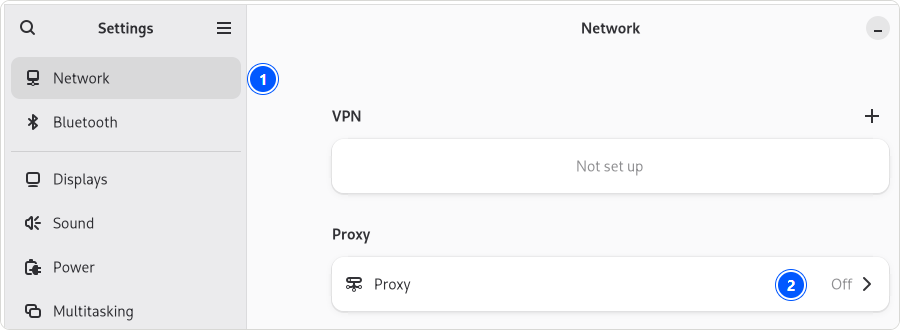
- Open Settings and choose Network (1).
- Click the Proxy row (2).
- Turn on Network Proxy (3).
- Set Configuration to Manual (4).
- Under HTTP Proxy, put the proxy's address into URL and its port into Port (5), then the same under HTTPS Proxy (6). For a SOCKS proxy, fill in SOCKS Host instead.
- Press Save (7) at the top. Nothing changes until you do; afterwards the Network page shows the row as Manual.
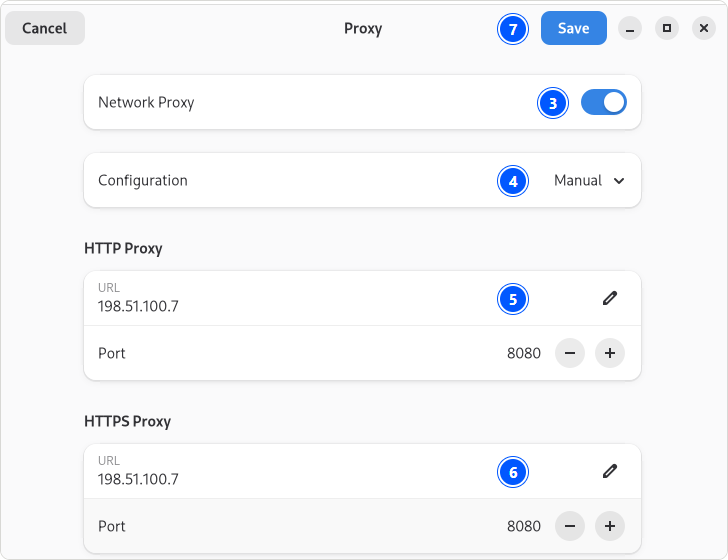
Three things the screen does not tell you. The page has no field for a user name or password; the page ends with Ignored Hosts, which holds localhost, 127.0.0.0/8, ::1 from the start. GNOME's own help text still describes an older layout, with Network proxy in a list on the left, so trust the steps above on Debian 13. And the setting is for desktop apps only: curl, wget and apt never read it.
Firefox
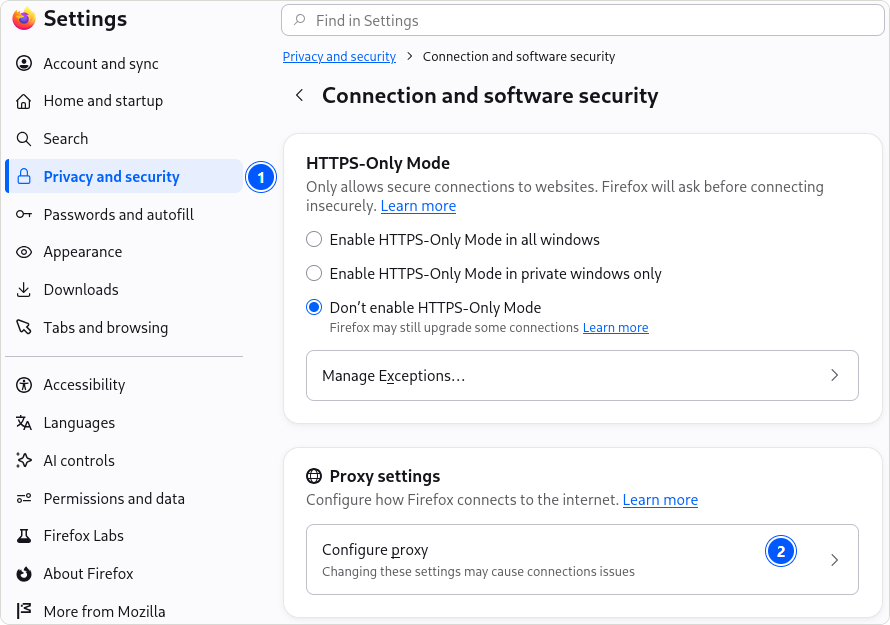
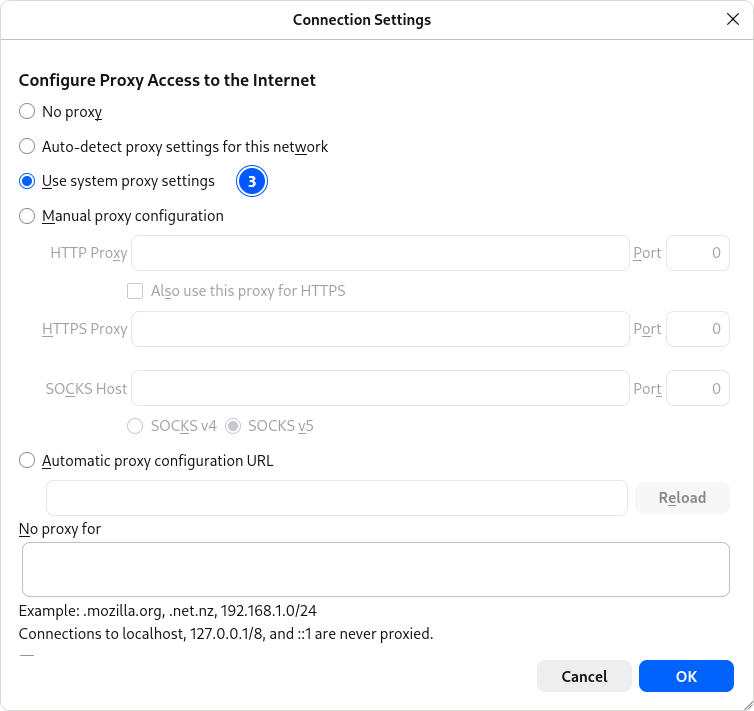
Firefox, which Debian's desktop installs, follows this setting out of the box. A new Firefox ESR 153 profile on our machine opened its Connection Settings on Use system proxy settings, and with GNOME pointed at our test proxy, Firefox's page loads went through it. To check yours, open Firefox's settings, choose Privacy and security (1), and in Connection and software security press Configure proxy (2):
If your proxy needs a login, Firefox asks for it the first time it connects, because GNOME's page has no field for one. On our machine, with GNOME pointed at our test proxy that wants a password, this appeared at once, and after signing in the pages loaded through the proxy:
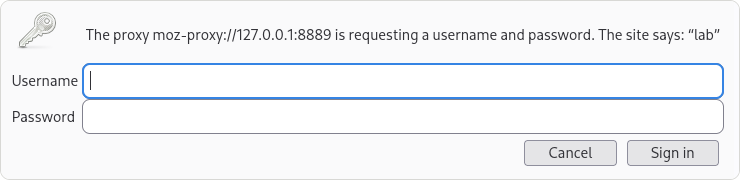
Chromium and Chrome read GNOME's setting the same way when they run in GNOME. On KDE Plasma the desktop keeps a proxy setting of its own, which Chromium reads too; this page does not cover KDE's screens.
Step 2: set the proxy for this terminal
export http_proxy="http://user:pass@host:port" https_proxy="http://user:pass@host:port" no_proxy="localhost,127.0.0.1,::1"
Both names start with http://, the one for HTTPS too, because they name the proxy, and the proxy itself speaks plain HTTP. Write the port every time; without one, curl assumes 1080.
Write the names in lower case. The curl manual says http_proxy is read only in lower case, and on our Debian machine the upper-case name did nothing at all:
The setting lives until you close the terminal. The Linux page has the details per tool for curl, wget, git and pip.
Step 3: make it permanent
For yourself, add the same line to the end of ~/.bashrc. Every new terminal reads it, and on Debian 13 your home folder is private (mode 700), so a password in that file stays yours.
For every user, put the names into /etc/environment, one plain NAME=value line each:
http_proxy=http://user:pass@host:port
https_proxy=http://user:pass@host:port
no_proxy=localhost,127.0.0.1,::1
The PAM module pam_env reads this file when you log in; on Debian the GNOME login, the text console and SSH all run it. Terminals that are already open do not see the change, so log out and back in. sudo does not read it at all:
/etc/environment can be read by every user on the machine. On a shared computer, keep a password out of it and use ~/.bashrc or the apt file below.
Step 4: give apt its own setting
apt reads its own option and ignores the desktop panel, and under sudo it also ignores your shell's names. Its option works the same with sudo or in a root shell. One line in a file of its own is enough:
echo 'Acquire::http::Proxy "http://user:pass@host:port/";' | sudo tee /etc/apt/apt.conf.d/99proxy
sudo chmod 600 /etc/apt/apt.conf.d/99proxy
On our Debian 13.5 machine, whose package sources start with https://, this single line carried every source through the proxy:
The chmod 600 matters if the line holds a password. The file is created readable by every user, and on our machine a normal account could print the password with cat. After chmod 600 apt still worked through our login proxy, and the same account got Permission denied:
The manual for apt's HTTP method gives the form scheme://[[user][:pass]@]host[:port]/ and three schemes: http, https and socks5h. To send one host past the proxy, for example a mirror on your own network, give it the value DIRECT:
echo 'Acquire::http::Proxy::mirror.example.com "DIRECT";' | sudo tee -a /etc/apt/apt.conf.d/99proxy
apt also honors no_proxy from the environment. Then ask apt what it will actually use:
apt-config dump | grep -i proxy
apt-config dump prints apt's whole configuration, so this line shows the proxy apt has, whichever file it came from. If it prints an address you did not just write, read the next box.
Did you type a proxy into the Debian installer?
The installer asks for one while it sets up the package mirror: HTTP proxy information (blank for none). Whatever you typed there was written into /etc/apt/apt.conf as Acquire::http::Proxy, and it is still there. apt reads that file after everything in /etc/apt/apt.conf.d/, and a later value replaces an earlier one, so the installer's line beats your new file. sudo grep -rni proxy /etc/apt/ shows every line that mentions a proxy; change or delete the old one.
We rebuilt that situation on our test machine, with the installer's line pointing at a proxy that no longer runs:
Step 5: carry the proxy into sudo
sudo runs every command in a minimal environment. Its manual lists what survives: TERM, PATH, HOME, MAIL, SHELL, LOGNAME, USER and the SUDO_* names. Your http_proxy is not on that list.
- Your shellhttp_proxy is set
- sudokeeps only its short list
- aptfinds no proxy, goes straight out
Debian's default, without the apt file from step 4
- Your shellhttp_proxy is set
- sudoenv_keep passes it on
- aptuses the proxy
With the line in /etc/sudoers.d/proxy
On our test machine it looked like this. The names were set in the shell, gone under sudo, and our test proxy received nothing from sudo apt-get update:
For a single command, sudo -E keeps your environment; Debian's default rule for the sudo group allows it. For good, Debian has already written the line for you. Its own /etc/sudoers carries it, switched off:
# This preserves proxy settings from user environments of root
# equivalent users (group sudo)
#Defaults:%sudo env_keep += "http_proxy https_proxy ftp_proxy all_proxy no_proxy"
The top of the same file asks for local changes in /etc/sudoers.d/ and says to edit with visudo, which checks the file for mistakes before it saves anything. Open a new file there:
sudo visudo -f /etc/sudoers.d/proxy
Then type the line without the #, save and close:
Defaults:%sudo env_keep += "http_proxy https_proxy ftp_proxy all_proxy no_proxy"
From then on, members of the sudo group keep their proxy names under sudo. The line passes on what is already set; it sets nothing itself, so steps 2 and 3 still decide which proxy that is. If a typo does slip into that file, sudo 1.9.16 on our machine printed the same error as visudo and carried on without the broken line, so the names were dropped again; open it with visudo and fix it.
A proxy with a user name and password
Put both into the address: http://user:pass@host:port. Characters that have a meaning in an address must be written encoded, an @ as %40 and a colon as %3a. On our test machine, with a password containing an @:
apt happened to accept the plain @ in our test, but write %40 anyway: the same line ends up in curl, wget and your shell, and curl refuses it. In Firefox's login box you type the password as it is.
A SOCKS5 proxy
apt and curl both take socks5h://, a SOCKS5 proxy that also resolves the host names, so your DNS lookups go through the proxy too:
printf 'Acquire::http::Proxy "socks5h://user:pass@host:port/";\nAcquire::https::Proxy "socks5h://user:pass@host:port/";\n' | sudo tee /etc/apt/apt.conf.d/99proxy
curl -x socks5h://user:pass@host:port https://www.debian.org/
A proxy for one command only
Put the name in front of the command, and it applies to that command alone:
https_proxy=http://user:pass@host:port curl https://www.debian.org/
sudo apt -o Acquire::https::Proxy=http://user:pass@host:port/ update
The -o form also works the other way round. With a proxy configured, -o Acquire::https::Proxy=DIRECT skips it for that one run, which helps when the proxy is down and you need one package now:
Other programs on Debian
wget reads http_proxy and https_proxy too, or a file of its own; git has its own option; and proxychains4 sends a program through the proxy that has no proxy setting at all. All three went through our test proxy:
printf 'use_proxy = on\nhttps_proxy = http://user:pass@host:port/\n' >> ~/.wgetrc
git config --global http.proxy http://user:pass@host:port
sudo apt install proxychains4
For proxychains4, write the proxy into ~/.proxychains/proxychains.conf (or /etc/proxychains4.conf for everyone) under [ProxyList], as http host port, and start a program with proxychains4 -q in front of it.
Docker needs two settings, and neither comes from your shell. docker pull is done by the Docker daemon, which takes its proxy from a systemd drop-in, /etc/systemd/system/docker.service.d/http-proxy.conf, holding Environment lines for HTTP_PROXY and HTTPS_PROXY; restart Docker after writing it. Builds and containers take theirs from ~/.docker/config.json instead. Both come from Docker's own documentation; we did not run Docker for this page.
GNOME's setting from the terminal
What the GNOME page saves can be read and switched from a terminal, which helps on a remote desktop or in a script:
Check that it worked
curl -sv -o /dev/null https://www.debian.org/ 2>&1 | grep -E 'Uses proxy|Connected to'
curl -s https://www.cloudflare.com/cdn-cgi/trace | grep ^ip=
curl -s https://hproxy.com/api/ip/THE_ADDRESS_YOU_JUST_SAW
apt-config dump | grep -i proxy
sudo env | grep -i _proxy
The first line is the quickest proof. When curl really uses a proxy, it says so, and it names where it connected:
The second line prints the address a site sees; if it is the proxy's address, your traffic goes through the proxy. The third takes that address and returns its country, city, network and AS number. The last two show what apt will use and what survives sudo. Then paste the entry into our free proxy checker, which reports status, protocol, anonymity, country and latency for every line. Free entries stop answering without notice; when a download has to finish, use a paid proxy instead.
When it does not work: the messages Debian prints
Every message below is copied from our test machine, so you can search this page for the exact words on your screen.
Error messages on Debian 13, what they mean, and the fix
| What you see | What it means | Fix |
|---|---|---|
Could not connect to 127.0.0.1:3128 (127.0.0.1). - connect (111: Connection refused) | apt uses a proxy that is not running at that address. Often the installer's old line. | sudo grep -rni proxy /etc/apt/, then fix or delete the line. |
Invalid response from proxy: HTTP/1.1 407 Proxy Authentication Required | apt reached the proxy, but the login was missing or wrong. | Check the user name and password; encode @ as %40. |
curl: (56) CONNECT tunnel failed, response 407 | The same login problem, in curl. | Same fix. |
Could not wait for server fd - select (11: Resource temporarily unavailable) | The proxy address starts with https:// but the proxy speaks plain HTTP. On our machine apt waited six minutes first. | Write http:// in front of the proxy. |
curl: (5) Unsupported proxy syntax in '...': Bad hostname | An unencoded @ or : in the password split the address. | Write %40 and %3a. |
curl: (7) Failed to connect to ... port ...: Could not connect to server | Nothing answers at that address and port. | Check host and port; the proxy may be down. |
N: Ignoring file 'proxy.txt' in directory '/etc/apt/apt.conf.d/' as it has an invalid filename extension | apt skipped your file because of its name. Only apt-config says so; apt update stays silent. | Name it 99proxy or proxy.conf. |
E: Syntax error /etc/apt/apt.conf.d/proxy.conf:2: Extra junk at end of file | A line lacks its closing ;. | End every line with ";. |
/etc/sudoers.d/proxy:1:51: unexpected line break in string | A quote is missing in the sudoers line. | sudo visudo -f /etc/sudoers.d/proxy and fix it. |
Our Debian 13.5 test machine, October 3, 2026
Mistakes other guides make, tested
These come up in guides that rank for Debian proxy searches. We tried each one on our test machine:
https://in front of an ordinary proxy. apt waited six minutes and failed; curl was still waiting after a minute. Withhttp://the same proxy answered at once.- A password with
@or#written as it is. curl refuses the address, as shown above. - Only the upper-case
HTTP_PROXY. curl ignores it forhttp://addresses. ~/.docker/config.jsonfordocker pull. That file covers builds and containers; pulls take the daemon's setting.- Network proxy in a list on the left of GNOME Settings. That layout is gone in GNOME 48; the proxy is a row on the Network page.
The first one is the costliest, because nothing tells you what is wrong until the time runs out:
Turning it off again
Each place is separate, and a forgotten one keeps sending traffic to a proxy that no longer exists:
- In open terminals, run
unset http_proxy https_proxy no_proxy, and remove your line from~/.bashrc. - Remove the lines from
/etc/environment, then log out and back in. - Run
sudo rm /etc/apt/apt.conf.d/99proxy, and delete anyAcquire::http::Proxyline the installer left in/etc/apt/apt.conf. - Run
sudo rm /etc/sudoers.d/proxy. - Switch Network Proxy off in GNOME Settings, or run
gsettings set org.gnome.system.proxy mode 'none'.
How we tested
Debian 13.5 from the official Debian image, run on our own workstation in WSL 2 with systemd, apt 3.0.3 and sudo 1.9.16p2. Three test proxies ran next to it, each logging every request: tinyproxy as an open HTTP proxy, squid with a user name and a password containing an @, and microsocks as a SOCKS5 proxy. GNOME Settings 48.4 and Firefox ESR 153.4 ran on a virtual screen, with Debian's default font; the screenshots are that screen, cut to size, with numbers added. Each step started from a clean state, and the proxies' logs, not apt's own output, decided where the traffic went.
Limits: WSL brings Microsoft's kernel, not a bare-metal Debian install, and the desktop programs ran without a full GNOME session. Debian 12 was not run; its sudo and login files were read and match Debian 13's. Docker and KDE were not tested.
Sources
All read on October 2 and 3, 2026.
- Our test run on Debian 13.5, October 3, 2026: 21 experiments, the transcripts behind every terminal picture, and the GNOME and Firefox screens.
- apt-transport-http(1), apt-transport-https(1), apt.conf(5) and apt-config(8), Debian 13: the proxy form, socks5h, DIRECT, no_proxy and the order apt reads its files (manpages.debian.org).
- apt-transport-http(1), Debian 12: the same proxy options, no_proxy included (manpages.debian.org).
- sudoers(5) and visudo(8), Debian 13: env_reset, sudo -E for rules that match ALL, and the syntax check (manpages.debian.org).
- pam_env(8), Debian 13: /etc/environment (manpages.debian.org).
- Debian's own files for Debian 13:
/etc/sudoersand/etc/pam.d/sudoof sudo 1.9.16p2, the PAM files of gdm3 48, util-linux and openssh, the installer's choose-mirror 2.133 and apt-setup 0.198, and tasksel 3.81; for Debian 12,/etc/sudoers,/etc/pam.d/sudoand the login files (sources.debian.org). - Debian 13 installation guide, section 6.3: the default desktop and sudo; Debian 13 release announcement of August 9, 2025, (debian.org).
- Define proxy settings, GNOME Help (help.gnome.org), which still shows the older layout.
- Linux Proxy Config, Chromium Docs (chromium.googlesource.com).
- Connection settings in Firefox, Mozilla Support; the default proxy type of Firefox ESR (searchfox.org).
- Daemon proxy configuration, and Use a proxy server with the Docker CLI, Docker Docs (docs.docker.com).
- The curl man page: http_proxy in lower case, and the --proxy option; wget(1), Debian 13.
- Our own measurements on our Ubuntu 24.04.4 server, September 16, 2026: sudo and sudo -E, and the upper- and lower-case names with curl.