If you juggle more than one proxy, a browser proxy switcher saves you from editing the same system dialog every time you change context. SwitchyOmega is the switcher many people reach for: one toolbar icon, a list of named profiles, and rules that decide which sites go through which proxy.
The SwitchyOmega you may remember is gone. The original was built on the old Manifest V2 of Chrome, and Chrome no longer runs such extensions. The tool to install now is its maintained fork, ZeroOmega. We read the ZeroOmega code and interface text at version 3.5.2, so every label below is the one the extension shows, and we counted what its users report. This is the SwitchyOmega companion to our general Chrome proxy setup guide, so start there if you are still choosing between an extension and the other methods.
How do you set up SwitchyOmega?
Install ZeroOmega, listed as Proxy SwitchyOmega 3 (ZeroOmega), from the Chrome Web Store, Edge Add-ons or Firefox Add-ons. Open its options, click "New profile…", choose Proxy Profile, and enter the protocol, server, port and any login. Click "Apply changes", then pick the profile from the toolbar icon.
1. Install ZeroOmega, not the old SwitchyOmega
The original Proxy SwitchyOmega had its last release, v2.5.20, in August 2018. Its author declared it no longer maintained on 12 January 2025, after Chrome had disabled it and the store had removed it. Google published each step of the Manifest V2 phase-out:
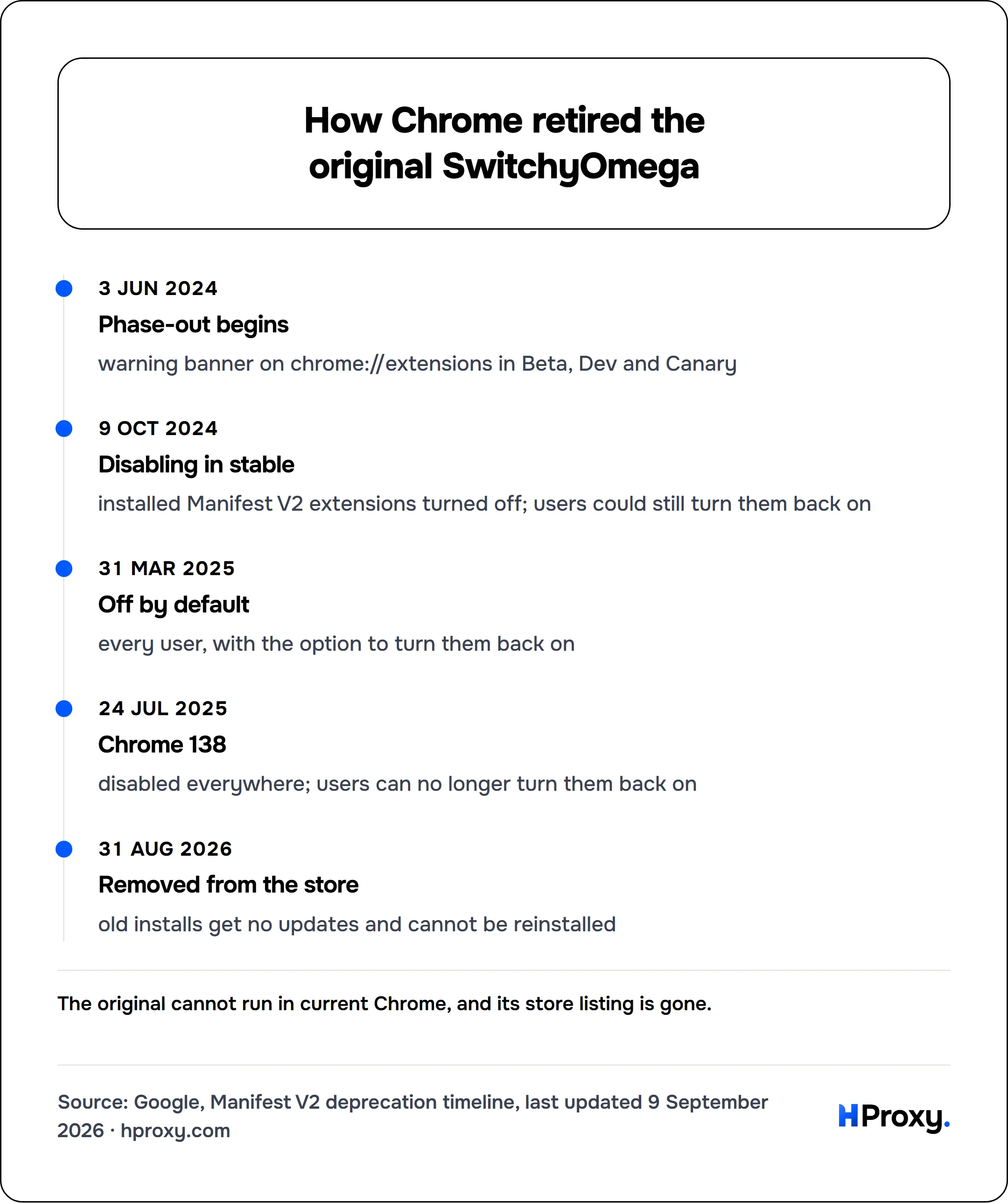
3 Jun 2024
Phase-out begins
warning banner on chrome://extensions in Beta, Dev and Canary
9 Oct 2024
Disabling in stable
installed Manifest V2 extensions turned off; users could still turn them back on
31 Mar 2025
Off by default
every user, with the option to turn them back on
24 Jul 2025
Chrome 138
disabled everywhere; users can no longer turn them back on
31 Aug 2026
Removed from the store
old installs get no updates and cannot be reinstalled
The old store listing now opens an empty page. Its author wrote in January 2025 that the Firefox version still worked "to a certain degree", because Firefox had not switched off Manifest V2. For Chrome and Edge, and for the future, install the fork:
| Store | Listing name | Users on 26 Sep 2026 |
|---|---|---|
| Chrome Web Store | Proxy SwitchyOmega 3 (ZeroOmega) | 900,000 |
| Edge Add-ons | Proxy SwitchyOmega 3 (ZeroOmega) | 242,636 |
| Firefox Add-ons | ZeroOmega | 20,639 daily |
All three carried version 3.5.2, and they are the three listings the ZeroOmega project links from its README. It is open source under the GPL-3.0. It works in most Chromium browsers and in Firefox 112 and later, including Firefox for Android 120 and later. There is no Safari version.
Check the listing before you click Add. In December 2024 a different fork called "Proxy SwitchyOmega (V3)" was among the extensions hijacked in a wide Chrome extension campaign. That campaign hit at least 35 extensions with over 2.6 million users. The "V3" fork was a third-party project, not ZeroOmega, and it has been removed from the store. A proxy switcher like this sees the address of every request it handles, because routing traffic is its job. So install only the listings above, and skip copies with few users or no link to the project.
2. Create a proxy profile
Open the options page. In the left sidebar, click New profile…, name it (for example Residential US), and pick a type. ZeroOmega asks you to "select the type of the profile" from five:
- Proxy Profile: one proxy for everything. This is the one to start with.
- Switch Profile: rules that send different sites to different profiles.
- PAC Profile: a PAC script, by address or pasted in.
- Rule List Profile: a published rule list, downloaded from a web address.
- Virtual Profile: a stand-in that can act as any other profile on demand.
A proxy profile shows a small table with Scheme, Protocol, Server and Port. Pick HTTP, HTTPS, SOCKS4 or SOCKS5 under Protocol, enter the host your provider gave you (for example 203.0.113.10), and check the port. When the port is empty, ZeroOmega fills in 80 for HTTP, 443 for HTTPS and 1080 for SOCKS, so replace it with the port your provider gave you.
For a login, click the lock button at the end of the row and enter the username and password. The button turns green once a login is stored. Leave it empty for proxies that authenticate by your IP address. Below the table, the Bypass List takes servers that should never use the proxy, one per line.
Then click Apply changes in the left sidebar. ZeroOmega does not save edits as you type, and a profile that looks right does nothing until you apply it.
No proxy to test with yet? Take one from our free proxy list and enter its address, port and type.
Logins: which proxy types work in which browser
The login rules come from the browser, not from ZeroOmega, and they differ:
| Protocol | Chrome and Edge | Firefox |
|---|---|---|
| HTTP | Login works | Login works |
| HTTPS | Login works | Login works |
| SOCKS5 | No login possible | Login works |
| SOCKS4 | No login possible | No login possible |
The Chromium documentation is plain: "No authentication methods are supported for SOCKSv5 in Chrome". In Chrome, ZeroOmega shows its own warning that the browser does not support SOCKS5 proxy authentication, and asks users not to report it as a ZeroOmega bug. Its code allows a SOCKS5 login only where the browser offers a proxy API that only Firefox has, and no SOCKS4 login anywhere. So in Chrome, use the HTTP version of the same proxy with its login, or a proxy that authenticates by your IP address.
SOCKS5 has one advantage: in Chrome, names are always looked up at the proxy, never by your own resolver. Firefox makes it a choice, which ZeroOmega shows as "Proxy DNS requests via SOCKS proxy." ZeroOmega advises turning it off if you use DNS-over-HTTPS in Firefox. More on the protocol is in our SOCKS5 explainer.
3. Switch it on from the toolbar
Click the ZeroOmega icon. The popup lists two built-in choices and every profile you made:
- [Direct]: no proxy, a normal connection. This is your off switch.
- [System Proxy]: hands control back to the proxy settings of your system.
- Your profiles: click one and the whole browser uses it.
The icon takes the colour of the active profile, so you can see at a glance which one carries your traffic. With a switch profile on, it also shows the colour of the profile the current page uses, so give each profile its own colour.
4. Route only some sites with a switch profile
Routing the whole browser through a proxy is fine for a quick task. For one or two sites, create a Switch Profile instead, which ZeroOmega says "replaces AutoSwitch mode + Rule List" of older versions. It holds switch rules: each rule pairs a condition with a profile, and the first matching rule wins, top to bottom. ZeroOmega offers ten condition types:
| Condition | What it matches |
|---|---|
| Host wildcard | Host names by pattern. *.example.com also matches example.com; **.example.com matches only subdomains. |
| Host regex | Host names by regular expression. |
| Host levels | Host names by how many dot-separated parts they have; www.example.com has 3. |
| IP Literals | Addresses written as IPs within a CIDR range. Names like localhost never match. |
| URL wildcard | The full URL by pattern, so a single path can have its own proxy. |
| URL regex | The full URL by regular expression. |
| Keyword | Plain HTTP URLs that contain a word. |
| Current Time | Requests sent between two hours of the day, in local time. |
| Day of the Week | Requests sent on chosen days. |
| (Disabled) | Nothing, so a rule can stay in the list while switched off. |
At the bottom sits the Default rule for everything that matched nothing. Point it at [Direct], add one Host wildcard rule that sends *.example.com to your proxy profile, click Apply changes, and select the switch profile, not the proxy profile, from the toolbar.
A switch profile can also take published rule lists, through "Import online rule lists", so a maintained list of domains drives the routing. Most people never need it.
5. Run several proxies
Once switch rules work, make one proxy profile per proxy, each with its own name and colour. Rules can then send a US shop through a US proxy, an EU site through an EU proxy, and everything else direct. A Virtual Profile makes swapping easy: point your rules at the virtual profile, and when you change proxies, you change its target once instead of every rule.
6. Move settings from the old SwitchyOmega
If you saved a backup file from the original, open the Import/Export tab in ZeroOmega and use Restore from file. ZeroOmega reads the same options format as the original, which writes schema version 2, and it upgrades the older version 1. The same tab can Export as PAC File for tools that read PAC scripts. Settings sync is marked "Syncing (Experimental)" and keeps settings in a GitHub Gist you set up.
7. Test that it works
Never trust a proxy because the icon changed colour. With the profile on, open our proxy IP checker and check that the address and location belong to the proxy, not your own connection. If it still shows your own address, check the protocol, the server and port, that you clicked Apply changes, and that the right profile is selected. If a proxy does not answer at all, our proxy checker tells you in a few seconds whether it is dead.
What ZeroOmega users report
We read all 345 issues on the ZeroOmega tracker on 26 September 2026, 131 of them from the last twelve months, and sorted them by what they mention. Switch rules, PAC scripts and rule lists come first, with 79. Firefox comes next with 60, then syncing with 31, a proxy login with 25, backups with 25, Edge with 22 and SOCKS with 21.
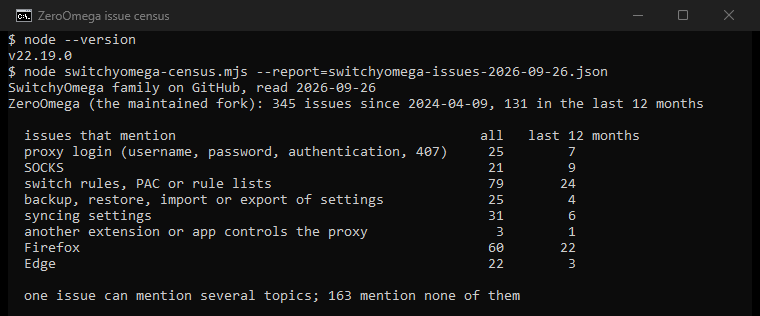
Most of these match the traps below, so check them before you file a report:
- Forgetting Apply changes: edits stay inert until you click it.
- A SOCKS5 login in Chrome: the browser cannot do it, as the table above shows.
- Another extension controls the proxy: the popup then says "The proxy settings are controlled by other app(s) or extension(s)". Turn the other one off. Two versions of ZeroOmega cannot run at the same time either.
- The switch profile is not selected: rules only work while the switch profile is the active one.
SwitchyOmega vs FoxyProxy
Both are free, open source proxy switchers that route chosen sites through chosen proxies with rules. ZeroOmega offers the ten rule types above, including time and weekday rules. Our FoxyProxy setup guide mirrors this one step for step. If you already run one happily, there is no reason to switch.
Grab a proxy and try it
The fastest way to learn this is with a real proxy in front of you. Our free proxy list has checked HTTP and SOCKS5 entries, refreshed every few minutes. Put one in a proxy profile, build one wildcard rule, switch it on, and check the result with the proxy IP checker. For which proxy type to buy and how the balance is charged, the FAQ answers both.
How we checked
We read the ZeroOmega source at release v3.5.2 (9 September 2026): its English interface text, the proxy profile editor, the login handling and the restore code. We did not run the extension, because we do not run third-party code on our machines, so behaviour claims come from the code and the text it shows. Store numbers are from the three listings on 26 September 2026. The issue topics are word matches in English and Chinese, not diagnoses.
Sources
- Google, Manifest V2 deprecation timeline, last updated 9 September 2026.
- The original author, notice of 12 January 2025 on the SwitchyOmega project.
- ZeroOmega on GitHub: README, releases, and the code and English text at v3.5.2.
- Chromium, proxy support in Chrome: SOCKS logins and name resolution.
- SwitchyOmega issue 2557, January 2025, on the "V3" fork.
- SecurityWeek, Cyberhaven Chrome extension hack linked to widening supply chain campaign, 31 December 2024, updated 23 January 2025.
- The Hacker News, dozens of Chrome extensions hacked, December 2024.